You can learn how to stop smart tv buffering by switching from Wi-Fi to a wired Ethernet connection or moving your router closer to the television. Other effective solutions include restarting your network hardware, updating your TV firmware, and closing background applications to free up bandwidth.
Few things are as frustrating as settling down for an evening of streaming in your Bristol home, only to be met by a frozen screen and a relentless loading icon. This persistent buffering is more than a minor annoyance; it represents a breakdown in the communication between your smart TV and your home network that compromises your hard earned downtime. Whether you are struggling with BBC iPlayer or facing constant lags on ITVX, understanding the root cause is the first step toward a permanent fix. This guide provides practical, expert solutions to optimize your connection and hardware. We will explore why performance typically dips at night, how to configure your router for stability, and the specific hardware checks necessary to ensure your entertainment remains seamless and entirely uninterrupted.
What Does Buffering Actually Mean and Why Is It Happening?
Buffering is essentially a waiting game. When you stream a movie, your Smart TV tries to stay one step ahead by pre-loading a small portion of the video into a temporary storage zone called a buffer. This acts as a safety net. If your connection flickers for a second, the TV plays the stored data so you do not notice the interruption.
Think of it like a bucket with a tap at the bottom. The water pouring into the top is your internet data, and the tap at the bottom is you watching the show. As long as the water flows into the bucket faster than it flows out of the tap, the bucket stays full and the video plays smoothly. If the inflow slows down, the bucket eventually runs dry. The video stops, the loading circle appears, and the TV waits for the bucket to fill back up.
Identifying how to stop smart tv buffering requires understanding which part of your system is causing the inflow to slow down. It usually falls into three categories:
The Internet Speed: Your provider might not be delivering enough data for high-quality 4K streams.
The Network: Your router might be struggling to send that data through the thick brick walls common in Bristol homes like those in Totterdown or Bedminster.
The Hardware: The TV itself might have a slow processor that cannot fill the bucket fast enough.
Many clients ask why their TV buffers when their phone shows a fast speed test. While your house might receive 100Mbps at the front door, the specific connection to your TV could be throttled by interference or distance. If you are struggling to diagnose the bottleneck, SWIT provides professional network configuration services to ensure every device in your home gets the speed it needs. For those setting up new systems, an expert home computer setup can prevent these issues before they start.
Quick Fixes for BBC iPlayer and ITVX Buffering Issues
While universal platforms like Netflix are highly optimized for varying speeds, UK-specific services like BBC iPlayer and ITVX often present unique challenges. These apps handle data differently, particularly when you are watching live broadcasts. Unlike pre-recorded content that can be buffered minutes in advance, a live stream requires a constant, unwavering stream of data. If your connection drops for even a millisecond, the buffer empties immediately because there is no future data to pre-load. BBC iPlayer specifically requires a consistent 5 Mbps for HD and roughly 20 Mbps for Ultra HD 4K to maintain a stable picture.
If you are seeing the loading wheel specifically on these apps, the issue is frequently a software glitch rather than your actual internet speed. A bloated app cache is a common culprit, especially on Samsung and LG TVs. Over time, these apps store temporary files that can become corrupted or take up too much of the TV's limited internal memory, slowing down the processing of new data.
To resolve these software-specific hangups, follow these steps:
Force-close the app: Simply pressing the 'Home' button usually leaves the app running in the background. On most remotes, you must hold the 'Back' or 'Exit' button while the app is open, or use the TV's multi-tasking menu to shut it down completely.
Clear the app cache: On Samsung TVs, navigate to Settings, then Support, then Device Care. Select Manage Storage, find the specific app, and choose 'View Details' to find the clear cache option. For LG TVs, this is often found within the Application Manager in the settings menu.
Check for updates: Open your TV's App Store (such as the LG Content Store or Samsung App Store) and ensure iPlayer or ITVX does not have a pending update. Developers frequently release patches specifically to address playback stability.
Updating your TV's general firmware is also a vital step, as app developers often design their software to work with the latest operating system versions. If you have tried these steps and still find yourself wondering how to stop smart tv buffering during a live match or a high-stakes drama, the issue might be deeper in your network settings. For residents in areas like Emersons Green or Mangotsfield, you can contact SWIT for technical support to perform a full diagnostic of your home streaming setup.
Optimising Your Home Network for Smooth Streaming
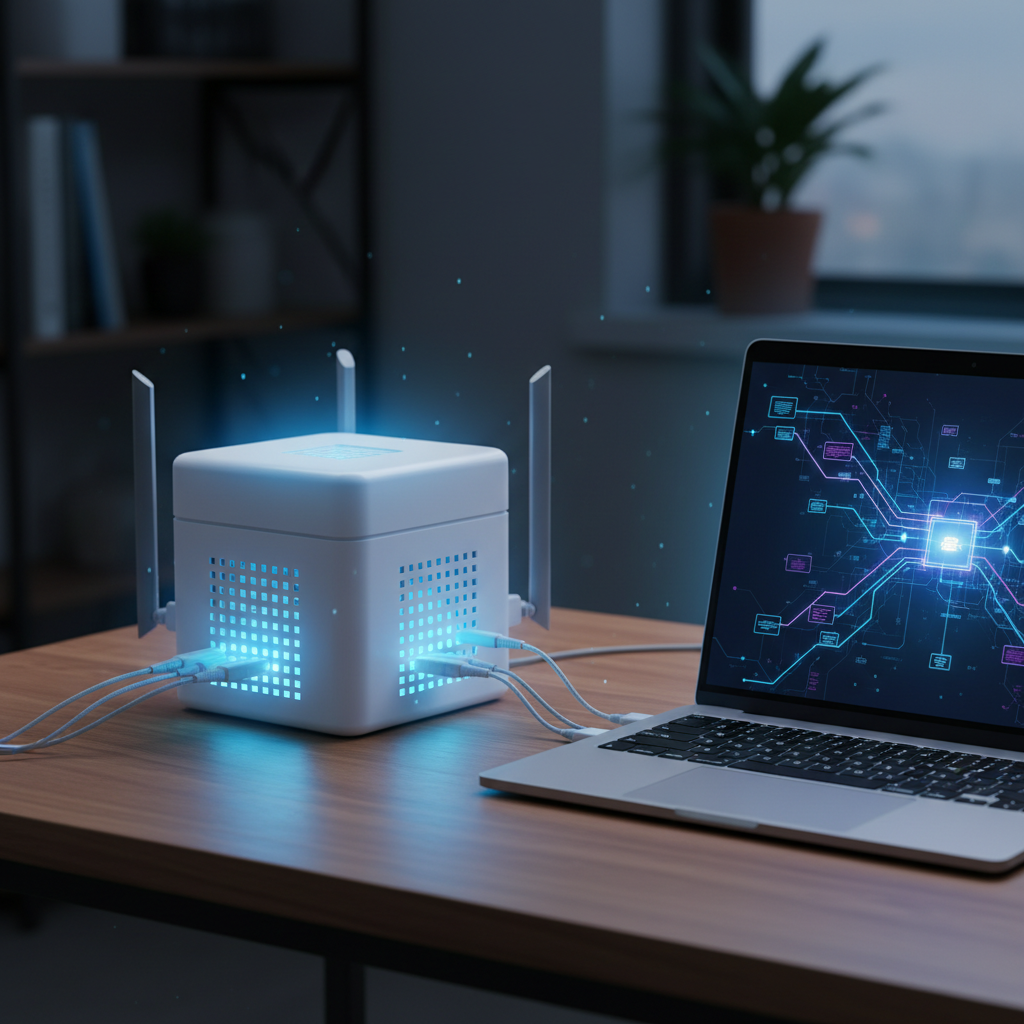
If software updates and cache clearing do not solve the problem, the next step in learning how to stop smart tv buffering is to evaluate your physical connection. While Wi-Fi is convenient, it is susceptible to interference that can ruin a high-definition stream. The gold standard for any Smart TV is a wired Ethernet connection. Connecting your TV directly to the router with a Cat6 cable eliminates the "noise" from other wireless devices and provides the most stable data flow for 4K content.
When a cable is not an option, you must choose the correct Wi-Fi frequency. Most modern routers offer two bands: 2.4GHz and 5GHz. The 5GHz band is significantly faster and better suited for streaming, but it has a much shorter range. In many Bristol homes, particularly the Victorian terraces in Bedminster or Totterdown, the original thick brickwork acts as a massive barrier. While the 2.4GHz band penetrates these walls more effectively, it is often too slow and crowded for high-resolution video.
Router placement is equally critical. To improve your signal, ensure the router is positioned at least one metre off the floor and away from large metal objects like radiators or mirrors, which reflect and scatter the signal. Do not rely solely on the signal icon on your TV screen. A display showing "3 bars" indicates a connection exists, but it does not account for the packet loss caused by interference from a neighbour's router or household electronics. 4K streaming requires a high signal-to-noise ratio, not just a basic connection. If your wireless environment is complex, SWIT can provide professional network configuration services to map out dead zones and ensure your streaming remains uninterrupted.
Why Does My Smart TV Buffer More at Night?
It is common to notice performance drops between 6 PM and 10 PM. This evening slowdown occurs because home broadband is often a shared resource. In residential areas like Southville or Emersons Green, your local street cabinet serves many households simultaneously. When your neighbors return home and begin streaming 4K video or downloading large files, the total bandwidth available at the exchange reaches its limit. This external congestion is a primary reason why your connection feels sluggish compared to midday.
Wireless interference, known as cross-talk, also peaks in the evening. In densely populated parts of Bristol like the City Centre or Bedminster, your Smart TV is likely surrounded by dozens of competing Wi-Fi signals from neighboring flats and houses. When all these routers are active at once, they interfere with each other; this causes data packets to be lost or delayed, forcing the TV to pause and reload.
One practical way to address this and learn how to stop smart tv buffering during peak hours is to log into your router settings and change the Wi-Fi channel. Most routers default to an Auto setting, but manually selecting a less crowded channel can bypass the local digital traffic jam. If navigating router admin panels feels daunting, SWIT offers professional network configuration services to optimize your settings for the specific wireless environment of your Bristol home.
When Your Smart TV Hardware Is the Bottleneck
Even if you have a perfect fibre connection in Bristol, the hardware inside your television can be the ultimate limiting factor. Most Smart TVs are built with just enough processing power to handle the apps available at the time of manufacture. As services like BBC iPlayer or Netflix update their software to include high-resolution menus and complex background processes, older TV processors, typically those over three years old, struggle to keep up. This results in sluggish menus and playback that stutters, even when your internet speed is excellent.
A cost-effective way to bypass these internal limitations without replacing the entire screen is to use a dedicated streaming stick, such as a Roku, Amazon Fire TV Stick, or Google Chromecast. These devices act as "external brains" for your TV. They feature modern processors and, crucially, often contain superior Wi-Fi antennas compared to the ones tucked away behind a large metal TV panel.
Device Type | Key Benefit | Ideal Use Case |
|---|---|---|
Amazon Fire Stick | Fast interface and voice control | Prime Video and Alexa users |
Roku Streaming Stick | Neutral platform with simple UI | Ease of use for all UK apps |
Google Chromecast | Seamless casting from mobile | Android users and Google Home |
If you are unsure which device is compatible with your current setup, SWIT provides expert home computer setup to help you integrate new hardware seamlessly. Opting for an external player is often the most direct way to address how to stop smart tv buffering when your existing TV hardware can no longer handle the demands of modern streaming.
Check Your Cables: HDMI and Power Considerations
A common misconception involves the role of the HDMI cable. Many users search for how to stop smart tv buffering by looking at their HDMI connections, but these cables do not actually handle internet data. Instead, they transmit the processed video and audio signal from an external device, such as a Sky box or a streaming stick, to your television. If a cable is damaged or of poor quality, it may cause the screen to flicker, drop to black, or experience audio sync issues. While these symptoms mimic the stuttering of a buffer, they are actually hardware signal failures.
Ensure all HDMI cables are seated firmly in their ports. Dust or a loose connection can interrupt the digital handshake between devices, causing momentary freezes. If you are using a 4K streaming device, verify that your cable is rated for High Speed or Ultra High Speed to handle the necessary bandwidth. Additionally, keeping your television firmware updated is essential. Manufacturers frequently release patches that improve how the HDMI ports and internal processors communicate. If your screen continues to glitch despite checking these physical connections, you can contact SWIT for technical support to rule out deeper hardware faults. For new equipment, an expert home computer setup ensures that every cable and setting is optimised from day one.