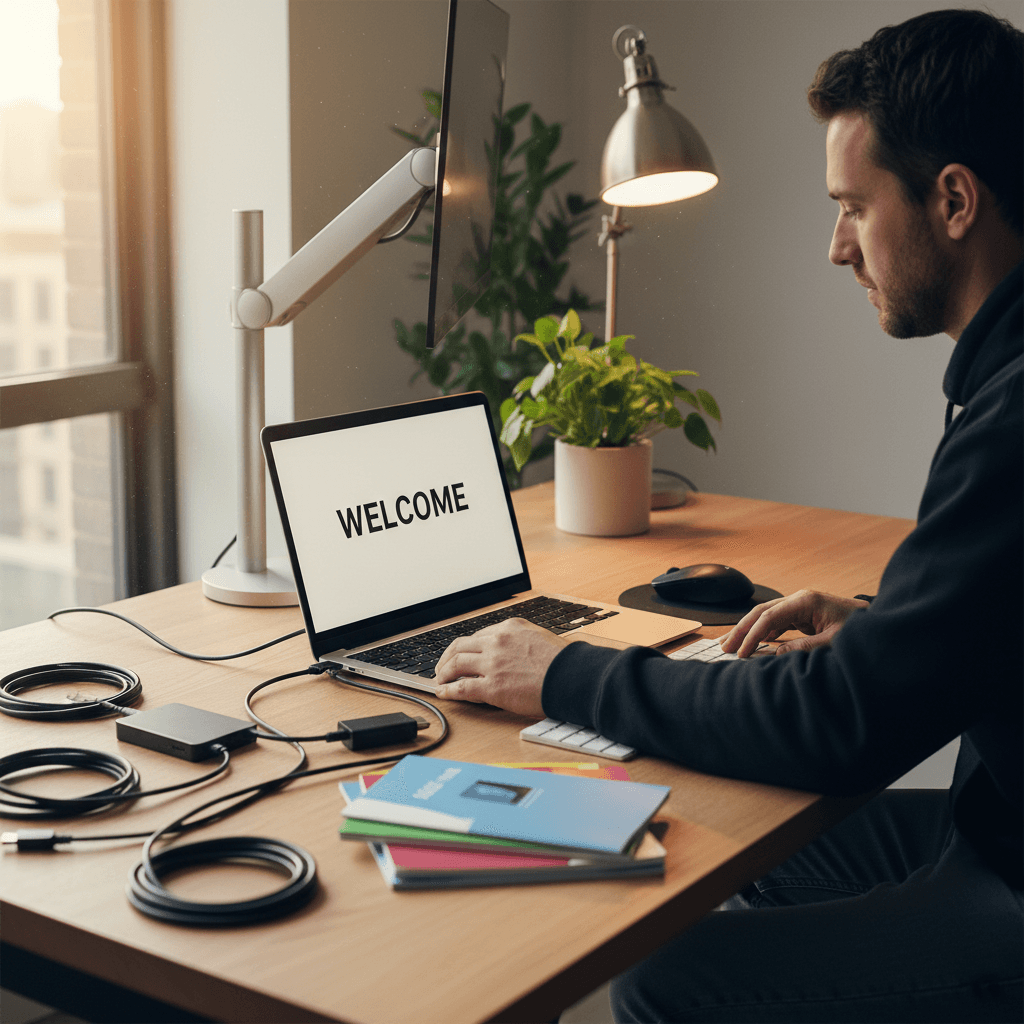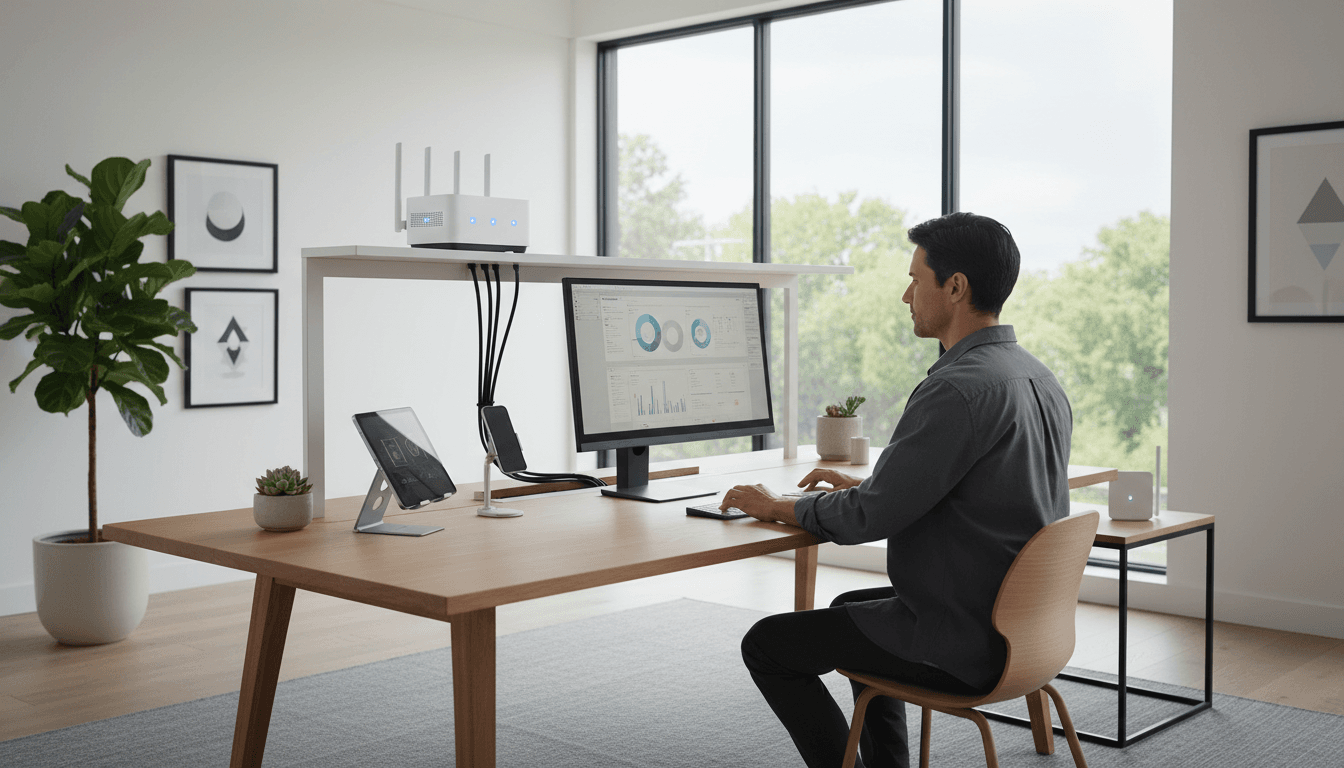
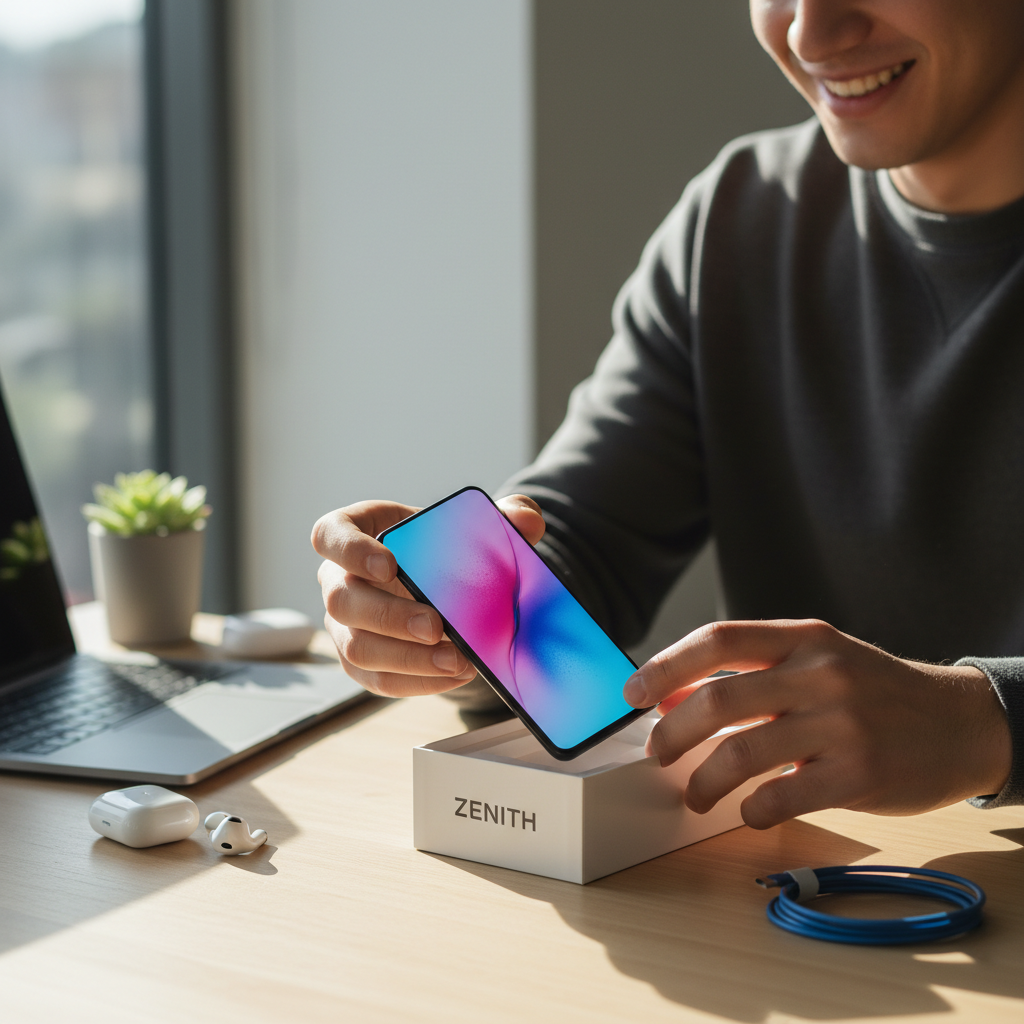
To set up new tablet or phone hardware, users should follow the on-screen prompts to connect to Wi-Fi and utilize built-in migration tools like Apple's Quick Start or Android's setup wizard. These features allow you to transfer your apps, photos, and settings wirelessly from a backup or your old device, ensuring all your data is ready to use immediately.
Taking a brand new tablet or phone out of its box should be a moment of pure excitement. For many Bristol home users, however, that initial joy is quickly replaced by the anxiety of a complicated setup process. The fear of losing precious family photos, missing important contacts, or being locked out of essential banking apps can make the transition feel like a technical minefield. Getting it right from the start is about more than just turning on the power; it is about ensuring your digital life remains seamless and secure. In this guide, we provide a calm and practical walkthrough for both Apple and Android devices. You will learn how to use automated transfer tools, handle SIM card swaps, and configure your most important apps. We also cover what to do if things do not go as planned, ensuring you feel confident and in control.
The Excitement and Stress of a New Device
Unboxing a brand new iPad or a sleek Samsung Galaxy Tab is usually a highlight of the week. There is a genuine thrill in the crisp screen and the promise of a faster machine. However, that excitement often collides with the stress of the actual migration. Many residents I visit in Bedminster or Totterdown are understandably worried about losing years of family photos or losing touch with friends because their contacts didn't carry over during the swap.
At SWIT, I focus on a calm, methodical approach to home technology. While plenty of people in Bristol are tech-savvy, many others simply want their new gadget to work without wading through confusing jargon or endless menus. You shouldn't need a degree in computer science just to get your email running. This guide provides a straightforward path for both Apple and Android users, ensuring a smooth transition. If you find the process daunting, remember that a professional computer setup can take the weight off your shoulders, allowing you to enjoy your new device rather than fighting with it.
Before You Start: The Pre-Setup Checklist
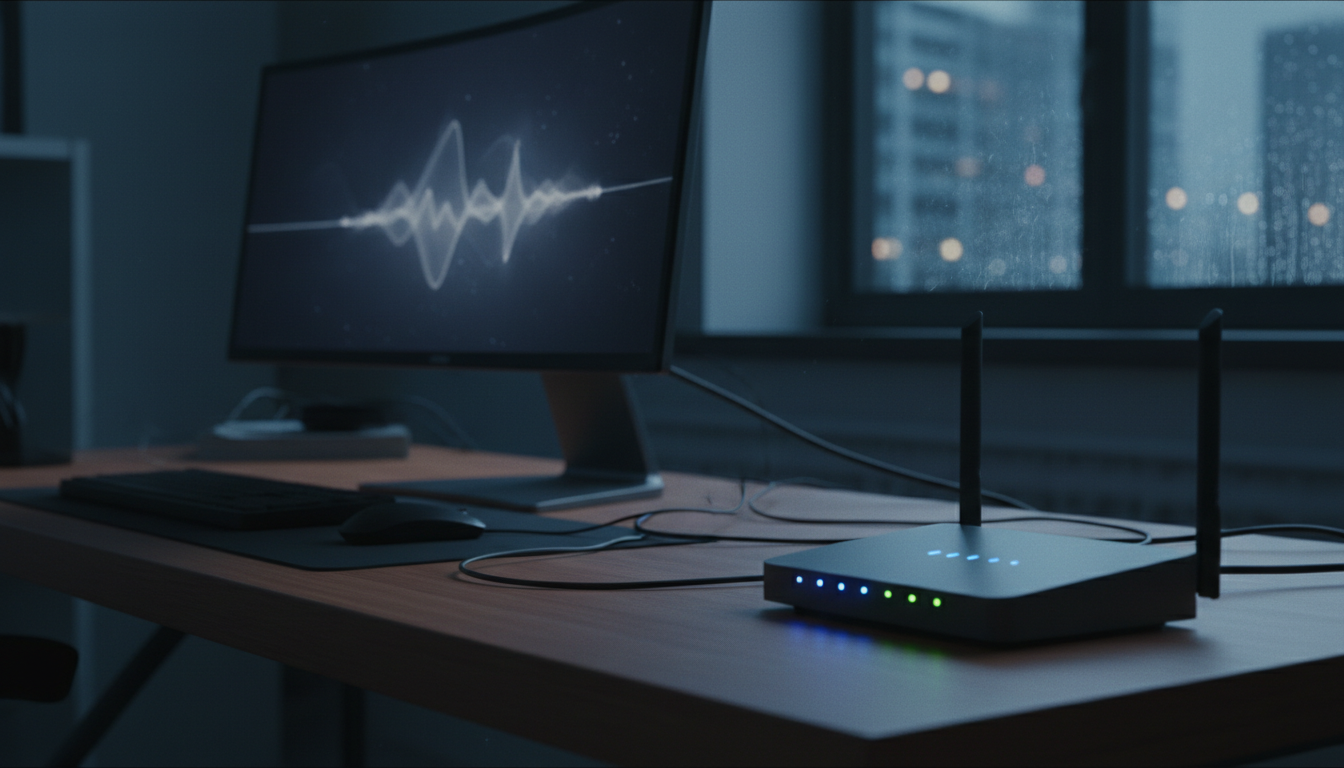
Preparation is the most effective way to prevent a ten minute task from turning into a three hour ordeal. Before you even think about how to set up a new tablet, you need to organize your digital keys and your physical environment. Start by clearing a dedicated space on your desk or kitchen table in your Southville or Mangotsfield home; you will need enough room to lay both your old and new devices side by side without clutter getting in the way.
Next, gather your essentials. You will need your home Wi-Fi password, which is usually found on a card at the back of your router. You also need the credentials for your primary account, specifically your Apple ID password for iPads or your Google Account password for Android devices. Digging for these mid-process often causes the setup screen to time out, forcing you to start the entire process over again.
Ensure both devices are fully charged or, ideally, plugged into a wall outlet. Large data transfers are power-intensive, and a battery failure halfway through can cause frustrating software errors. Finally, verify that your Wi-Fi signal is steady. If your router is in the hallway, move closer to it to ensure a fast, uninterrupted link. Taking these steps ensures the migration remains predictable and stress-free.
How to Set Up a New Tablet: Using Apple Quick Start for iPads
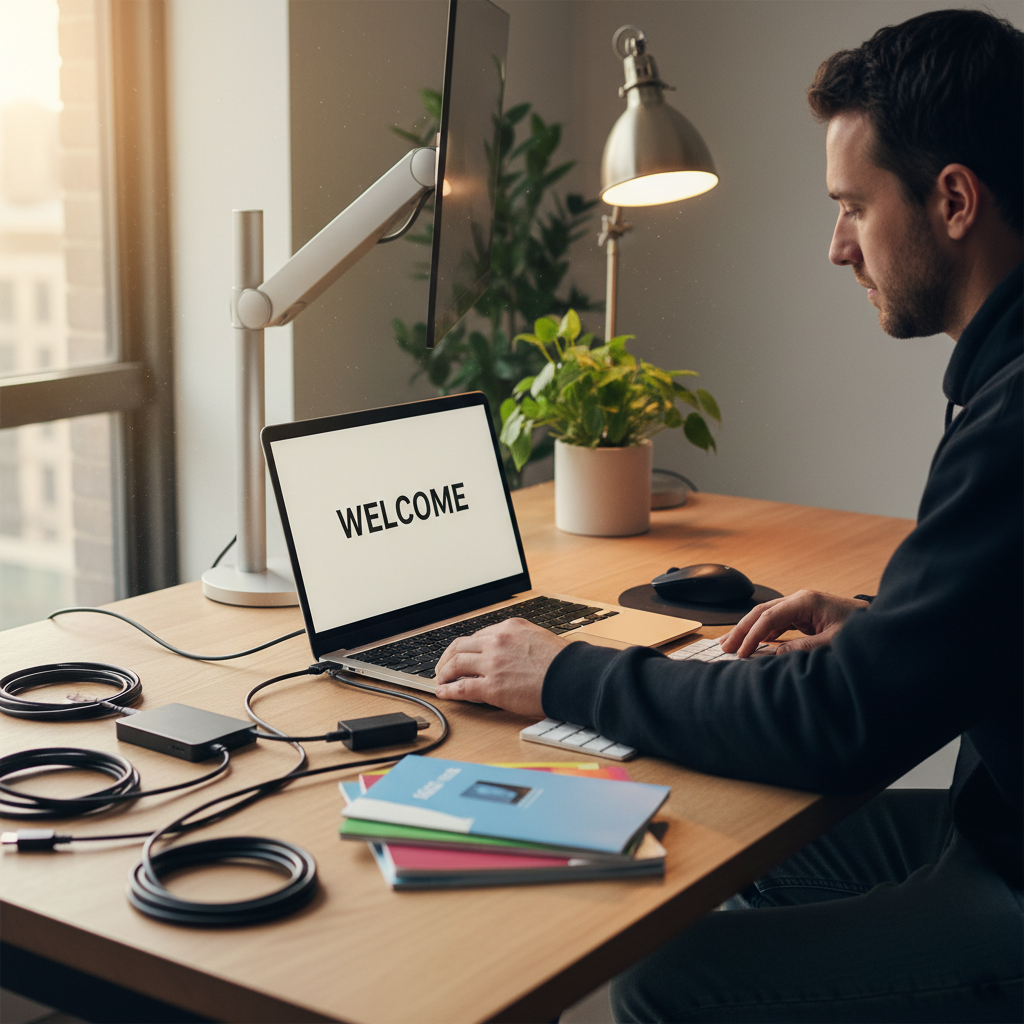
Once your workspace is ready and your devices are powered on, the process to set up new tablet hardware from Apple is remarkably intuitive. Apple calls this feature Quick Start. When you turn on your new iPad and place it next to your old one, a prompt will automatically appear on the old screen asking if you want to use your Apple ID to set up the new device. After you confirm, a swirling, circular blue cloud animation, it looks like a shimmering digital nebula, will appear on the new screen. You simply hold the old iPad camera over this animation to pair them securely.
A common question I hear from clients is: "Does Quickstart transfer everything?" The answer is yes, but with a slight caveat regarding timing. The process moves your system settings, Wi-Fi passwords, and your specific layout of app icons almost instantly. However, the apps themselves and your large library of photos are actually redownloaded from Apple’s servers rather than being pulled directly from the old tablet.
This is where your local internet speed becomes the deciding factor. If you have high speed fiber broadband in the City Centre or modern developments in Emersons Green, this background download might finish in twenty minutes. On a slower connection, it could take several hours for your full photo gallery to reappear. During this time, you can still use the iPad, but some apps may appear greyed out until they finish downloading. If you find the icons remain stuck or the handshake fails to start, a professional computer setup can help diagnose if there is a deeper software conflict at play.
Setting Up Your New Android Tablet: Samsung and Lenovo Basics
If you are moving from an older Android device to a new Samsung Galaxy or a Lenovo Tab, the process differs slightly from the Apple ecosystem but remains highly automated. To set up new android tablet hardware, the first step is always signing into your Google Account. Think of this account as your digital passport; once you log in, your emails, calendar appointments, and Google Photos will begin to populate your new screen automatically.
For those looking to set up new samsung tablet devices, the primary tool you will use is Samsung Smart Switch. This application acts like a professional removals team for your digital life. A common concern I hear from residents in Staple Hill or Mangotsfield is whether their old device will be wiped during this process. Rest assured, the transfer is a copy, not a cut. Your old tablet remains exactly as it was, holding all your data as a backup while the new one receives the duplicates.
You generally have two choices for the transfer: wireless or a physical cable. While wireless is convenient, connecting the two devices with a USB-C cable is often the professional choice. It is faster and less prone to dropping out if your Wi-Fi fluctuates. Imagine it like moving house; a wireless transfer is like carrying boxes one by one across the street, whereas a cable is like using a large van to move everything in a single trip. If you are moving from a different brand, such as switching from a Lenovo to a Samsung, the Smart Switch app can still bridge that gap, though it might require a few extra permissions to access your old messages. If the transfer stalls or you get an error message about incompatible versions, you can always contact Stu at SWIT to finalize the migration during a home visit.
Transferring Your Mobile Number: The SIM Card Question
One common question I get when helping people set up new tablet hardware or smartphones is whether the SIM card should go in before the data transfer starts. For the smoothest experience, it is usually best to insert your physical SIM card first. Doing this allows the device to communicate with your network provider immediately to activate its identity. This prevents activation errors that can sometimes stall the software migration process or cause the device to hang on the startup screen.
Modern devices handle network connections in two different ways. You likely have a traditional physical SIM card, which is the tiny piece of plastic you move from your old tray to the new one. Newer iPhones and high end tablets often use an eSIM. This is a digital version that you activate via a QR code or a menu option rather than fiddling with a paperclip. If the tray feels stuck or you are unsure about the digital download, a professional computer setup can ensure your connection is active before you move on to your apps.
The Finishing Touches: Email, Banking, and WhatsApp
Once the automated transfer finishes, your device looks ready, but several critical apps will be in a locked state for your protection. Most generic guides overlook this step, leaving users frustrated when they try to pay a bill or send a message later that evening. While the migration process helps you set up new tablet software by carrying over your email accounts, the passwords rarely follow for security reasons. You should expect to re-enter your credentials for every Outlook, Gmail, or iCloud account to re-establish the encrypted link to the mail server.
Banking apps are the most significant exception to the rule that everything transfers. For your protection, banks treat a new iPad or Samsung Galaxy as an untrusted device. You will likely need to go through a multi-step verification process. This often involves using your old device to approve the new one, receiving a code via SMS, or even using a physical card reader.
WhatsApp also requires manual attention. Because the service is tied to your mobile number, you must verify your identity via a text message code before your chat history fully populates. If these security layers become overwhelming, or if you are also struggling with connecting your new printer to your updated kit, a professional computer setup ensures every single app is fully functional and verified before the job is considered done.
When the Setup Goes Wrong: Troubleshooting Common Issues
Even with meticulous preparation, technology occasionally refuses to cooperate. One of the most frequent hurdles I see when helping clients set up new tablet hardware is the "invisible" device. If your new iPad fails to recognize the old one for a transfer, first verify that Bluetooth is enabled on both gadgets. A common oversight is having one device connected to a 2.4GHz Wi-Fi band while the other is on 5GHz. Ensure they are on the exact same network name. If they still will not talk to each other, performing a full restart on both devices often clears the temporary software glitch.
When the wireless handshake repeatedly fails, I use the professional's secret weapon: a wired connection. For Apple users, this involves using a Lightning to USB 3 Camera Adapter. For Android, a high quality USB-C to USB-C cable creates a physical bridge that bypasses Wi-Fi interference entirely. This direct link is much faster and more reliable. If these manual fixes do not resolve the issue, a professional computer setup can bypass the errors and get your data moved safely.
Professional Tech Support for Bristol Residents
If these steps still feel like a hurdle, you do not have to struggle alone. I provide a dedicated professional computer setup service for residents across Bristol who prefer a hands off approach. Residents in Emersons Green or Staple Hill do not need to navigate the logistical headache of booking a daytime slot at a busy retail store in the City Centre.
Instead of packing up your equipment and traveling during working hours, I offer flexible evening visits that fit your schedule. I come directly to your home so you can stay relaxed while I handle the entire migration. When you contact Stu at SWIT, you get a calm, expert technician to set up new tablet hardware and verify your accounts without the rush of a crowded shop floor.