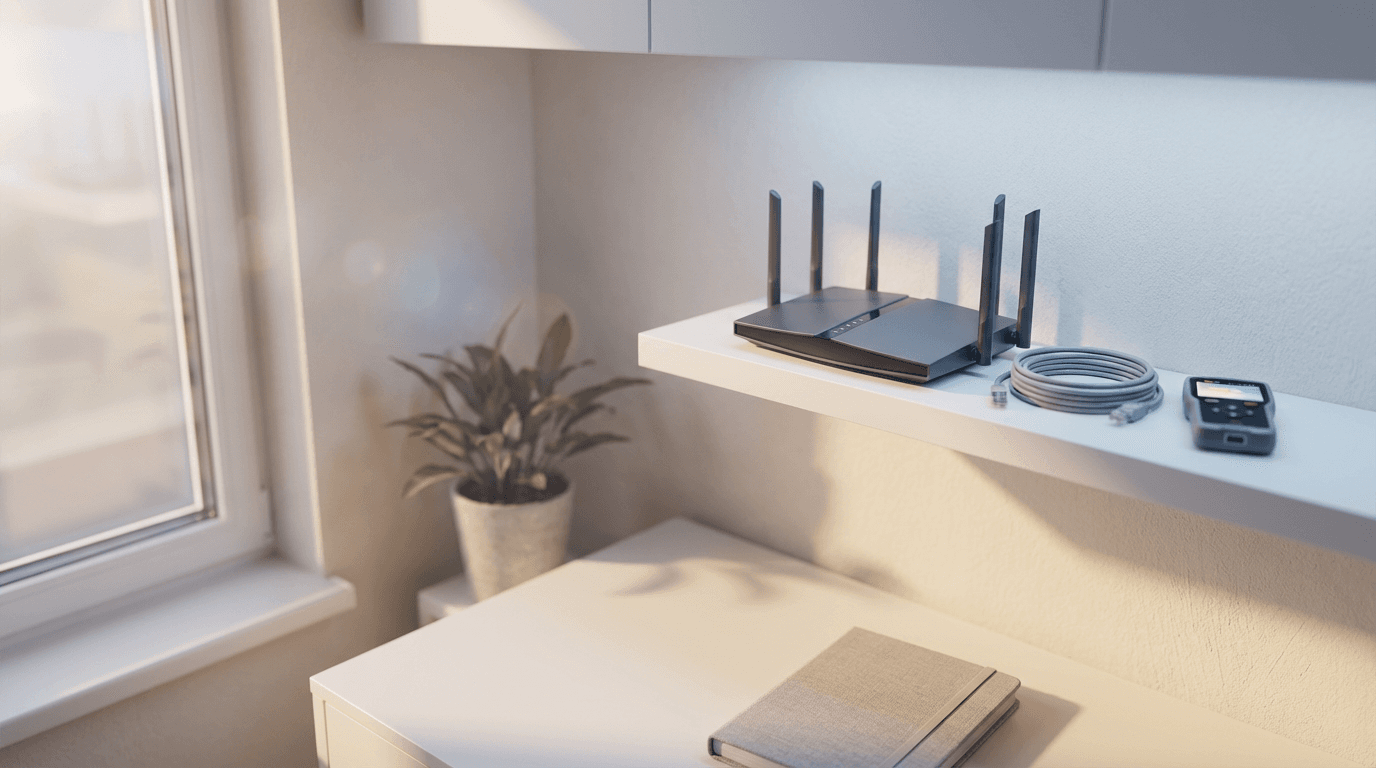
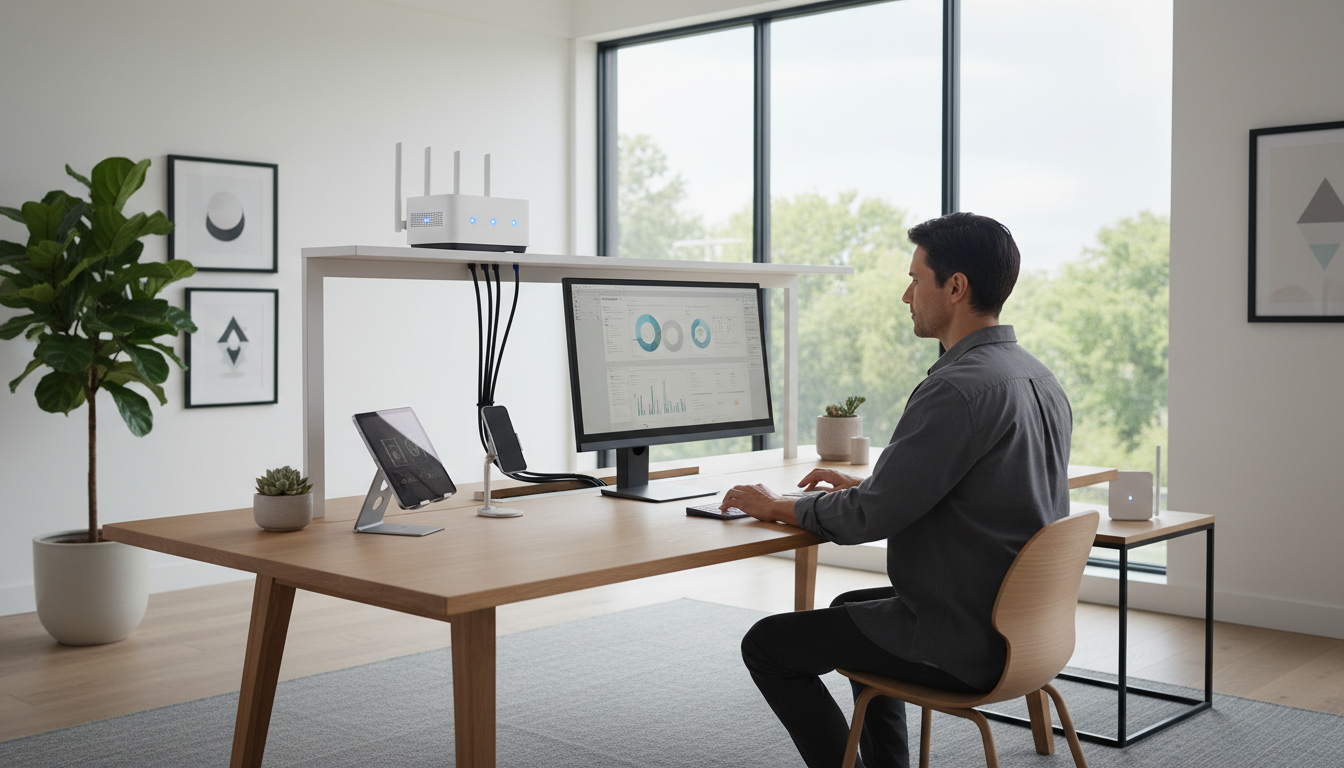
Resolve issues with smart home devices not connecting by rebooting your router and ensuring your hardware is running the latest firmware updates. Most connectivity problems are solved by switching to a 2.4GHz Wi-Fi frequency or simply re-syncing the device within its dedicated mobile app.
There is nothing more frustrating than a premium smart home that fails to perform basic tasks. When your lighting scenes remain dark or your thermostat refuses to sync, the convenience you invested in quickly becomes a source of daily irritation. In many Bristol properties, the challenge often lies in the structural composition of the building or a simple mismatch in network frequencies. A robust connection is the foundation of any functional ecosystem; without it, your hardware is merely expensive decor. This guide provides a practical roadmap to resolve these persistent glitches. You will learn how to manage 2.4GHz band steering, overcome signal issues caused by local stone walls, and adjust specific app settings to prevent devices from dropping offline. We will also identify exactly when it is time to call in a professional for a comprehensive network overhaul.
The Frustration of a Smart Home That is Not So Smart
The promise of a smart home is usually centered on convenience and effortless control. Unfortunately, for many residents in Bedminster or Totterdown, the reality often involves staring at a spinning loading icon on a smartphone app. You might have purchased a smart plug or a set of bulbs expecting a five minute setup, only to find that the device refuses to recognize your network. This experience is incredibly common, turning a simple home improvement project into a multi hour technical headache.
While national retailers are excellent at selling hardware and custom installers focus on luxury, high budget systems, I offer a practical, local alternative. You likely do not need a complex, integrated smart mansion; you just want your specific devices to function as intended. If you are tired of fighting with smart home devices not connecting after a long day at work, I provide evening technical support to resolve these issues when it is most convenient for you. From basic troubleshooting to professional computer setup, I help Bristol homeowners bridge the gap between smart technology and actual functionality.
Why Smart Home Devices Are Not Connecting to Wi-Fi
The primary reason for smart home devices not connecting usually comes down to a fundamental disagreement between your router and your new gadget. Most modern UK routers, including the BT Smart Hub 2 and the Virgin Media Hub, utilize dual band technology. This means they broadcast two different Wi-Fi frequencies: 2.4GHz and 5GHz. While 5GHz is faster and excellent for streaming 4K video or gaming, 2.4GHz has a much longer range and can penetrate walls more effectively.
Because smart bulbs, plugs, and cameras require very little data but need a stable connection across distances, manufacturers almost exclusively build them to work on the 2.4GHz band. The conflict arises because modern routers often use a feature called band steering. This merges both frequencies into a single network name, automatically pushing high performance devices like your smartphone onto the 5GHz band to ensure the fastest speeds.
When you attempt to pair a new device, the setup app on your phone acts as a bridge. If your phone is locked onto the 5GHz frequency while the smart plug is searching for 2.4GHz, they effectively cannot see each other. The pairing process fails because the two devices are essentially speaking different languages on different channels. This is the most common technical hurdle I see during professional computer setup and home networking visits.
For homeowners in Bristol, this issue is exacerbated by the sheer density of Wi-Fi networks in areas like the City Centre. Your router is trying to manage dozens of connections while simultaneously fighting for clear airwaves. If you are struggling to bridge this gap, evening technical support can help you configure your specific router to allow these devices to communicate properly. Understanding this frequency mismatch is the first step toward a stable smart home ecosystem.
How to Force Your 2.4GHz Smart Devices to Connect
To resolve smart home devices not connecting, you need to take control of your router settings. For most households in Bristol using a Virgin Media Hub, you can access the admin panel by typing 192.168.0.1 into your web browser. Once logged in, navigate to Advanced Settings, then Wireless, and finally Wireless Signal. Here, you can uncheck the box to synchronize the 2.4GHz and 5GHz settings. By adding a simple suffix like "-5G" to the 5GHz network name, you effectively split the bands. This allows you to manually connect your smartphone to the original 2.4GHz network, ensuring it is on the same frequency as your smart bulb or plug during the crucial pairing phase.
If you use a BT Smart Hub 2, the process is slightly different because these routers are designed to keep the bands merged. In the hub manager settings under Advanced Settings and Wireless, you can often find an option to temporarily disable the 5GHz band entirely. While this might briefly slow down your laptop or tablet, it forces your phone onto the 2.4GHz frequency. Once your smart device is successfully configured and appearing in your app, you can simply switch the 5GHz band back on. The smart device will remain connected to its preferred lower frequency.
Taking these manual steps bridges the technical gap that automated setups often fail to cross. If the thought of navigating router admin panels feels overwhelming, I offer evening technical support to handle these configurations for you. Getting the foundation right during a professional computer setup ensures that your home network can actually support the growing number of IoT devices in your household.
Bristol Homes and the Problem with Thick Walls
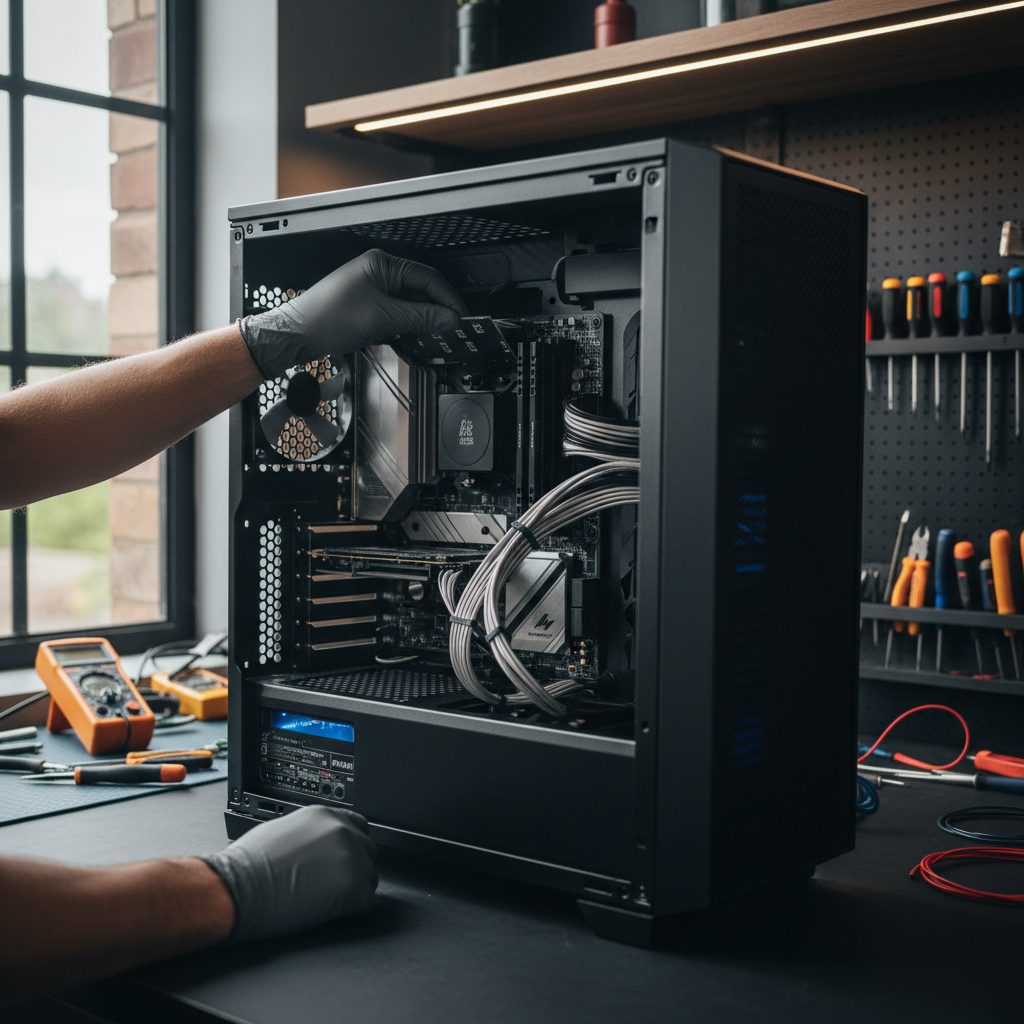
Even if your router settings are perfect, the physical layout of your property often presents a final, formidable hurdle. Bristol is famous for its Victorian and Edwardian architecture, particularly in areas like Southville, Mangotsfield, and Staple Hill. While these homes are full of character, their internal construction usually involves thick, solid brick or stone walls that were never intended to let radio waves pass through. This leads to a frustrating scenario where smart home devices not connecting or constantly dropping off the network is caused by physical interference rather than software errors.
A smart bulb in a rear kitchen extension might technically see the Wi-Fi signal coming from the front lounge, but the connection is so weak that it cannot maintain a stable data handshake. You will see the device listed as offline in your app, even though the power is on. Many homeowners try to fix this by purchasing cheap, plug-in Wi-Fi extenders. These often cause more harm than good by creating a secondary network that confuses your devices or significantly cutting your available speed in half because they lack the dedicated backhaul found in professional gear.
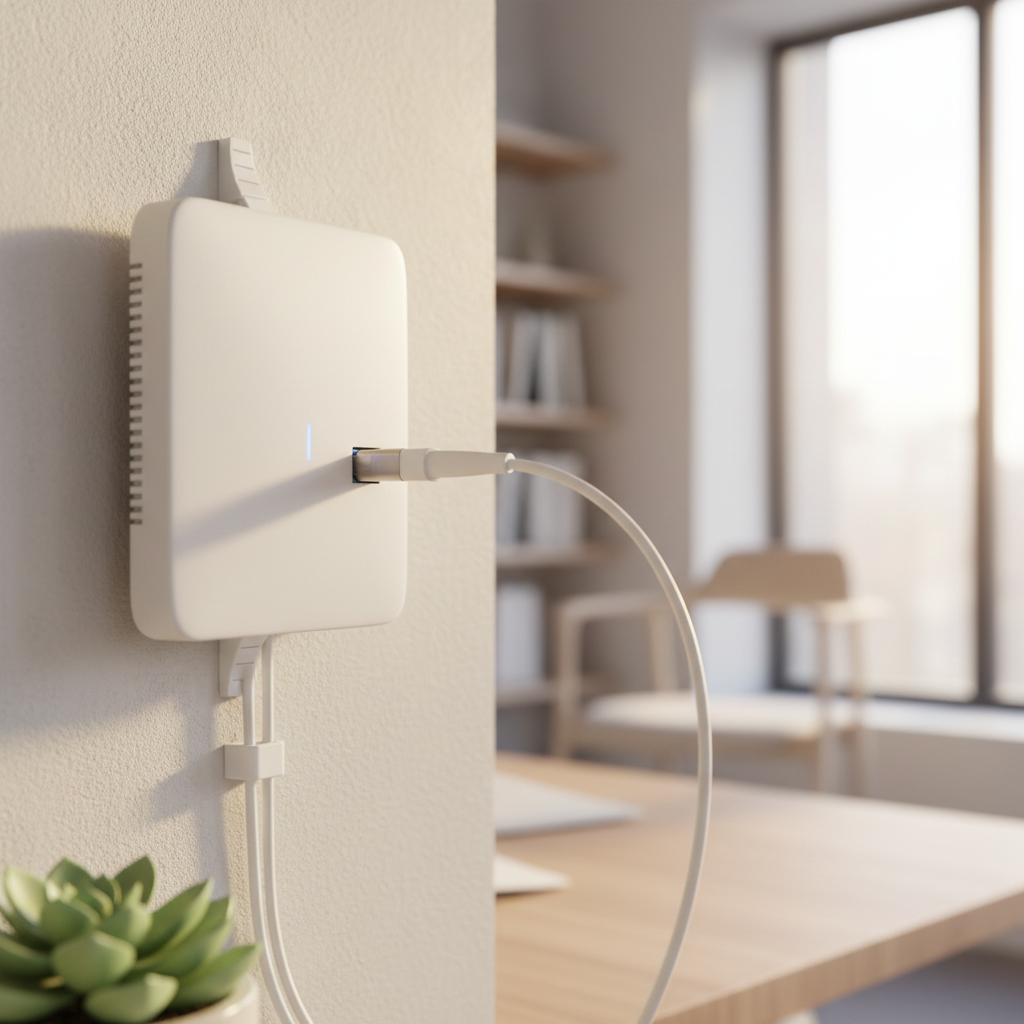
For a multi-story Bristol terrace, a mesh Wi-Fi system is usually the superior choice. Unlike basic extenders, mesh nodes work together to create a single, seamless blanket of coverage that bypasses thick masonry. If you are struggling with dead zones, I provide evening technical support to help select and install the right hardware for your specific floor plan. Integrating a robust mesh system during a professional computer setup ensures that your smart home has the foundation it needs to stay online, regardless of how many brick walls stand in the way.
Smart Life Devices Keep Going Offline? Check These Settings
Many Bristol residents use devices that run on the Smart Life or Tuya platforms, as these are common for affordable smart plugs and light strips. A frequent complaint involves zombie devices, where the app insists a gadget is offline despite it being physically powered on and sitting right next to the router. This frustrating discrepancy often stems from the app’s internal data becoming desynchronized with the actual hardware state.
To resolve this, start by clearing the Smart Life app cache within the settings tab of the application. Research from CNET highlights that outdated firmware is a primary driver for these persistent drops; always check for a firmware update notification within the individual device settings. Furthermore, your smartphone itself might be the culprit. If your phone is in Low Power Mode, it often restricts background data synchronization. This can prevent the app from properly communicating with the device during the pairing process or regular use, leading to smart home devices not connecting as expected.
If you have recently gone through a professional computer setup and find your IoT devices are still behaving erratically, the issue may lie in these deep-seated software configurations rather than the hardware itself. I provide evening technical support across Bristol to help residents navigate these confusing app settings, ensuring that your Smart Life ecosystem remains stable and responsive after a long day at the office.
The Power Cycle and Factory Reset Guide
If adjusting software settings fails, you must perform a clean sweep of the entire hardware chain. A common mistake when dealing with smart home devices not connecting is only rebooting the device itself. To clear persistent communication errors, you need to power cycle the ecosystem in a specific order to ensure a fresh handshake between all components.
Follow this sequence before considering a return to the shop: 1. Unplug the smart device from the wall. 2. Power down your router and any dedicated hubs for 60 seconds. This clears the router's temporary memory cache. 3. Restart the router and wait five minutes until the internet connection is fully stable. 4. Delete the device from your control app. In Alexa, go to Devices, select the item, and tap the trash icon. In Google Home, select the device, tap the cog icon, and choose Remove device. 5. Power the smart device back on and perform a physical factory reset. This usually involves holding a physical button for ten seconds or turning a bulb off and on three times until it pulses.
This process forces the hardware to request a new IP address and clears any corrupted local data. If this checklist fails to solve the issue, I can provide evening technical support to investigate deeper network conflicts. Many residents find that a professional computer setup or network audit is the most efficient way to stop these recurring failures across multiple rooms.
When DIY Troubleshooting Is Not Enough
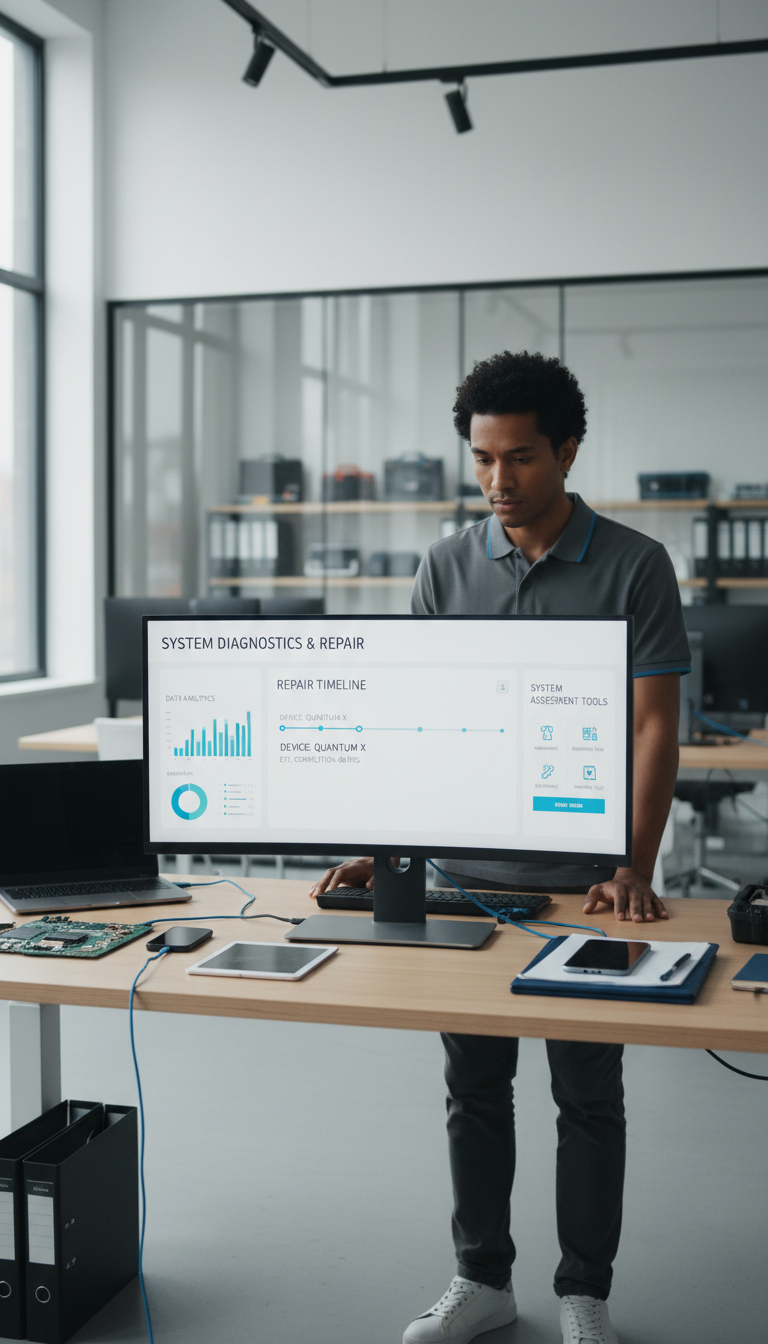
There are times when even the most methodical factory reset fails to fix smart home devices not connecting. Often, the culprit is not the bulb or the plug itself, but a congested network. Standard ISP routers provided in many Bristol homes are frequently overwhelmed when asked to manage more than 20 simultaneous connections. Between laptops, smartphones, and streaming boxes, your router may simply lack the processing power to maintain a stable handshake with every IoT device, leading to persistent dropouts.
If you have exhausted the steps in this guide and still face connection issues in Mangotsfield or Emersons Green, it may be time for professional computer setup to audit your network capacity and router efficiency. I provide evening technical support specifically to help residents who work during the day and need their technology fixed when they are actually at home to use it. If your smart home is still acting like a collection of offline plastic, you can contact Stuart at SWIT to arrange a visit and get your system running reliably.
Most connection issues in Bristol homes can be resolved by checking your router or performing a simple power cycle. These steps usually get your smart devices back in sync without much hassle. Of course, modern technology can sometimes be unpredictable. If you would rather avoid the frustration and want expert help to optimize your setup, you can learn more about our team and how we support local homeowners. We are happy to help ensure your smart home remains reliable, efficient, and perfectly connected.