
To upgrade to Windows 11, home users should first verify their PC compatibility using the official Health Check app and back up important files. After confirming requirements, the free installation can be initiated directly through the Windows Update menu; this upgrade to Windows 11 home user guide simplifies the process for a secure and efficient transition.
Many Bristol residents currently feel a sense of hesitation as the 2025 deadline for Windows 10 support looms closer. The prospect of an operating system overhaul often brings concerns about lost photos, broken software, or general system instability; making the 'Update Now' button feel more like a risk than an improvement. However, securing your home computer is essential for long term performance and data safety in an increasingly complex digital landscape. This guide simplifies the entire process by walking you through hardware compatibility checks, file backup strategies, and a clear step by step installation path. You will discover exactly how to navigate the transition without the usual technical headaches, ensuring your PC remains fast, secure, and fully supported for years to come.
Why the Windows 11 Upgrade Matters for Bristol Home Users in 2025
Microsoft has scheduled October 14, 2025, as the official end-of-support date for Windows 10. For many people, this date feels distant, but understanding the implications now prevents a last-minute rush. It is a common misconception that your computer will simply stop working on that day. In reality, the hardware will function as usual, but Microsoft will no longer provide critical security updates or technical fixes.
For residents in areas like Southville or Totterdown, the primary concern is the safety of personal information. Without ongoing security patches, a Windows 10 machine becomes a target for malware and exploits. This makes activities like online banking, filing tax returns, or accessing health records significantly riskier. Keeping your professional computer setup secure is the most important reason to consider the transition sooner rather than later.
This upgrade to Windows 11 home user guide strips away the corporate jargon found in enterprise manuals. The focus here is on the practical needs of Bristol home users, from families in Mangotsfield to remote workers in Bedminster. The aim is to ensure your transition is handled correctly; protecting your files while ensuring your system remains compatible with the latest software and security standards.
Is My Computer Compatible? How to Check Your PC Today
Before attempting the installation, you must verify your hardware meets Microsoft’s strict criteria. Unlike previous versions, Windows 11 requires specific security features that many perfectly functional older machines lack. The two primary obstacles for most home users are the processor age and a feature called TPM 2.0.
TPM stands for Trusted Platform Module. It is a tiny security chip on your motherboard that protects sensitive data. While most computers sold after 2016 include this, it must be the 2.0 version to qualify. Similarly, Microsoft generally only supports processors released from 2018 onwards, specifically 8th Generation Intel or AMD Ryzen 2000 series and newer. If your laptop was purchased before 2018, it will likely fail this check, even if it still feels fast today.
To get a definitive answer, download the official PC Health Check app from Microsoft’s website. This tool provides a more direct answer than searching through technical spreadsheets or generic consumer guides.
Install and open the application.
Locate the "Introducing Windows 11" banner at the top of the window.
Click the blue Check now button.
Review the results; a green tick means you are ready, while red icons indicate specific hardware gaps.
If the app tells you your PC is not compatible, your computer is not broken. You can continue using Windows 10 safely until October 2025. However, if you want to move forward now, it might be time to consider a new professional computer setup or a hardware refresh. If you find the app results confusing or want to know if a specific component can be upgraded, you can contact Stuart at SWIT for a practical assessment during a home visit. This upgrade to Windows 11 home user guide is designed to help you make that decision without the stress of deciphering error codes alone.
The Most Common Question: Will I Lose My Files During the Upgrade?
The fear of losing years of digital memories or critical documents is the most common reason people hesitate to update. A standard transition performed through Windows Update is known as an in-place upgrade. This method is designed to keep your personal files, installed applications, and system settings exactly where you left them. For residents in Mangotsfield or the City Centre, this means your family photo archives and home office spreadsheets should remain untouched.
Conversely, a clean install involves wiping the hard drive and installing the operating system from scratch. While this can result in a faster system, it requires you to manually reinstall every program and move your files back afterward. Most home users should stick to the in-place option unless their current computer is performing very poorly.
Microsoft has refined the in-place process to be highly reliable, but it is never wise to proceed without a safety net. Software updates can occasionally encounter errors due to power flickers or interrupted internet connections. Before you begin this upgrade to Windows 11 home user guide process, verify that your most important data is copied to an external drive or cloud service. If you are unsure how to secure your data or want to ensure a professional computer setup remains stable, you can contact Stuart at SWIT to manage the backup and installation for you.
How to Upgrade to Windows 11: A Step by Step Guide
Once you have confirmed that your hardware meets the requirements, the actual installation is a straightforward process. Following this upgrade to Windows 11 home user guide step by step ensures you do not miss any critical safety measures, particularly regarding your data.
Run the PC Health Check tool one final time. Confirm all requirements show green ticks. This prevents the installation from failing halfway through due to a missed compatibility setting.
Perform a full system backup. Connect an external hard drive to your laptop or desktop. Copy your entire user folder, usually found under C:\Users\YourName, to the external drive. If you use a professional computer setup for work, ensure your specific software databases or local mail archives are also exported.
Access the Update menu. Click the Start button, select the gear icon for Settings, then navigate to Update & Security and click on Windows Update.
Initiate the download. If your PC is eligible, you will see a banner inviting you to "Download and install." Click this to begin.
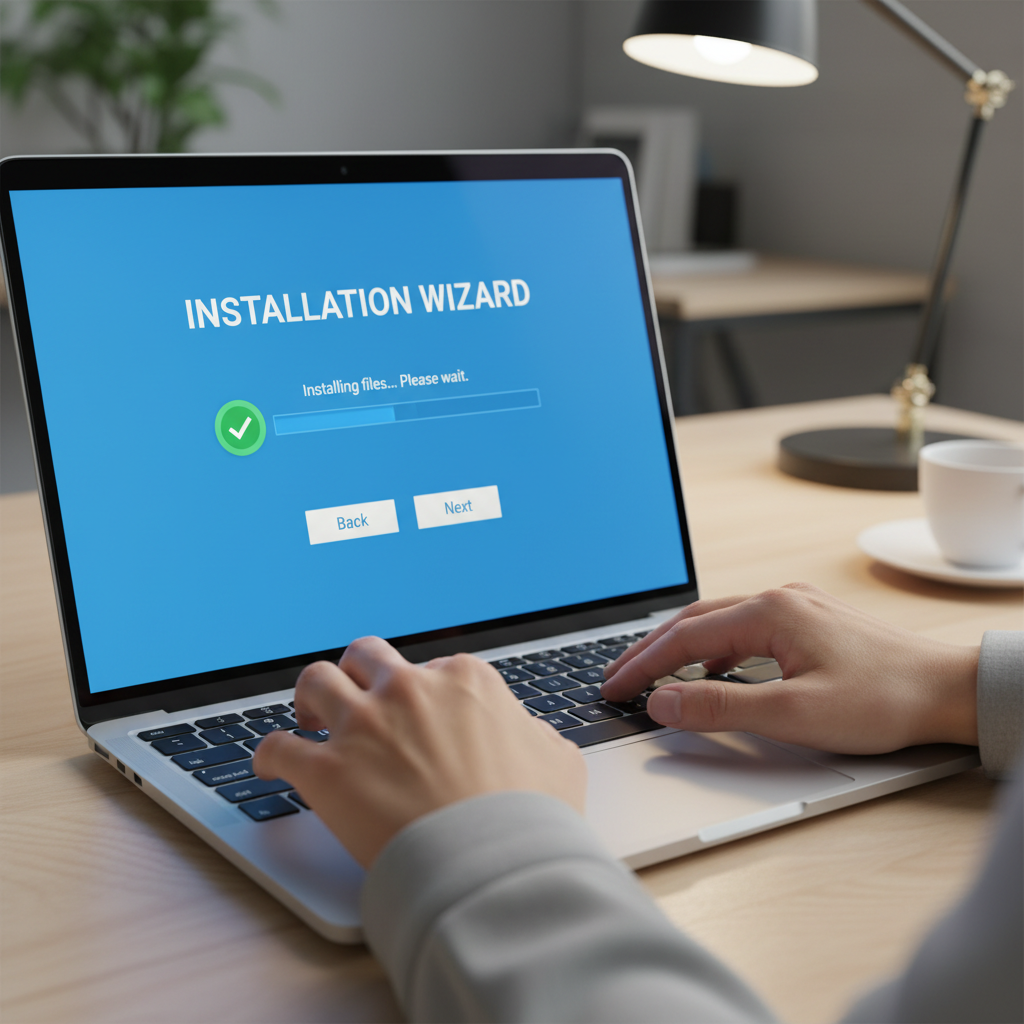
Follow the on-screen prompts. The system will ask you to review license terms and may restart several times. Keep your laptop plugged into power throughout the entire duration.
The process typically takes between 30 and 90 minutes. This duration depends heavily on your home broadband speed and the speed of your hard drive. Since your computer will be busy and unusable during this time, it is an excellent opportunity to take a break. If you live in Bedminster, you might head out to a local cafe on North Street for a coffee while the progress bar moves.
If the update does not appear or you encounter an error message during the installation, do not force the process. Interrupting a failing update can lead to system instability. If you feel stuck at any stage, you can contact Stuart at SWIT to manage the transition during an evening visit, ensuring your machine is ready for use the following morning.
Windows 11 Upgrade Cost and Deadlines for UK Users
For the vast majority of Bristol residents, the move to a new operating system does not require a financial investment in software. Microsoft currently offers the upgrade to the equivalent version of Windows 11 at no extra cost. If your PC is running a genuine version of Windows 10 Home, you will receive Windows 11 Home for free.
Some users often research the cost of moving from Home to Pro versions during this transition. In the UK, this specific license upgrade usually costs approximately £119 via the Microsoft Store. However, for a standard professional computer setup used for daily browsing, emails, or streaming, the Home edition remains more than sufficient.
Regarding timelines, Microsoft has not officially announced a hard end date for the free upgrade offer. Despite this, the October 2025 support cutoff for Windows 10 acts as a practical deadline for everyone. Waiting until the final weeks could lead to unnecessary stress or potential compatibility issues as the date approaches. If you are concerned about license keys or version compatibility, you can contact Stuart at SWIT to review your system. We provide clear advice and technical support through our flexible evening visits, ensuring your home tech remains current without hidden fees.
Troubleshooting Common Windows 11 Upgrade Problems

Even a well prepared professional computer setup can encounter hurdles during a major OS transition. One of the most frequent frustrations for home users is the installation progress appearing to freeze, often at the 99% mark. This usually happens because the system is struggling to migrate a specific driver or background file. Before you assume the worst, disconnect all non essential USB devices such as external hard drives, webcams, or older scanners. Leaving only your power cable and internet connection active often resolves these installation hangs.
Insufficient storage space is another common barrier. Windows 11 requires a minimum of 64GB of storage, but the installation process itself needs additional breathing room to move temporary files. If your laptop is nearly full, use the Disk Cleanup tool to remove system files and empty your Recycle Bin to clear at least 20GB of extra space beyond the minimum requirements.
Common Issue | Likely Cause | Recommended Action |
|---|---|---|
Installation stuck at 99% | Peripheral driver conflict | Disconnect all USB devices and restart |
Error 0x80070070 | Insufficient disk space | Run Disk Cleanup and delete large downloads |
Printer/Scanner not found | Driver incompatibility | Install latest drivers from the manufacturer site |
Update service errors | Corrupt update cache | Clear the SoftwareDistribution folder |
Post installation, you might find your printer or Wi-Fi connection behaves inconsistently. This typically occurs when the new OS does not automatically carry over the specific driver for your home router or peripheral. In these cases, visiting the manufacturer's support page to download the specific Windows 11 version of the driver is the most effective solution. If the update fails repeatedly with cryptic error codes, you may need to reset the Windows Update components manually. If these technical steps feel overwhelming, you can contact Stuart at SWIT to resolve these issues during a home visit. This upgrade to Windows 11 home user guide helps identify the basics, but some hardware conflicts require a more hands on approach to get your system back to peak performance.
Expert Help for Your Bristol Home Computer Setup

Navigating a major system transition involves more than just clicking a button. Many residents find the technical requirements and the potential for data loss stressful. If you prefer to avoid the technical heavy lifting, SWIT provides a complete on-site service to manage the transition for you. I handle the entire process from start to finish; this includes verifying your hardware with official tools, securing your files with a comprehensive backup, and executing the installation.
I also ensure your home network remains stable and your peripherals, such as printers or scanners, are correctly reconfigured for the new environment. For professionals in Staple Hill or Emersons Green who are busy during standard business hours, I offer flexible evening availability. You can learn more about our evening IT support to see how I fit around your schedule. Using a professional service ensures your professional computer setup remains functional and secure without you having to troubleshoot error codes late into the night. If you would rather have an expert follow this upgrade to Windows 11 home user guide on your behalf, you can contact Stuart at SWIT to arrange a convenient home visit.