Your computer keeps freezing typically because of hardware overheating, insufficient RAM, or software conflicts like outdated drivers and malware. To fix this, perform a full shutdown to clear memory leaks and use Task Manager to identify background processes that are draining system resources.
Nothing interrupts a productive morning like a cursor that suddenly refuses to move. Whether you are halfway through a spreadsheet or simply browsing the news, a freezing computer is a universal sign of digital distress. In Bristol, local factors like seasonal dust buildup or aging hardware often play a role in these system hangs. Ignoring these symptoms can lead to permanent hardware damage or frustrating data loss; therefore, it is vital to address the root cause early. This guide provides practical steps for Windows 10 and 11 users to identify why their PC is locking up. We will explore common triggers like overheating and software conflicts, while offering clear solutions to get your system running smoothly again. If DIY fixes prove insufficient, we also explain when it is time to seek professional local support.
Why is my computer freezing and what does it actually mean?
Sitting down at your desk in Bedminster or Southville to catch up on personal admin after a long day, only to find that your screen has locked up, is incredibly disruptive. When a computer keeps freezing, the issue usually falls into one of three categories: a hang, a freeze, or a crash. A hang is a temporary lag where the system eventually catches up. A freeze is a total lockup where neither the mouse nor keyboard responds. A crash is more severe, often resulting in a Blue Screen of Death or a spontaneous restart.
In plain terms, these issues happen when the computer’s brain, the CPU, or its short term memory, the RAM, hits a metaphorical wall. The system might be trying to process too many commands at once, or a specific piece of software has encountered an error it cannot bypass. Essentially, the hardware gets stuck in a loop trying to solve a problem, leaving no power left to move your cursor or update your display. Understanding these distinctions is the first step toward troubleshooting. If your device frequently hits these walls, you may need professional technical support to diagnose if the issue is software based or a sign of failing hardware.
Common reasons your PC randomly freezes for a few seconds

When your computer stutters or stops responding for just two or three seconds before springing back to life, you are experiencing a micro-freeze. These momentary interruptions often occur because a high-priority background task is demanding every ounce of your system's attention. A common culprit in Windows 11 is the update service, which might be silently downloading or preparing a patch while you are trying to work. Similarly, scheduled anti-virus scans can suddenly spike resource usage, causing that telltale lag.
A frequent mistake I see in home offices across Bristol is having more than one active anti-virus program installed. If you have a paid subscription running alongside a pre-installed trial or Windows Defender, these programs often fight over the same system files. This conflict creates a digital bottleneck, leading to stutters as the software competes for control. It is always better to have one robust, correctly configured security suite rather than two competing ones.
To identify what is causing the friction, you can use the Task Manager. Press `Ctrl + Shift + Esc` and select the Performance tab. Watch the graphs for your CPU and Disk. If your computer keeps freezing and you see either of these hitting 100 percent usage during the freeze, you have found the bottleneck. A disk running at maximum capacity is often a sign of an update or a heavy background scan, while a pegged CPU might indicate a rogue process or software conflict. If these spikes happen regularly and you cannot pin down the cause, you might need professional technical support to optimize your startup items and background services.
Is your computer overheating? The Bristol summer and dust factor
Environmental factors are often overlooked when a computer keeps freezing. In many older Bristol properties, particularly the Victorian terraces in Southville or Bedminster, dust accumulation is a persistent challenge. These homes can be naturally dustier; when a desktop tower is tucked into a cramped home office or placed directly on a thick carpet, it acts like a vacuum. The carpet fibers and dust particles quickly clog the intake vents, choking the internal components.
If you notice your fans are spinning loudly, sounding almost like a jet engine, and then the system locks up, heat is the likely culprit. This is a deliberate safety mechanism. Modern processors are designed to slow down or freeze entirely to prevent the hardware from sustaining permanent heat damage. During a particularly warm Bristol summer, even a small increase in ambient room temperature can push a dust-heavy system over its thermal limits.
Start by inspecting the air vents on the back and sides of your case for any visible grey buildup. Ensure there is at least a few inches of clear space around the machine for airflow. If the system continues to struggle despite being clean and well ventilated, you may need professional technical support to check if the internal thermal paste has dried out or if a cooling fan has failed.
How to fix computer freezing and crashing issues at home
When your computer keeps freezing even after you have cleared the dust and improved the airflow, you should move on to software-based diagnostic steps. The most effective starting point is often the simplest, though it is frequently misunderstood due to a Windows feature called Fast Startup. In modern versions of Windows, clicking Shut Down does not actually clear the system’s memory or stop all background processes. Instead, it saves the current state to the hard drive so the computer boots faster the next time. To truly refresh the system and clear out stubborn glitches, you must select Restart instead. Alternatively, you can perform a full shutdown by holding the Shift key while clicking Shut Down.
If a fresh start does not resolve the issue, you should check for hardware fatigue. A common cause of sudden lockups is faulty RAM. Windows includes a built-in tool for this; simply search for Windows Memory Diagnostic in your start menu and select Restart now and check for problems. The computer will reboot into a blue screen environment and test your memory modules for errors. If it finds any, one of your RAM sticks is likely failing and will need to be replaced.
You should also monitor the health of your storage drive. If you hear a faint clicking sound coming from your desktop or notice that opening a simple folder takes several seconds, your hard drive may be near the end of its life. I recommend using a free utility called CrystalDiskInfo to check the drive's status. If the software displays a Caution or Bad health status, you should immediately back up your data. These physical hardware failures often require professional technical support to resolve without losing your personal files. If you find these diagnostic steps daunting, you can contact SWIT for an evening visit to have a technician diagnose the problem at your home in Mangotsfield or Emersons Green.
Windows 11 and Windows 10 specific freezing fixes
If your hardware passes the memory and disk tests, the reason your computer keeps freezing often lies within the operating system itself. Windows 11 and Windows 10 handle background processes differently, but both rely heavily on drivers. These are small pieces of code that allow the OS to talk to your hardware. If a graphics card driver or a network adapter driver is outdated or corrupted, the communication breaks down, causing the system to lock up.
To check for these conflicts, you should start by updating your drivers. Right-click the Start button and select Device Manager. Look for any yellow warning triangles next to items, particularly under Display adapters or Network adapters. Updating these through the manufacturer's website, rather than just relying on Windows Update, often resolves persistent hangs.
A vital diagnostic step is booting your PC into Safe Mode. This mode starts Windows with only the most basic files and drivers active. In Windows 10 or 11, go to Settings, then System, then Recovery and look for Advanced Startup. After your PC restarts, choose Troubleshoot, then Advanced options, then Startup Settings, and Restart. Finally, press 4 or F4 to enter Safe Mode.
If your computer stops freezing while in Safe Mode, you have confirmed that your physical hardware is healthy. The issue is definitely caused by a software conflict, a rogue driver, or a background service. However, if it still freezes in this stripped-back environment, you are likely looking at a motherboard or power supply problem. Residents in Staple Hill or Emersons Green who find these technical menus intimidating can contact SWIT for an evening visit to perform a professional diagnostic.
When the screen freezes but the mouse still moves
Sometimes your computer keeps freezing in a way that feels particularly strange: the mouse cursor glides across the screen, but you cannot click any icons or open the Start menu. This half-freeze usually indicates that a single application, often Google Chrome or Microsoft Edge, has locked up the user interface. It could also mean the Windows Explorer process, which handles your taskbar and desktop icons, has crashed in the background while the rest of the system is still technically running.
Before you reach for the power button, try a specialized keyboard shortcut: Win + Ctrl + Shift + B. This command forces Windows to refresh the graphics driver. You will hear a short beep and the screen will flicker for a second. In many cases, this reinitialises the connection between your software and your monitor, waking up the system without losing your unsaved work. If the cursor moves but nothing responds after this, you may need professional technical support to investigate if a deeper system file corruption is causing these selective hangs during your evening browsing sessions.
Professional tech support for Bristol residents when DIY isn't enough
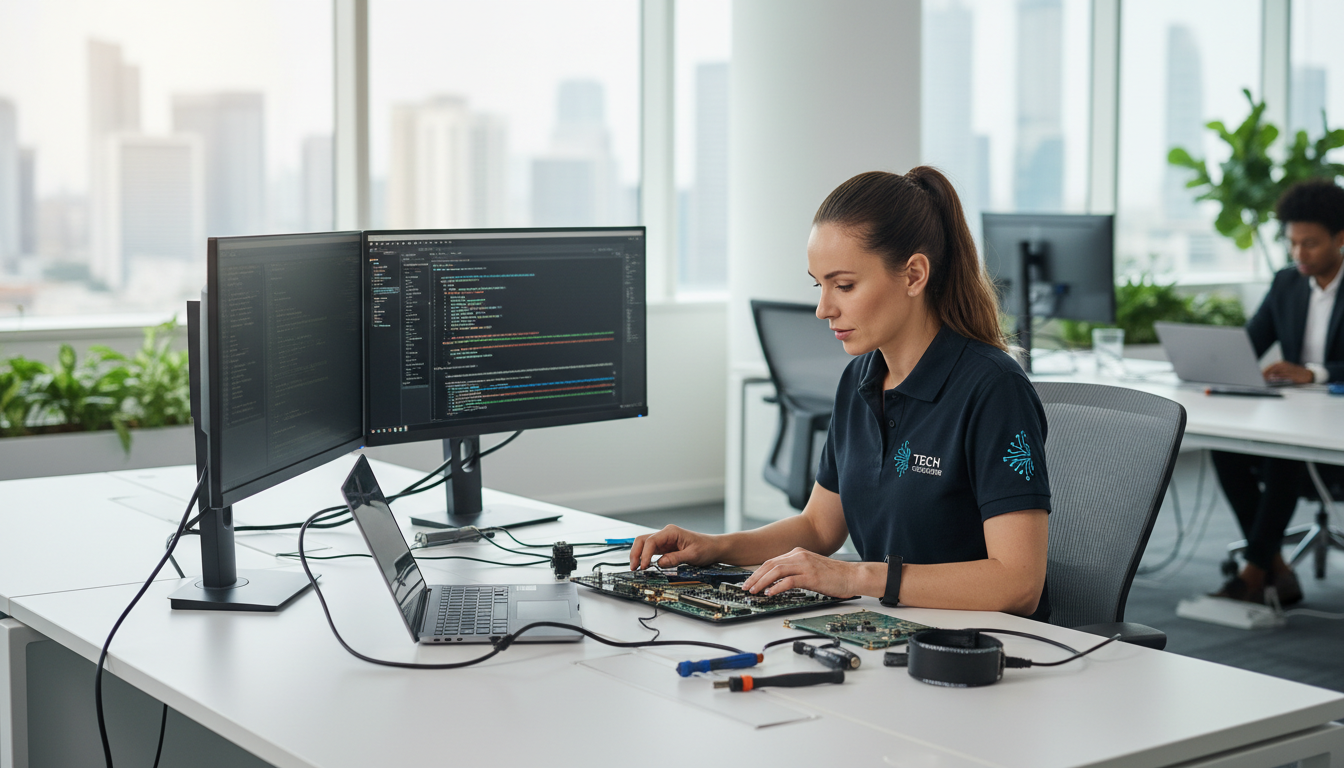
If your computer keeps freezing after you have performed a clean boot and verified your RAM health, the root cause is likely a failing physical component. Issues with a degrading motherboard or a fluctuating power supply unit often manifest as unpredictable lockups that software fixes cannot touch. Troubleshooting these parts requires specialized testing tools and a spare parts inventory that most home users do not keep on hand.
For residents in Totterdown, Emersons Green, or Staple Hill, transporting a heavy desktop tower to a repair shop during standard business hours is often an unnecessary hassle. SWIT provides professional technical support through flexible evening visits, allowing you to get expert help without taking time off work. I maintain a calm, plain-English approach to every visit, explaining exactly why your hardware is struggling and providing a clear path to a stable system. If you need a reliable diagnosis at your own desk, you can contact SWIT for an evening visit to resolve these persistent issues for good.