If your computer won't boot, start by checking power connections and removing all external devices to rule out peripheral interference. You can often resolve startup failures, such as a black screen or boot issues after a power outage, by resetting BIOS settings to default or performing a hard reset to drain static electricity from the motherboard.
You press the power button, ready to start your morning, but the screen remains stubbornly dark. This sudden silence is more than just a minor inconvenience; it represents a total halt to your productivity and personal connectivity. For home users in Bristol, a computer that refuses to boot often feels like a technical dead end, yet many of these failures stem from simple power delivery issues or minor software conflicts rather than total hardware failure. Understanding how to diagnose these symptoms is the first step toward protecting your data and avoiding unnecessary repair bills. This guide provides a clear, expert framework for troubleshooting. You will learn how to perform a hard reset, avoid the common USB trap, and navigate Windows recovery screens with ease. By the end, you will know when to resolve the issue yourself and when to contact a professional technician.
The First Rule of a Computer That Won't Boot: Do Not Panic
It usually happens at the worst possible moment. You sit down in your home office in Southville or Totterdown, press the power button, and nothing happens. Or perhaps you see the familiar spinning circle that never seems to end. When your computer won't boot, your mind immediately jumps to the worst case scenario: total data loss. You think about the family holiday photos from last summer or the crucial work presentation due tomorrow morning.
Take a deep breath. In my experience providing professional technical support to residents across Bristol, I can tell you that a failure to load Windows rarely means your files are gone. Your documents and photos are stored on a physical drive that is likely still in perfect health; it is simply the "handshake" between your hardware and software that has tripped up.
Many tech websites bombard you with talk of AHCI storage modes, BIOS configurations, or registry edits. These high-stress, jargon-heavy guides often do more to confuse than to help. As your local technician, my goal is to strip away that complexity. We are going to look at the symptoms calmly, starting with the simplest fixes first. If at any point you feel overwhelmed, you can always contact SWIT for evening support to get a pair of expert eyes on the problem.
Is it a Power Issue or a Booting Issue?
Before attempting any repairs, you must determine exactly where the process is failing. In the technical world, "won't turn on" and "won't boot" describe two very different problems. Categorizing your issue now prevents you from following the wrong advice and wasting time.
Look closely at your device. If the screen remains completely black, you hear no fan noise, and there are no glowing LED lights on the case or keyboard, you are facing a power issue. This is usually related to a faulty battery, a blown fuse in the plug, or a failed power supply unit. If this describes your situation, you should refer to my specific Laptop won't turn on guide for power related troubleshooting.
However, if your computer shows signs of life, it is a booting issue. Common symptoms include: - The manufacturer logo, such as Dell, HP, or ASUS, appears but then disappears or hangs. - You hear the fans spinning or see status lights flickering on the chassis. - The screen displays white text on a black background or a blue recovery menu.
If your machine has power but fails to reach the Windows login screen, your computer won't boot due to a software conflict or a configuration error. Identifying this distinction is the first step toward getting your home office in Mangotsfield or Staple Hill back up and running.
The Universal First Step: Performing a Hard Reset

Once you have confirmed your device has power but simply isn't loading Windows, the first move is a hard reset. This is the single most effective first aid step for a computer that won't boot. Unlike a standard restart, which simply asks the software to try again, a hard reset targets the hardware itself.
Why does this work? Over time, electrical components inside your machine can retain a tiny charge known as flea power or static buildup. This residual electricity can cause the motherboard to become confused, preventing the BIOS or UEFI, the core instructions that tell your hardware how to wake up, from starting correctly. By performing a hard reset, you are forcing that electricity to drain. This gives the hardware a clean slate to begin the startup sequence again without deleting any of your photos, documents, or personal files.
To perform this on a desktop PC, start by switching off the power at the wall and removing the plug from the back of the tower. Once unplugged, press and hold the physical power button on the case for a full 30 seconds. You might see a status light flicker for a moment as the last of the energy leaves the system.
For laptop users, disconnect the charger first. If your model has a removable battery, take it out. Press and hold the power button for 15 to 30 seconds. If your laptop has a modern, non-removable battery, simply holding the power button for the same duration while the charger is unplugged will usually trigger the same effect. Plug the power back in and try to start the machine. If the issue was simply a bit of stubborn static, your screen should now spring to life.
Disconnecting the Extras: The USB Trap
If the hard reset did not resolve the issue, the culprit might be an innocent looking device sitting on your desk. Every PC follows a specific boot order; this is a prioritized list of locations where the system looks for Windows. If a USB port is higher on that list than your internal hard drive, the machine may try to start up from a connected device that lacks the necessary files. This confusion is a frequent reason a computer won't boot in many Bristol home offices.
Before your next restart attempt, clear your ports of everything except your keyboard and mouse. Use this checklist to ensure nothing is interfering: - USB memory sticks or thumb drives - External hard drives used for backups - SD cards left in integrated card readers - Printers, scanners, or webcams - USB hubs or docking stations
Removing these extras ensures the motherboard has no choice but to look at your main drive. If your desktop in Southville or your laptop in Bedminster successfully loads Windows after this, you can plug your devices back in one by one once you have reached your desktop.
Computer Won't Boot After a Power Outage: What to Do
If your external devices are all unplugged and the machine still hangs, consider the recent weather or local grid activity. Sudden power cuts or electrical surges are common in parts of Bristol like Southville or Bedminster, and they are particularly hard on sensitive electronics. When the power snaps off without warning, Windows is denied its chance to shut down gracefully.
This abrupt stop can corrupt the Boot Configuration Data, often called the BCD. You can think of the BCD as the essential index or map that the computer reads to find the Windows operating system. If this file is damaged by a power spike, your computer won't boot because it has lost its directions. It knows the hardware is there, but it cannot find the instructions to start the software.
Before assuming the worst, check your hardware for the effects of residual dirty power. If you use a surge protector, it may have tripped or become faulty while protecting your gear. Follow these steps:
Turn the power off at the wall and wait for ten minutes. This allows the local grid to stabilize after a cut and lets residual electricity dissipate.
Plug your computer directly into a wall socket, bypassing any extension leads or surge protectors.
Attempt a restart.
If the machine loads now, your surge protector has done its job but likely needs replacing. If you are still stuck on a loading screen, the BCD may require a manual rebuild. If you need help with this more technical step, I provide professional technical support across Bristol to get your home office back in order.
Decoding the Loading Screen: Spinning Dots and Black Screens
If your computer has power but remains stuck, the visuals on your screen provide vital clues about what is happening under the hood. Two of the most common sights for residents in areas like Emersons Green or Staple Hill are the endless spinning dots and the blank screen with a solitary white cursor.
The spinning dots often cause the most anxiety, but they actually indicate that Windows is still active. It is usually attempting to perform an automatic repair or finalize a background update that was interrupted. If you see these dots, the best move is patience. Give the system at least twenty minutes before assuming the computer won't boot at all. Interrupting this process can sometimes cause more harm than good by leaving the update in a half-finished state.
A black screen where you can still move the mouse cursor suggests a different problem. In this scenario, your computer has likely loaded Windows, but the graphics driver has crashed. This driver is the software bridge between your PC and your monitor. To fix this without a restart, use the keyboard shortcut Windows + Ctrl + Shift + B. You will hear a short beep and the screen will flicker as the command forces Windows to refresh the display driver. This often snaps the image back into view instantly. If this shortcut does not bring your desktop back, it indicates the problem is not a simple driver glitch and may require professional technical support to investigate the underlying software conflict.
Safe Mode and Automatic Repair: When Windows Tries to Help Itself
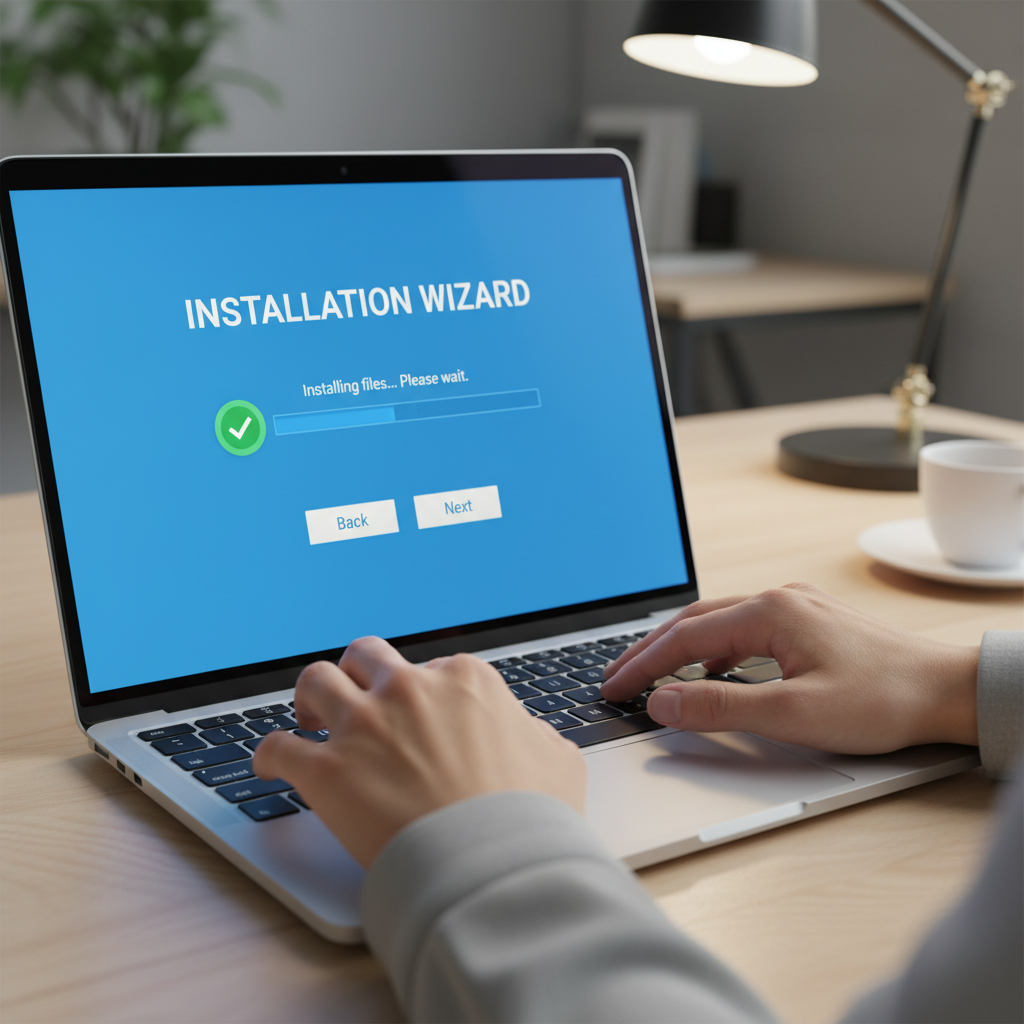
If your machine stays stuck on a screen labeled "Preparing Automatic Repair," Windows has recognized that the last startup failed and is actively trying to fix itself. It is essentially running a checklist to find missing system files or errors in the startup sequence. The most important advice here is to wait. Even if the progress bar seems slow, interrupting this process by pulling the plug can turn a simple software glitch into a much larger problem. Give the system at least thirty minutes to finish its work.
Should the repair fail, you will likely see a blue screen stating that "Automatic Repair couldn't repair your PC." This is when you should attempt to enter Safe Mode. Safe Mode is a stripped back version of Windows that only loads the bare essentials. It ignores non-essential software and complex drivers that might be causing the conflict.
To reach Safe Mode when your computer won't boot normally, you can use the "three-try" method:
Turn your computer on.
As soon as the manufacturer logo (like Dell or HP) appears, hold the power button down until the machine forces itself off.
Repeat this two more times.
On the fourth start, Windows will enter the Advanced Startup menu. Select Troubleshoot > Advanced options > Startup Settings > Restart. Once the machine reboots, press the number 4 or 5 key to start in Safe Mode. If you manage to reach your desktop this way, it is a strong sign that your hardware is healthy, but your software needs professional technical support to resolve the conflict.
When to Call a Professional Bristol IT Technician

There is a point where home troubleshooting should stop to prevent permanent damage. If your computer won't boot and you hear a distinct clicking or grinding noise coming from inside the case, turn it off immediately. These sounds indicate a physical hardware failure. Attempting to force a startup in this state can result in total data loss. Similarly, if the three-try method fails to trigger Safe Mode, or if the system remains stuck in a loop of failed repairs, the issue has progressed beyond basic software fixes.
Reaching this stage is frustrating, especially if you have a full schedule. Many residents in Emersons Green or Mangotsfield spend their days working and cannot afford to spend their entire night wrestling with technical manuals. This is why I offer professional technical support with flexible evening availability. My priority is ensuring your family photos and work documents are securely backed up before any invasive repairs begin. Professional intervention provides a controlled environment where a technician can bypass a corrupted operating system to retrieve files safely. If you have reached your limit or worry about the safety of your data, you can contact SWIT for evening support to arrange a convenient home visit within Bristol.