A laptop shuts down randomly primarily due to overheating, hardware failure, or faulty power settings that trigger an automatic safety shutdown. To fix this issue, you should clean your cooling fans, test the battery and charger, and update your system drivers to ensure hardware compatibility.
Few things are more disruptive than a laptop that abruptly cuts to black in the middle of a critical task. Whether you are working from a home office in Clifton or finishing an assignment in Redland, an unreliable machine halts your productivity and risks corrupting important files. These sudden power failures are rarely random glitches; they are typically urgent warning signs from your hardware or operating system. Understanding the root cause is essential to preventing permanent damage to your internal components. This guide breaks down the most frequent culprits, including overheating, battery failure, and Windows 11 software conflicts. We will provide practical troubleshooting steps to help you regain stability, along with advice on when to consult a local specialist to ensure your device remains a reliable tool for your daily life.
Why Your Laptop Shuts Down Without Warning
Few things are as disruptive as a screen that goes black without warning. When your laptop shuts down randomly mid task, the immediate feeling is one of frustration, particularly if you are catching up on household admin or schoolwork after a long shift. For residents across Bristol, from Bedminster to Emersons Green, technology needs to be reliable during those precious evening hours. While these failures feel erratic, they are almost always triggered by a specific, logical problem within the hardware or software.
Most unexpected shutdowns are the result of three core issues: excessive heat, inconsistent power delivery, or a deep-seated software conflict. Computers are built with internal fail-safes that cut power to prevent permanent damage to delicate components if they detect a dangerous spike in temperature or a faulty electrical signal. These safety features are designed to protect your investment, even if they occur at the most inconvenient moments.
This guide avoids unnecessary jargon to help you identify why your machine is struggling. If you find these steps overwhelming or simply do not have the time to troubleshoot after work, you can always contact SWIT for help to get a professional diagnostic at a time that suits your schedule. Understanding the underlying cause is the first step toward reclaiming a stable, reliable machine for your home office or living room.
The Most Common Cause: Overheating and Airflow
The most frequent reason a laptop shuts down randomly is to protect its internal components from heat damage. Inside your machine, the central processor and graphics chip generate significant warmth while you work. To manage this, laptops use a combination of heat sinks and small high speed fans. When these components cannot dissipate heat quickly enough, the system engages a safety feature known as thermal throttling. In plain English, the laptop intentionally slows itself down to generate less heat. If the temperature continues to rise despite this, the computer will cut power entirely to prevent a permanent hardware failure.
Airflow is the lifeblood of your laptop, and in many Bristol homes, environmental factors can quickly compromise it. If you have pets in a Southville terrace or a flat in the City Centre, fine fur and dander can be pulled into the intake vents by the cooling fans. Over time, this creates a felt like barrier that blocks air from reaching the internal components. You should periodically inspect the vents, usually found on the underside or rear edge of the casing, for any visible grey fluff or dust buildup.
The surface you choose for your device is equally important. Using a laptop on a duvet in Bedminster or a soft sofa in Totterdown is a common cause of overheating. These soft materials conform to the base of the machine, effectively sealing the ventilation gaps designed to let cool air in. To maintain a stable temperature, always use your laptop on a firm, flat surface like a wooden desk or a dedicated lap tray. For those who frequently perform demanding tasks, a cooling stand with integrated fans can provide the extra clearance needed to keep the system stable. If your machine remains hot even on a hard surface, you may need professional technical support to clean the internal fans or reapply thermal paste.
Power Problems: Why It Shuts Down Even With a Full Battery
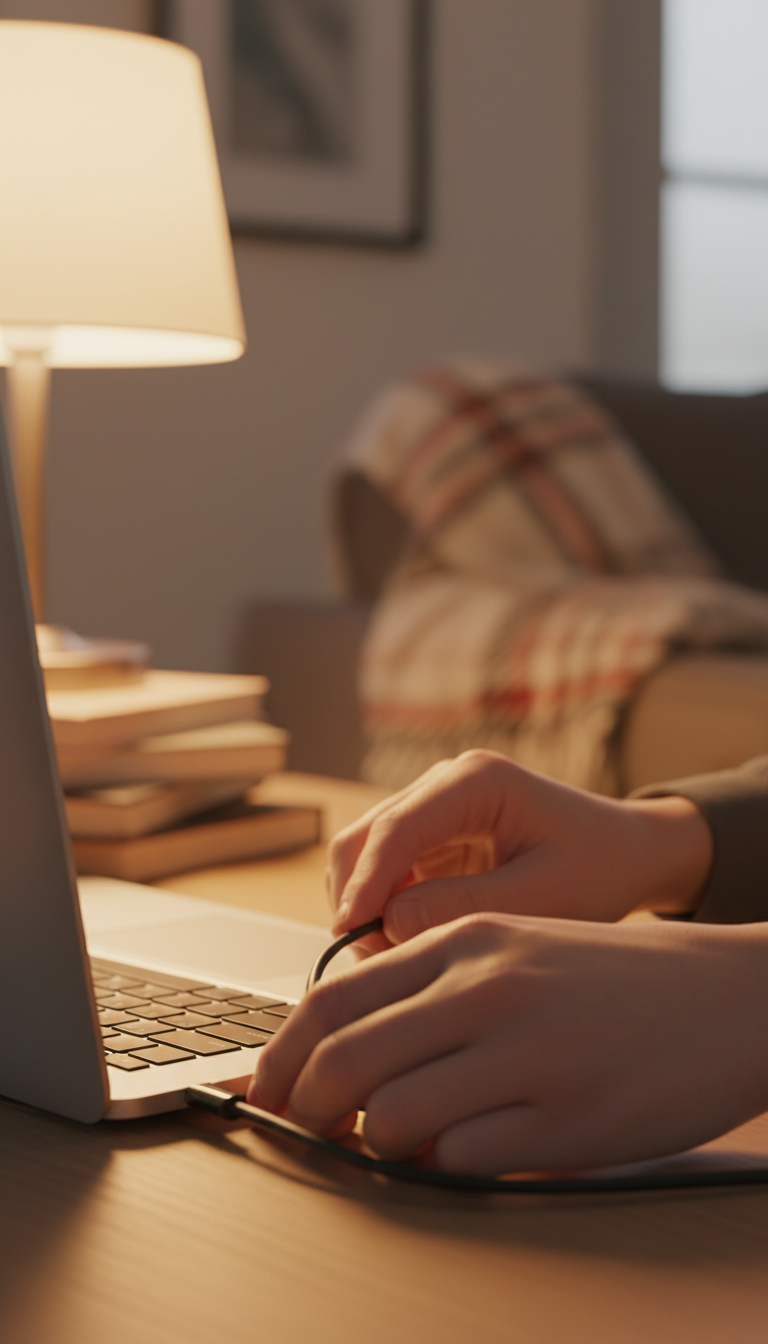
If your machine stays cool but your laptop shuts down randomly anyway, the focus must shift to the power delivery system. It is particularly confusing when the Windows battery icon displays a reassuring 100 percent charge moments before the screen goes dark. This usually points to battery degradation. Over years of use, the chemical components inside a battery lose their ability to maintain a steady voltage. While the software reports a full charge, the battery may lack the stamina to handle a sudden spike in power demand, causing the system to fail instantly.
To determine if the issue is external or internal, perform these physical checks:
Inspect the entire length of your charging cable for fraying, kinks, or exposed wires, especially near the plug that connects to the laptop.
Gently wiggle the charging pin while it is plugged into the machine. If the connection feels loose or the charging light flickers, the internal DC jack may be damaged.
Observe if the power brick is excessively hot to the touch, which can indicate a failing adapter.
There is a significant difference between a laptop that dies the second it is unplugged and one that cuts out sporadically while connected to the mains. An immediate shutdown when the cord is pulled suggests the battery has reached the end of its life or the internal circuit has failed. Conversely, if the machine cuts out while plugged in, the fault is more likely a failing power adapter or a loose charging port. For residents in Staple Hill or Mangotsfield who rely on their devices for evening tasks, identifying this distinction is the first step toward a fix. If you suspect a hardware fault, seeking professional technical support can prevent you from buying an expensive replacement battery that might not actually be the culprit.
Windows 11 Settings and Software Glitches
Sometimes the issue is not hardware at all, but a misunderstanding between you and Windows 11. A common complaint involves a laptop that seemingly shuts down the moment you leave the room. This is often caused by a feature called Modern Standby. In this state, the laptop enters a low power mode that can appear like a total shutdown, especially if it requires a specific key press or a long wait to wake up. Unlike older versions of Windows, this mode keeps the system active enough to receive notifications, but it can be confusing if the screen remains black when you return.
To rule this out, you should check your Windows 11 power configuration. Click the Start button, type "Power" into the search bar, and select "Power, sleep and battery settings." Look for the "Screen and sleep" section. Here, you can adjust the timers for when your laptop should turn off its screen or go to sleep while on battery or plugged in. If these are set to very short intervals, your laptop might be nodding off before you have finished a quick task in another room.
Software glitches, such as a corrupted Windows update, can also cause erratic behavior. If an update fails to install correctly, the system may attempt a restart that fails, leaving the machine powered off entirely. If your settings look correct but your laptop shuts down randomly during your evening work, it may be time to contact SWIT for help to clear out problematic system files or update your BIOS safely.
What to Do if It Is Not Overheating
When your laptop remains cool to the touch but the screen still goes dark, the issue likely resides deep within the internal circuitry. These cases are more complex because they bypass the usual thermal safety triggers. A frequent culprit is faulty RAM, also known as Random Access Memory. If a specific memory module is failing, the system will often crash the moment it attempts to write data to a corrupted sector. This results in an instantaneous loss of power that leaves no error message or warning behind.
Internal hardware fatigue can also manifest during resource heavy tasks. If your laptop shuts down randomly while you are editing high resolution video or gaming in a home office in Bedminster, the Power Supply Unit or the dedicated Graphics Card may be struggling to handle the electrical load. When these components demand more wattage than the system can reliably provide, the motherboard often cuts power as a defensive measure to prevent a surge.
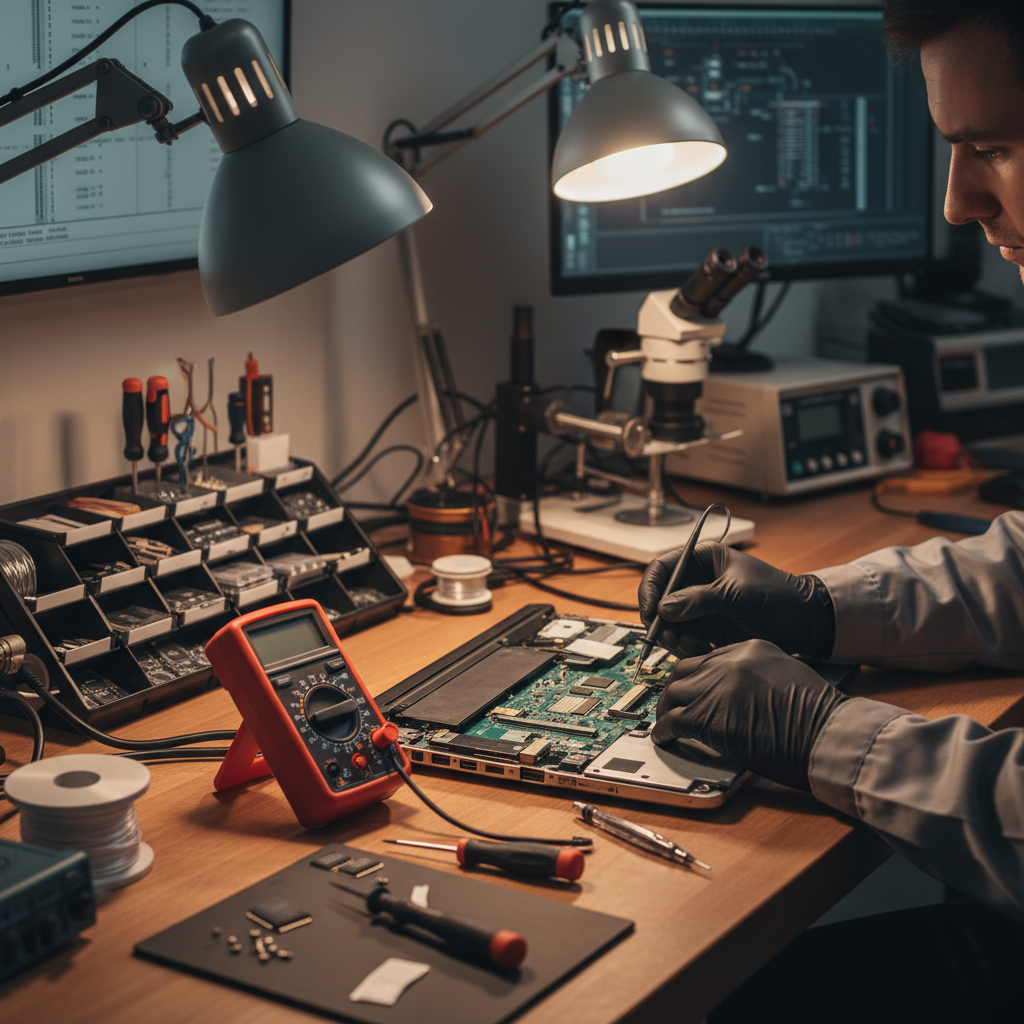
Diagnosing a motherboard failure or a micro component short circuit is difficult without specialized equipment. If you have ruled out software and heat, the problem is almost certainly a hardware fault that requires professional technical support. Attempting to bypass these issues manually can lead to further damage, so it is safer to contact SWIT for help to run a hardware diagnostic and identify the exact component at fault.
Common Laptop Shutdown Myths to Avoid
Browsing online forums for a fix often leads to high risk suggestions that are unsuitable for modern portable devices. A common myth involves using a screwdriver to short the pins on a motherboard to reset the power state. While this was a crude diagnostic trick for older desktop computers, attempting it on a laptop is a recipe for an instant, permanent short circuit. Modern laptops are densely packed with micro components that are far more delicate than the hardware found in bulky office towers from a decade ago.
If your laptop shuts down randomly and software settings do not resolve the issue, avoid the temptation to perform DIY hardware surgery. Another dangerous recommendation involves dismantling the casing to reapply thermal paste or check voltages without a grounded workspace. A single spark of static electricity from your fingertips can destroy the motherboard entirely. For home users in areas like Emersons Green or Staple Hill, safe software adjustments are fine, but opening the machine should be left to professional technical support to avoid permanent damage. If a forum post seems risky, contact SWIT for help instead of gambling with your hardware.
Local Tech Support for Bristol Residents

When your laptop shuts down randomly after a long day at work, the last thing you want is to spend your evening on hold with a manufacturer's call center. SWIT provides a local alternative for residents in areas like Mangotsfield and Totterdown. Because most people work a standard 9 to 5, I offer flexible evening appointments. This ensures you can get your machine looked at without having to take time off work or navigate the traffic into the city centre during peak hours.
The diagnostic process is straightforward and transparent. I begin with an initial physical and software check to isolate the problem. By testing the battery health, inspecting cooling fans for debris, and checking motherboard stability under load, I can pinpoint exactly why the system is failing. Once the fault is identified, I provide a clear explanation and a path to a permanent fix, ensuring you understand the work required before any repairs begin.
Choosing local, independent support is often significantly faster than sending a device away. Sending a laptop back to a manufacturer often leaves you without a computer for several weeks and provides little clarity on the repair status. Working with SWIT means you receive professional technical support right here in Bristol. If you are tired of the uncertainty and need a reliable solution, you can contact SWIT for help to book a visit and get your laptop running reliably again.