

A printer not printing is typically caused by connection issues, empty ink cartridges, or stuck print queues. To fix this, ensure your device is set as the default printer, restart your router and hardware, and update any outdated drivers or software.
You have likely experienced the specific frustration of clicking print on an urgent document only for your device to remain stubbornly silent. This failure usually occurs at the least convenient moment, whether you are finishing a report for a Bristol client or printing travel documents for a flight from Lulsgate. A printer that refuses to cooperate is not just a technical glitch; it is a significant disruption to your daily productivity and peace of mind. In this guide, we will examine the three pillars of a functional printing setup and explain why your device might appear offline despite a stable Wi-Fi connection. You will learn practical steps to resolve blank pages, manage manufacturer specific quirks from brands like HP and Epson, and identify when a hardware issue requires professional intervention from a local expert.
Why Your Printer Stops Working When You Need It Most
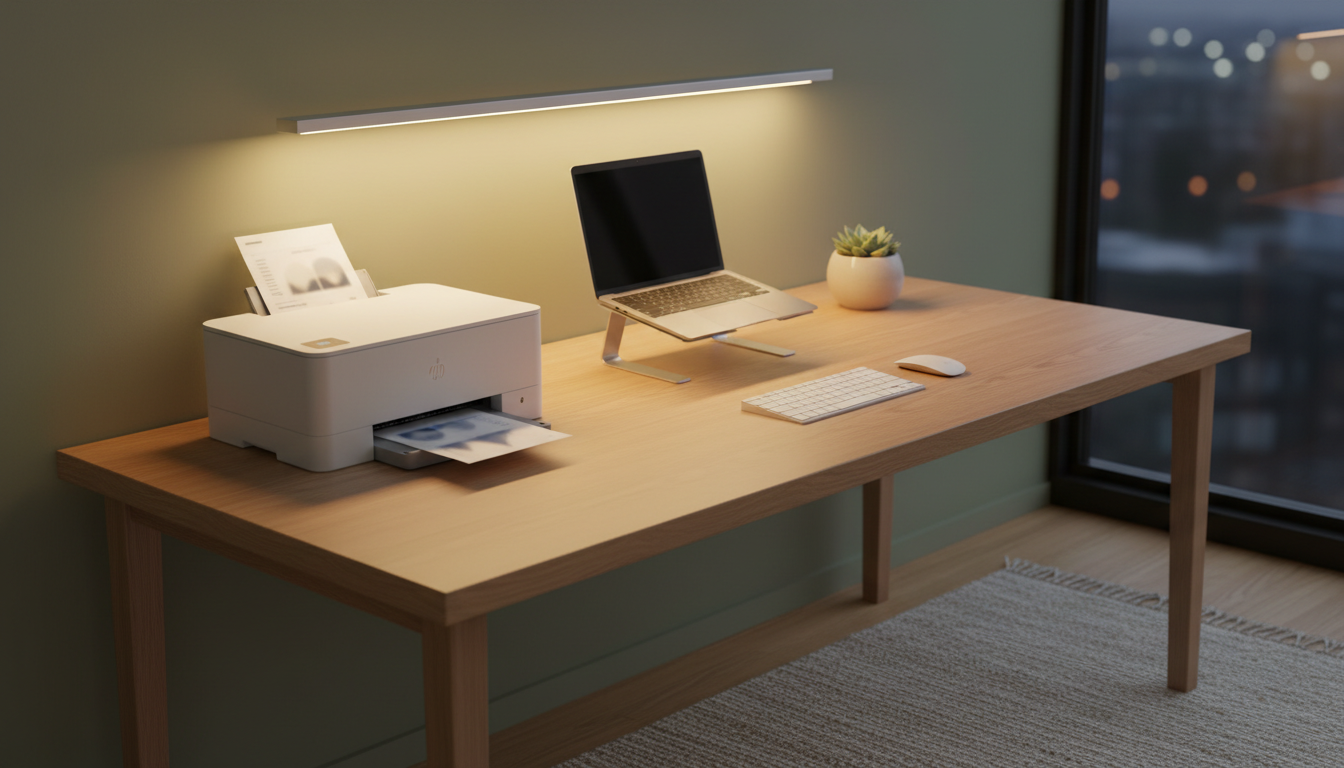
It usually happens at the worst possible moment. You might have ten minutes to print a shipping label for a parcel or a school project for the kids before the morning run, but the machine remains stubbornly silent. This "printer not printing" scenario is one of the most frequent issues I encounter while providing evening technical support in Bristol.
While it is easy to assume the device has reached the end of its life, the hardware itself is rarely the culprit. In the majority of Bristol homes I visit, the problem is actually a communication breakdown. Your computer and your printer have simply stopped speaking the same language, or the "handshake" between them has been interrupted by a minor software glitch. This is particularly common in areas like Southville or Bedminster where Victorian walls can sometimes interfere with older Wi-Fi signals.
Manufacturer manuals often compound this frustration by using dense technical jargon. They point you toward "print spoolers," "static IP addresses," or "gateway timeouts," which are terms that offer little help when you are in a rush. This guide is designed to cut through that noise. By using plain English and logical steps, we can identify exactly where the connection has failed and get the ink flowing again. Most of these issues can be fixed without needing a full professional printer installation, but if these DIY steps do not solve the issue, you can always contact SWIT for help to book a visit.
The Three Pillars of a Working Printer
To move past the frustration of a printer not printing, it helps to stop looking at the device as a single, temperamental unit and instead view it as a chain of three distinct pillars. If one link in this chain breaks, the entire process stops. By isolating which pillar is failing, you can stop clicking random buttons and focus on the actual source of the error.
The Connection: This is the bridge between your device and the printer. In most Bristol homes, this is a Wi-Fi signal, though some still use a physical USB cable. If your laptop cannot see the printer on the network, no amount of software updates will help. You must first ensure the digital signal is actually reaching the machine.
The Software: Think of this as the translator. Your computer speaks one language and your printer speaks another. The driver software sits in the middle to translate your document into instructions the printer understands. If the driver is corrupted or the computer is sending the job to the wrong destination, the message gets lost in translation.
The Hardware: This is the physical reality of the machine. Even if the connection is perfect and the software is working, the job will fail if there is no paper, the ink has dried up, or a sensor is blocked by a tiny scrap of paper.
Approaching a problem this way prevents the common mistake of buying new ink (Hardware) when the real issue is a dropped Wi-Fi signal (Connection). If you find yourself stuck at the software stage, I often provide evening technical support in Bristol to help residents in areas like Totterdown and Emersons Green clear these digital blockages.
Why Is My Printer Offline But Connected to Wi-Fi?

One of the most confusing sights in a home office is a printer displaying a steady green Wi-Fi light while your computer insists the device is offline. This happens because the physical connection pillar is technically active, but the software pillar has become stuck. The green light means the printer has a heartbeat and an IP address, but Windows has stopped listening to it.
A frequent culprit in Windows 10 and 11 is a specific setting that often gets toggled during a brief signal dip. To check this, follow these steps:
Open the Control Panel and select Devices and Printers.
Right-click your specific printer icon and select See what's printing.
Click the Printer tab at the top left of the pop-up window.
Look for Use Printer Offline. If there is a tick next to it, click it to deselect the option.
If the status does not change, the issue often lies in how modern routers in Bristol homes manage traffic. Many residents in newer developments in Emersons Green or Mangotsfield use dual-band routers that broadcast two signals: 2.4GHz and 5GHz. Printers almost exclusively use the older 2.4GHz band because the signal travels better through solid objects. If your laptop has automatically hopped onto the faster 5GHz band, the two devices might be unable to see each other. They are on the same network, but they are effectively living in different digital rooms.
This is also common in homes in Totterdown or Southville where mesh Wi-Fi systems are used to push signals through thick Victorian walls. Your printer might be connected to a mesh node in the hallway while your laptop is connected to the main hub in the lounge. If the printer remains offline, try turning the printer off, then the router, then back on in that order. If your network setup continues to cause a printer not printing error, I provide evening technical support in Bristol to help stabilise these connections. If these steps do not clear the status, you can contact SWIT for help to look at deeper driver issues.
Fixing Blank Pages Even Though You Have Full Ink
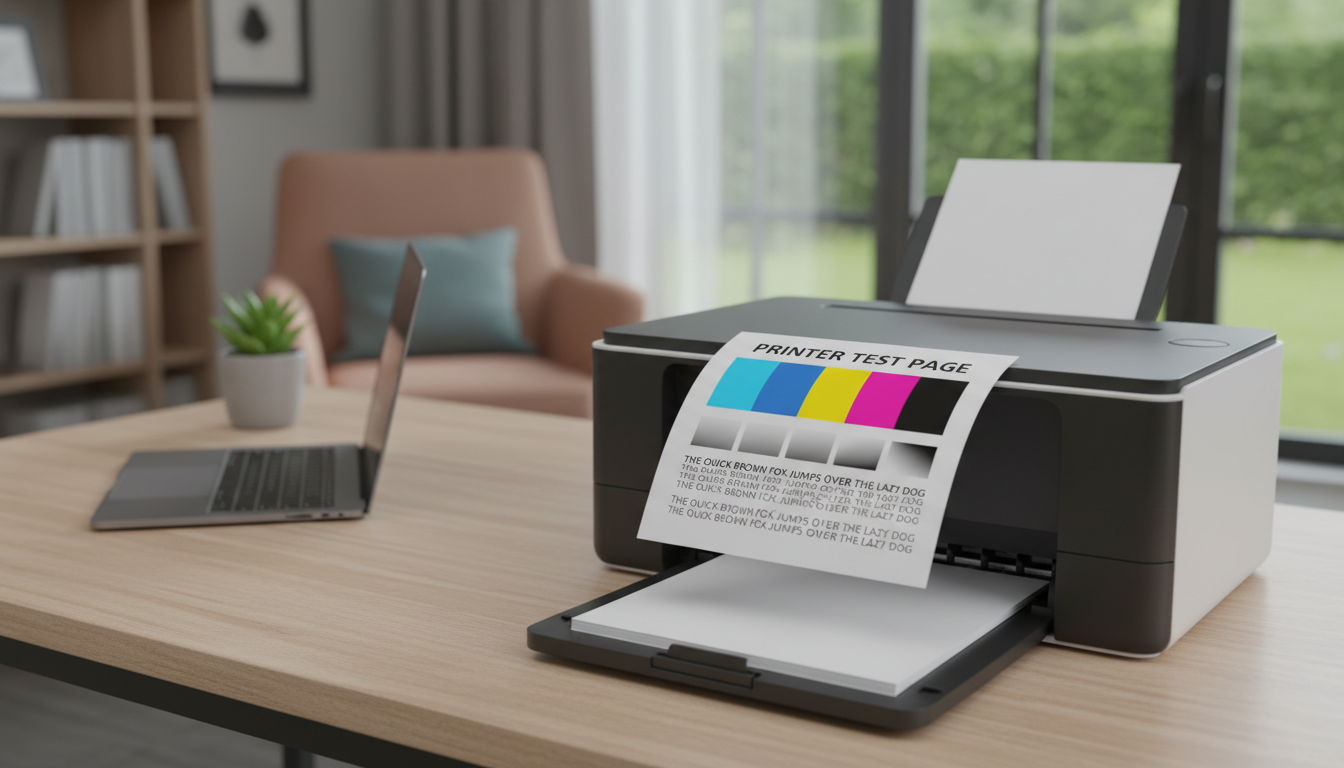
Watching your printer methodically slide out a perfectly blank sheet of paper despite the screen reporting full ink levels is a specific kind of annoyance. This occurs when the third pillar, the hardware, is physically unable to deliver the ink to the page. Most home printers in Bristol, such as the popular HP Envy or Epson XP series, use inkjet technology that relies on microscopic nozzles. If the device sits idle for a few weeks, the tiny amount of ink left in these nozzles can dry out, creating a stubborn crust that blocks the flow.
Before assuming the hardware has failed, you should look for the maintenance or tools menu on the printer's own display screen. Every major brand includes a utility called Clean Print Heads or Nozzle Cleaning. Running this cycle forces a small amount of ink through the system to dissolve any blockages. It is often necessary to run this cycle two or three times to see an improvement in print quality.
If the blank pages started appearing immediately after you changed a cartridge, the cause is usually a simple oversight. New cartridges are shipped with a tiny piece of protective plastic tape, often with a bright orange or yellow pull tab, covering the print head or the air vent. If this tape remains in place, the ink is physically sealed inside. I frequently encounter this during evening technical support in Bristol for clients in areas like Staple Hill or Bedminster. If you have removed the tape and run the cleaning cycles without success, the print head may be permanently clogged. If you are unsure about the next step, you can contact SWIT for help to determine if the unit can be saved or if a new professional printer installation is a more cost effective route.
How to Print From a Phone or Tablet in Your Bristol Home
Modern home offices in the City Centre or Mangotsfield often rely more on tablets and smartphones than traditional desktop PCs. When you face a printer not printing from phone or iPad, the issue usually stems from how these mobile devices discover hardware on your network. Apple devices use a protocol called AirPrint, which requires no extra setup as long as the printer is compatible. Android users typically rely on Mopria or specific manufacturer apps to bridge the gap.
One of the most frequent reasons a tablet fails to find a printer is a simple mismatch in Wi-Fi connections. Many routers provided by UK internet providers automatically set up a Guest Wi-Fi network alongside your main one. If your phone has automatically joined the guest network to save data or because it had a stronger signal in the kitchen, it will be digitally isolated from the printer on the main network. Always double check that both devices are on the exact same SSID.
If your device sees the printer but the job hangs indefinitely, it might be a handshake error similar to the driver issues seen on laptops. If you are struggling to get your mobile devices synced correctly, I provide evening technical support in Bristol to help configure your home network. You can also contact SWIT for help if you need a professional printer installation to ensure all your mobile devices are mapped correctly from day one.
Manufacturer Specific Quirks: HP, Epson, and Canon
Different brands have their own digital personalities, and knowing the specific quirks of your machine can save you an hour of frustration. If you use an HP Envy or OfficeJet, the most common roadblock is the HP Smart app. HP has moved away from simple plug and play drivers; the printer often requires the app to be logged in and active before it will process a job. If your HP printer is not printing, check the app first to see if it is requesting a security update or a cartridge confirmation that isn't appearing on your PC screen.
Epson users frequently encounter a different hurdle: the mandatory firmware update. Epson machines are particularly sensitive to software versioning. If a new update is released, the printer may pause all incoming jobs until the update is downloaded and installed via the printer’s small LCD panel. This often looks like a system failure when it is actually just a pending chore.
Canon printers use a distinct Support Code system. If your device flashes an orange light, look at the screen for a four digit number. These codes, such as 1600 or B200, are much more useful than generic Windows errors. Searching for these specific digits on the manufacturer's site usually reveals exactly which sensor is obstructed or which tank is misplaced. If these brand specific hurdles are becoming a recurring headache, I offer evening technical support in Bristol to help residents in areas like Southville and Mangotsfield bypass these software traps. For a more permanent solution, a professional printer installation can ensure your specific brand’s software is configured to be as unobtrusive as possible. If the error codes still do not make sense, you can contact SWIT for help to diagnose the fault.
When the Quick Fixes Fail: Professional Help in Bristol

Sometimes, despite your best efforts with menus and cables, the communication gap remains. This often indicates that the driver, the translator software mentioned in the pillars above, has become corrupted or conflicted. Simply clicking update usually will not suffice; the system frequently needs a deep clean of old registry entries and ghost files to function again. These hidden software conflicts are a common reason for a printer not printing even after a restart.
SWIT provides evening technical support in Bristol specifically for residents in Southville, Bedminster, and Emersons Green who work during the day. Instead of spending your limited free time fighting with a plastic box, you can book an expert visit to handle the technical heavy lifting. If you require a complete professional printer installation to ensure long term stability or a total software reset, you can contact SWIT for help to arrange a convenient time to get your home office back in order.