You can learn how to wipe a computer before selling by backing up your files and using the built-in Windows Reset tool with the drive cleaning option enabled. For specialized hardware like SSDs, use the manufacturer's secure erase utility or a third party data wiping program to overwrite all existing information; this ensures that your personal data is permanently destroyed and cannot be recovered by the next owner.
Handing over an old laptop to a stranger in Bristol can feel like leaving your front door unlocked if you have not properly sanitized the drive. Many users mistakenly believe that dragging files to the recycle bin or performing a quick format is sufficient to protect their identity. Unfortunately, residual data often remains accessible to anyone with basic recovery software; this puts your financial records and personal photos at significant risk. This guide offers a professional, step by step framework to ensure your privacy remains intact. We will walk you through the essential process of backing up data, signing out of cloud services, and performing a deep wipe of both modern SSDs and traditional hard drives. Whether you are prepping a working PC for sale or need to handle a broken machine that will not boot, these expert strategies will help you secure your digital footprint before the hardware changes hands.
Why Deleting Your Files Isn't Enough to Protect Your Privacy
When you delete a file and empty the Recycle Bin, Windows does not actually erase the data from your hard drive. Instead, it marks the space as free, essentially telling the computer it is okay to write new information over that spot whenever it needs to. The underlying data remains physically present on the drive until it is eventually overwritten by something else, which could take weeks, months, or even years.
Think of your hard drive like a large reference book. Deleting a file is like removing the entry from the index at the front; the actual pages of text remain on the shelf, perfectly readable for anyone who knows where to look. Specialized data recovery software, which is widely available and often free, can scan these unindexed pages and reconstruct your files in seconds.
This hidden data is what makes selling an improperly prepared device so risky. Identity thieves do not just look for obvious documents like PDFs of your passport. They hunt for cached browser passwords, banking cookies, and auto-fill data stored deep within system folders. If you are researching how to wipe a computer before selling it to a stranger in Bedminster or Totterdown, understanding this distinction is vital. Simply hitting delete leaves your private life accessible to anyone with basic technical knowledge. To protect yourself, you must move beyond simple deletion to a full data wipe that overwrites the physical storage sectors. If the process feels daunting, you can always contact SWIT for assistance to ensure your privacy is handled correctly.
Step 1: Back Up Your Data and Sign Out of Every Account
Before starting the wiping process, you must ensure you have a complete, verified copy of your personal information. Use a reliable external hard drive or a reputable cloud service to move your documents, photos, and browser bookmarks. If you are unsure which method suits your setup, you can follow my guide on how to back up your home computer.
Preparation involves more than just copying files; you must actively disconnect the machine from your digital identity. Sign out of services that use device-based authorizations, such as iTunes, iCloud, and Microsoft 365. Many of these subscriptions limit the number of active installations allowed per account. If you forget to de-authorize the PC now, you may find yourself unable to activate your software on a new device later without contacting support.
Finally, de-register the computer from your Google Account or Apple ID. Leaving features like Find My Device active creates an activation lock. This security measure tethers the hardware to your email address, making it impossible for a buyer in Staple Hill or Mangotsfield to set it up for themselves. Checking your account dashboard to confirm the device is removed is the only way to ensure the next owner can actually use what they have bought. If these steps feel complex, a professional IT technician in Bristol can walk you through the preparation to ensure nothing is missed.
How to Wipe a Windows 10 or 11 Computer Before Selling
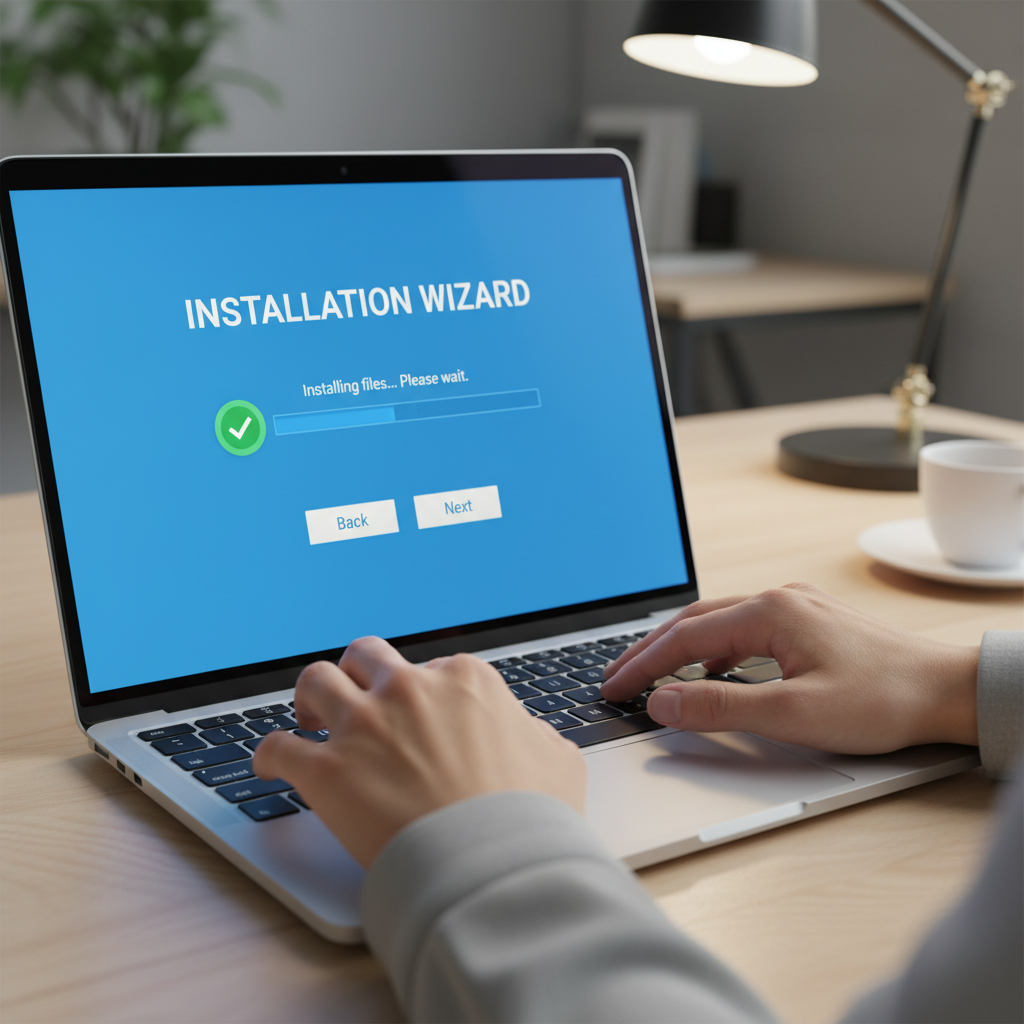
Once your data is safe and your accounts are disconnected, you can use the built-in Reset this PC feature. While Windows 10 and 11 share the same core functionality, finding the menu requires slightly different steps. For Windows 10, navigate to Settings, then Update & Security, followed by Recovery. In Windows 11, open Settings, select System, and then Recovery. In both versions, look for the Reset PC or Get Started button under the recovery heading.
When the process begins, you will be presented with two choices: Keep my files or Remove everything. For anyone learning how to wipe a computer before selling, you must select Remove everything. This ensures that user accounts, installed applications, and personal documents are flagged for removal. After selecting how you want to reinstall Windows (Cloud download is generally more reliable if you have a stable Bristol broadband connection), you will reach the Additional settings screen.
This is the most critical stage for your privacy. By default, Windows often selects Just remove my files, which is a quick process that only takes a few minutes. However, as established earlier, this does not actually erase your data. You must click Change settings and toggle the Clean data switch to Yes. This instruction tells Windows to overwrite the drive sectors, making it significantly harder for recovery tools to find your old information.
Be aware that a full data clean can take several hours depending on the size and speed of your drive. It is best to leave the computer plugged into power and running in the background. If you find these menus confusing or want to ensure the wipe meets professional standards before passing your machine to a buyer in Emersons Green or the City Centre, a professional IT technician in Bristol can manage the entire process for you. Taking the extra time now prevents your private history from becoming someone else's discovery later.
The Crucial Difference Between Wiping an SSD and a Traditional HDD

Understanding the hardware inside your machine is essential because Solid State Drives (SSDs) and traditional Hard Disk Drives (HDDs) require completely different sanitisation methods. A traditional HDD stores data magnetically on spinning platters. To ensure this data is unrecoverable, the drive must be overwritten with layers of random data. This is what the Clean data option in Windows attempts to do. If you have an older desktop or a large capacity laptop, you likely have an HDD that benefits from this multi-pass approach.
Most modern laptops used by residents in Southville or Mangotsfield now use SSDs. Unlike HDDs, SSDs use flash memory and a controller that manages where data is stored to extend the life of the drive. Using standard shredding or wiping software designed for HDDs on an SSD is counterproductive. It causes unnecessary wear, shortening the drive's lifespan without guaranteeing erasure, because the drive controller may move the new data to a different physical location than the old files.
To correctly handle an SSD when learning how to wipe a computer before selling, you should use a manufacturer-specific tool such as Samsung Magician, Western Digital Dashboard, or Crucial Storage Executive. These utilities issue a Secure Erase command. This hardware-level instruction tells the SSD to clear the stored electrons from all cells simultaneously, effectively resetting the drive to its factory state in seconds. If you are unsure which drive type your computer uses, a professional IT technician in Bristol can identify your hardware and apply the correct secure erase protocol to protect your privacy and maintain the health of the device.
Does a PC Factory Reset Delete Everything?
A standard factory reset is frequently misunderstood as a total data sanitization tool. While it effectively restores the operating system to its original state, it does not necessarily scrub every bit of your personal history. If you perform a basic reset, much of your information remains on the drive, invisible but physically present. Forensic recovery software can often piece these files back together, which is a significant concern if you are handing the machine to a stranger met on a local Bristol marketplace.
To be 100 percent sure your privacy is protected, you must move beyond the default settings. For traditional hard drives, this involves a multi-pass wipe that overwrites storage sectors with random data. For modern devices using encryption, a cryptographic erase is the most efficient path; it destroys the encryption keys, leaving the data as indecipherable digital noise. If you are researching how to wipe a computer before selling, remember that a factory reset is a starting point rather than the finish line. For absolute certainty, a professional IT technician in Bristol can perform a deep wipe to ensure your banking details and passwords are truly gone.
How to Handle a Broken Computer That Won't Turn On

A computer that refuses to boot presents a unique challenge for data privacy. Many residents in Bedminster or Totterdown assume a dead machine means their information is gone, but the storage drive usually remains perfectly functional inside the chassis. Even if the motherboard or power supply has failed, your banking details and personal photos are still sitting on the physical platters or flash chips, waiting for someone to plug them into a working system.
To protect yourself, you must physically remove the storage component before recycling the plastic and metal chassis. On most laptops and desktops, this involves unscrewing a dedicated panel to locate the 2.5 inch HDD or the small M.2 SSD stick. Once extracted, you can place the drive into a cheap USB enclosure to recover your files onto a new machine. If you find the hardware layout confusing, a professional IT technician in Bristol can safely extract the drive and ensure the remaining shell is safe for disposal.
If the drive itself is faulty or you simply want it destroyed, physical destruction is the only UK GDPR-compliant way to ensure total privacy for a non-booting device. For traditional hard drives, drilling three holes completely through the metal casing and internal platters is an effective home method. For SSDs, you must physically snap the internal memory chips. If you prefer a more documented approach, you can contact SWIT for assistance to arrange for professional data destruction that guarantees your private life stays off the second-hand market.
Where to Safely Sell or Recycle Your Old Computer in Bristol
After following the steps on how to wipe a computer before selling, you have several reliable options across Bristol to move the hardware on. For a direct sale to a neighbour, the community Facebook Marketplace groups in Southville and Bedminster are excellent for reaching local buyers quickly. If you prefer a faster transaction without the hassle of arranging viewings, local independent tech shops around Staple Hill and Emersons Green frequently buy used laptops and desktops for parts or resale. You can also check trade-in services like WeBuyAnyPhone for a quick valuation on newer devices.
If the machine is still functional but not worth much, consider donating it to a local charity in the City Centre to help residents gain internet access. For broken or ancient hardware, the Bristol Waste Recycling Centres at St Philips and Days Road provide dedicated skips for small electricals. These facilities ensure that hazardous materials are handled safely and metals are reclaimed. If you are unsure which route is best for your old machine, a professional IT technician in Bristol can help you evaluate your hardware and ensure it is ready for its next chapter.