A computer keeps crashing and restarting primarily due to hardware overheating, faulty components like RAM or the power supply, or corrupted system drivers. You can often resolve these issues by ensuring proper ventilation, running diagnostic tools to check for memory errors, and updating your software to the latest versions.
You are in the middle of a critical task when your screen suddenly flickers, the fans roar, and your PC initiates an unprompted restart. It is a uniquely frustrating experience that disrupts your workflow and leaves you wondering if your data is truly safe. While these interruptions feel like a catastrophic failure, they are often a sophisticated safety mechanism triggered by the operating system to prevent physical damage to your internal components. Understanding these triggers is essential for maintaining the longevity of your hardware. This guide breaks down the common culprits behind unexpected reboots, explains the technical reality of the Blue Screen of Death, and provides practical troubleshooting steps for Bristol residents. You will discover simple fixes to try tonight and learn exactly when to consult a professional IT technician to restore your computer to peak performance.
Why the Ghost in the Machine is Actually a Safety Feature
It is 8:00 PM in Bedminster or Totterdown. You have finally finished work, cleared the dinner table, and sat down to catch up on personal admin or relax with a movie. Suddenly, the screen goes black and the system reboots. When a computer keeps crashing and restarting, it feels like a personal failure of the machine, but it is actually a sophisticated safety mechanism.
Think of it like the RCD or safety trip in your home fuse box. If the electrical system detects a fault that could cause damage, it cuts the power instantly to protect the circuit. Your PC operates on a similar logic. If a component gets too hot or a piece of software sends a command that could physically damage the processor, the system pulls the plug on itself. This is distinct from a computer freezing, where the screen simply stops moving. A sudden restart is your hardware actively shouting "stop" to save its own life.
The good news is that this trip usually happens before any data is lost. While the interruption is incredibly frustrating, your family photos and important documents are almost certainly still safe on the drive. If you find the cycle repeats and you need professional technical support to find the root cause, you can always contact SWIT for a home visit during the evening to get it sorted without the stress.
Common Culprits: Why Your PC Restarts Without Warning
To fix the cycle, we have to identify the specific trigger. While every machine is different, most sudden restarts stem from three main areas: heat, power, or communication errors.
Overheating is perhaps the most common reason a computer keeps crashing and restarting. In many of Bristol’s characterful terraced houses in areas like Bedminster and Totterdown, fine dust can accumulate more quickly than in modern builds. This dust eventually clogs the internal fans and heat sinks meant to cool the processor. When the airflow is blocked, your computer effectively gets too hot to think. It reaches a thermal limit where the hardware is at risk of melting, so it executes an emergency shutdown to save itself.
Software conflicts and "driver" issues are the second most likely cause. You can think of a driver as a professional translator that helps Windows speak to your hardware, such as a graphics card or a network adapter. If that translator forgets the right words or receives conflicting instructions after an update, the system becomes terminally confused. This is often why Windows 10 keeps crashing and restarting, as background updates can sometimes clash with older software already installed on your drive. The system reboots in a desperate attempt to start the conversation over from scratch.
Finally, a failing Power Supply Unit (PSU) can cause these symptoms. As these components age, they may struggle to provide a steady stream of electricity. If you are performing a task that requires a sudden burst of energy and the PSU cannot deliver, the system "browns out" and restarts. Identifying which of these specific triggers is responsible requires a methodical approach. If you are unsure where to start, seeking professional technical support can prevent you from replacing parts unnecessarily. For a tailored diagnosis in your own home, you can contact SWIT for a home visit to get your system stable again.
Understanding the Blue Screen of Death (Without the Panic)
When your computer keeps crashing and restarting, the most jarring experience is the appearance of the Blue Screen of Death, or BSOD. While that glowing blue screen looks like a terminal warning, it is actually a diagnostic report. Windows has encountered a problem it cannot solve and, rather than continuing and risking data corruption, it halts the system and provides a snapshot of what went wrong.
If you see this screen, the most important thing you can do is look for the "Stop Code." This is usually found at the bottom of the page in all capital letters, such as `SYSTEM_SERVICE_EXCEPTION` or `IRQL_NOT_LESS_OR_EQUAL`. Use your phone to take a quick photo of the screen before the computer reboots. This specific code acts as a fingerprint for the error, allowing an expert to provide professional technical support much faster than if they were guessing.
People often worry that a Blue Screen means the hardware is permanently broken, but it is frequently a software glitch. A misconfigured update or a corrupted system file can cause the system to trip. You might also wonder, "Can a computer virus cause a blue screen of death?" The nuanced answer is yes; some malware targets deep system files, which leads to instability. However, in modern systems, it is rarely the primary cause of a BSOD. Most of the time, the issue lies with a faulty driver or a recent change to the operating system. If you are stuck in a loop and cannot get past the blue screen, you can contact SWIT for a home visit to have the error logs professionally analyzed in your own home.
Why Does My PC Keep Crashing When I Play Games?
Gaming is a high intensity activity that forces your hardware to work at its maximum capacity. When you are browsing the web, your computer is idling; however, launching a graphically demanding game is the digital equivalent of driving a car up a steep hill at full throttle. This sudden demand for energy often reveals a failing Power Supply Unit (PSU). If the PSU is aging and cannot maintain the high wattage required by your graphics card during an intense sequence, the system will simply trip and restart to prevent electrical damage.
Heat is the other major factor for why a computer keeps crashing and restarting during play. Graphics cards generate significant warmth, and if the card's internal fans are caked in dust, the temperature can spike within minutes. A common mistake I see in home setups across Bristol, particularly in properties where space is at a premium, is tucking the PC tower into a wooden desk cupboard or a tight corner to hide the cables. This prevents fresh air from circulating, causing the machine to breathe its own hot exhaust.
If your computer crashes only when the action gets heavy, it is a clear sign that your hardware is reaching a thermal or power limit. For a diagnostic check of your gaming rig, you can contact SWIT for a home visit to ensure your components are getting the airflow they need. If a component like the PSU needs replacing, professional technical support can help you select a part that safely matches your system's power demands.
Is My Computer Dying? Signs of Hardware Failure
Determining if your computer is simply struggling with software or is physically failing requires paying attention to the machine's "body language." If your computer keeps crashing and restarting after an hour of use but generally behaves well initially, you are likely looking at a software conflict or a thermal issue that needs a cleanup. However, if the restarts happen before the Windows logo even appears on the screen, the system is failing its initial hardware handshake. This often points to a critical component like the motherboard or RAM that is failing to initialize.
Listen for physical warning signs. A grinding or rattling sound often indicates a fan with a worn bearing or a mechanical hard drive reaching the end of its life. More urgently, a sharp, metallic smell of ozone or burning plastic is an immediate sign that a component is short-circuiting. In these cases, you should power down the machine immediately to prevent further damage. Unlike a software glitch that can be patched, these physical symptoms require professional technical support to identify which part needs replacing. Recognizing these signs early helps you decide if your PC needs a simple maintenance routine or a more significant repair. If you are hearing odd noises from your tower, you can contact SWIT for a home visit to get a definitive diagnosis before a small fault leads to a total system failure.
Three Simple Fixes You Can Try at Home Tonight

If your computer keeps crashing and restarting, you can perform a few low-risk checks before calling for help. Start with the simplest hardware point: the cables. As seen in the image showing a close up of hands connecting a cable, ensure the power lead is pushed firmly into the back of the PC and the wall socket. A loose connection can cause a tiny electrical arc that triggers an immediate reboot when the desk is bumped or the floor vibrates.
Next, try the "can of air" trick to tackle internal heat. Dust acts like a blanket over your components, trapping heat inside. Purchase a canister of compressed air from a local shop and, while the PC is off, give the rear and side vents a few short bursts. This clears the airflow paths without you needing to open the case. Avoid using a household vacuum cleaner, as these can generate static electricity that damages sensitive electronics.
Finally, check your Windows Updates. Sometimes the system gets stuck trying to finish a complex installation. Click the Start button, type "updates," and select "Check for updates." If a "Restart now" button is visible, your computer might be caught in a loop because it hasn't quite finished the task. If these steps do not stabilize the system, you may require professional technical support to look deeper. For a thorough diagnosis, you can contact SWIT for a home visit any evening this week.
When to Call a Professional Bristol IT Technician
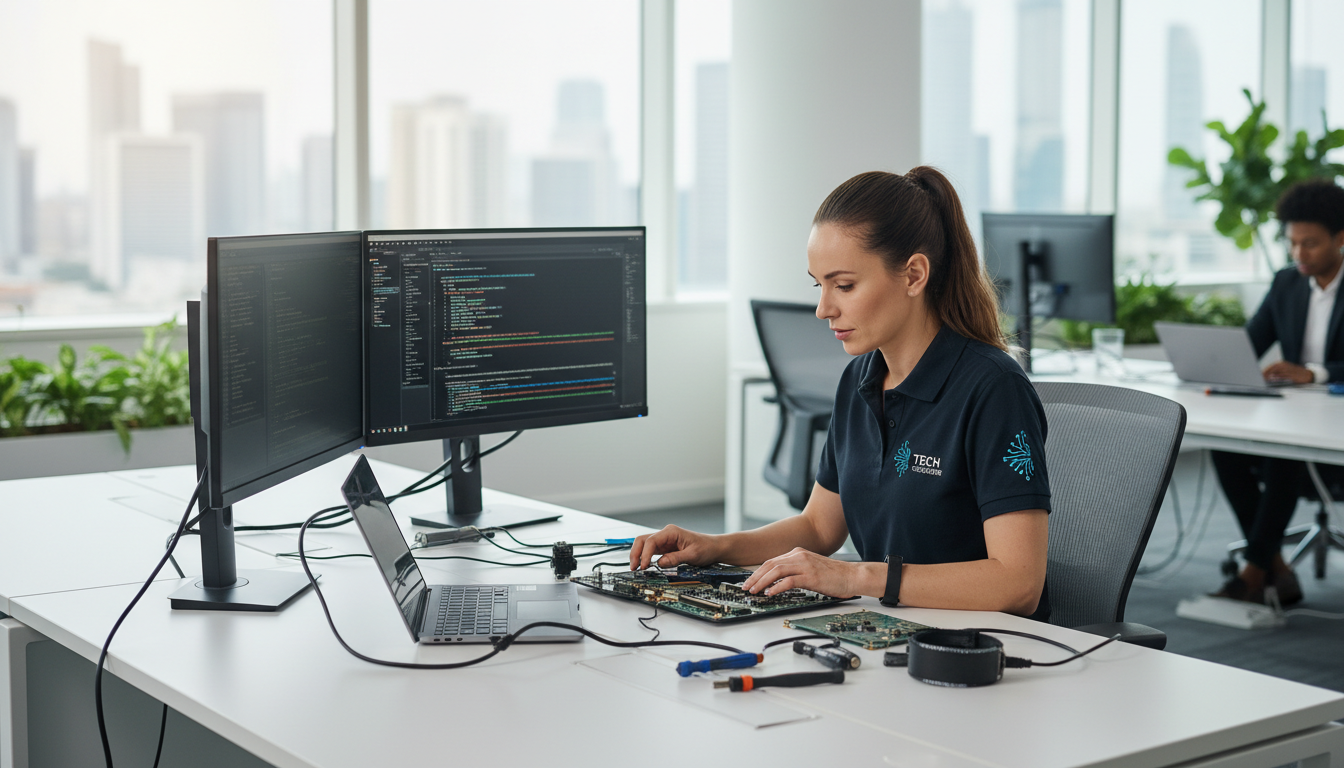
If your computer keeps crashing and restarting after you have exhausted basic troubleshooting, the fault likely lies within a specific hardware component. Identifying a failing Power Supply Unit or a faulty stick of RAM requires specialized diagnostic tools that go beyond standard Windows utilities. For residents in Southville, Mangotsfield, or Emersons Green, SWIT provides professional technical support specifically during the evening.
This service eliminates the need to dismantle your setup and lug a heavy PC to a shop during your working day. By visiting your home when you are actually using the machine, I can observe the crash as it happens in its natural environment. To schedule a diagnostic check without disrupting your daytime commitments, you can contact SWIT for a home visit to get your system stabilized.