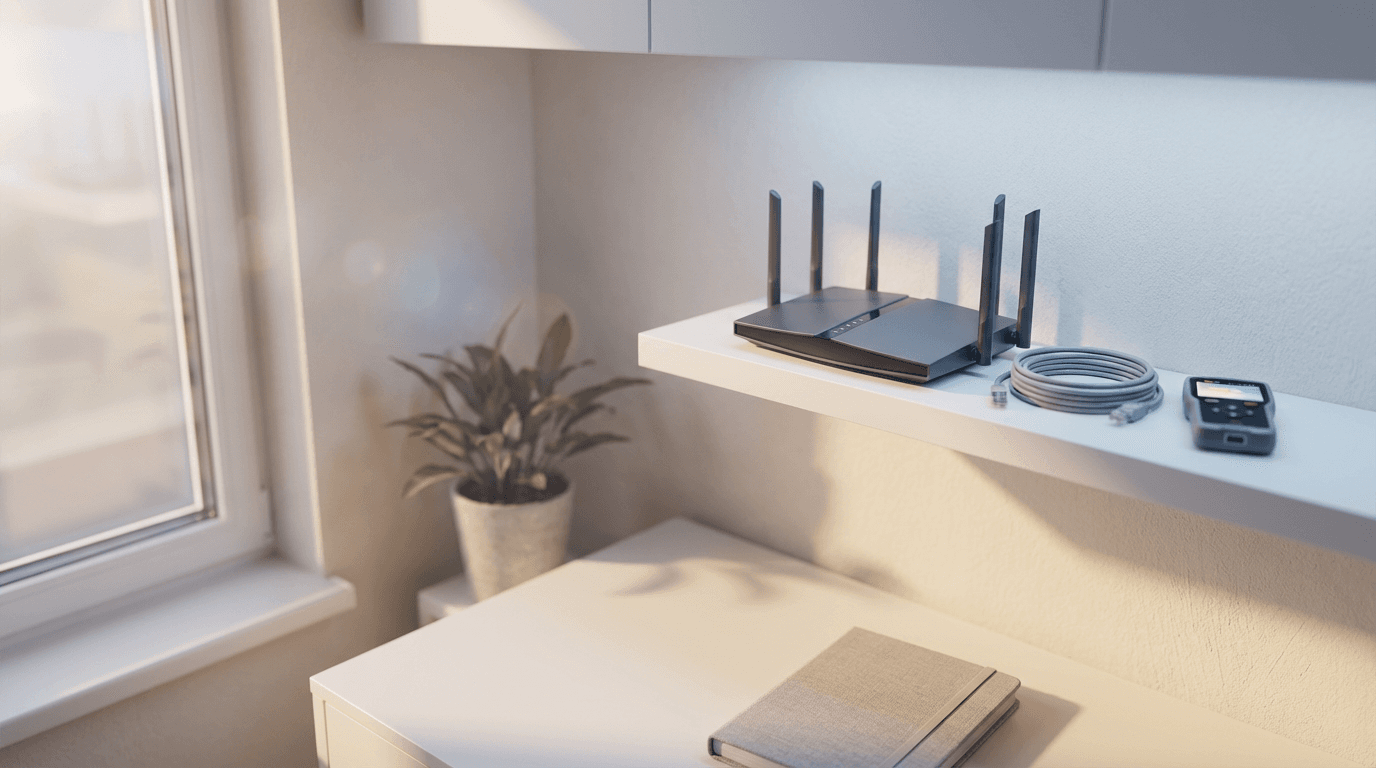

Understanding why is my wifi so slow at home often involves checking for physical obstructions, signal interference from other electronics, or poor router placement. Network congestion and outdated hardware are also frequent culprits that reduce connection speeds; however, repositioning your router or restarting your equipment can provide an immediate boost.
Nothing disrupts a productive workday or a quiet evening faster than the dreaded buffering wheel. In Bristol, where many residents live in charming but dense Victorian terraces, the struggle for a consistent signal is particularly common. While it is tempting to blame your provider immediately, the culprit is often found within your four walls. Understanding the physics of your home environment is essential because reliable connectivity is no longer a luxury; it is a fundamental utility. This guide explores why local architecture challenges your signal and provides actionable steps to fix connectivity issues. You will learn about the golden rules of router placement, the specific impact of Bristol’s thick stone walls, and whether a mesh system or a booster is the right investment for your property.
Understanding Why Your Home Wi-Fi Is Slow or Patchy
If you find yourself asking why is my wifi so slow at home despite paying for a premium fiber package, you are likely dealing with a local connectivity issue rather than a total service failure. It is crucial to distinguish between slow internet and slow Wi-Fi. Slow internet refers to the speed delivered by your provider to your property. Slow Wi-Fi describes the degradation of that signal as it moves wirelessly through your rooms.
For many Bristol residents, the problem is rarely the fiber line coming into the street. Instead, it is how the signal travels through the building itself. You may experience symptoms like high-definition video buffering in a top-floor bedroom or Zoom calls dropping the moment you step into a back-extension home office. If your laptop works perfectly when plugged directly into the router with an Ethernet cable but struggles in the kitchen, the issue is your wireless environment.
Understanding this difference helps isolate the fault. If the raw speed at the router matches your contract but your mobile devices lag, you likely need equipment troubleshooting in Bristol to identify physical obstacles or interference. Optimising professional network configurations can often resolve these bottlenecks without the need to upgrade your monthly broadband plan.
The Bristol Factor: Why Thick Walls and Tall Terraces Kill Your Signal
Bristol's architectural heritage is a primary reason why many residents struggle with connectivity. The Victorian and Edwardian terraces found throughout Bedminster, Totterdown, and Southville were built to last, but their construction materials are notoriously hostile to wireless signals. Traditional Pennant stone and solid brick internal walls are significantly denser than the stud and plasterboard partitions used in modern developments.
These materials act as a physical shield against radio frequencies. Modern routers typically operate on two main bands: 2.4GHz and 5GHz. The 5GHz band offers the fastest speeds for streaming and gaming, yet it has a shorter wavelength and struggles to penetrate even a single layer of thick Bristolian brickwork. Conversely, the 2.4GHz band has a longer reach and can navigate through these obstacles more effectively, but it provides much lower speeds and is often crowded with interference from other household electronics.
In a tall Southville terrace, a router placed in the front lounge might provide a perfect 5GHz signal in the same room, but by the time the signal reaches a kitchen extension or a first floor bedroom, it has likely dropped to a weak 2.4GHz connection or disappeared entirely. If you find your connection drops out as you move between rooms, it is often a sign that the signal is hitting a physical limit. Identifying the exact spots where your signal degrades is a core part of equipment troubleshooting in Bristol, as it determines whether you need a different router placement or more advanced professional network configurations to bypass these structural barriers.
5 Common Reasons Your Wi-Fi Keeps Disconnecting
While the physical layout of your home plays a significant role, internal technical factors often answer the question of why does my WiFi keep disconnecting at seemingly random intervals. Identifying these culprits is a core part of effective equipment troubleshooting in Bristol and can save hours of frustration.
Frequency Interference: Many common household appliances operate on the 2.4GHz frequency, which is the same band many routers use for long distance coverage. Microwaves, baby monitors, and even some cordless phones emit signals that can temporarily drown out your Wi-Fi. If your connection drops every time you heat up lunch, interference is the likely cause.
Channel Congestion: If you live in a high-density area like the City Centre, your router is likely competing with dozens of others nearby. Routers broadcast on specific channels; if your neighbor’s router is shouting on the same channel, it creates digital noise that forces your devices to disconnect. Professional equipment troubleshooting in Bristol often involves scanning these channels to move your network to a less crowded frequency.
Outdated Router Firmware: Your router is a small computer that requires regular software updates to maintain stability and security. If the firmware is several years old, it may struggle to handle modern connection protocols or maintain a steady handshake with newer smartphones, leading to frequent dropouts.
The Smart Home Squeeze: Every smart bulb, plug, and security camera adds to the load on your router. Standard routers provided by ISPs often have a limit on how many simultaneous connections they can manage. Once you reach this limit, the router may begin dropping older connections to make room for new ones.
Hidden Physical Blockers: Certain decorative items are surprisingly effective at stopping a signal. Large mirrors contain a thin layer of metal that reflects Wi-Fi waves back toward the router, while fish tanks act as a solid wall of water, which is highly absorbent to radio frequencies.
Identifying these specific triggers helps determine whether you need a simple adjustment or more advanced professional network configurations to maintain a stable link.
Router Placement: The Golden Rule for Better Signal
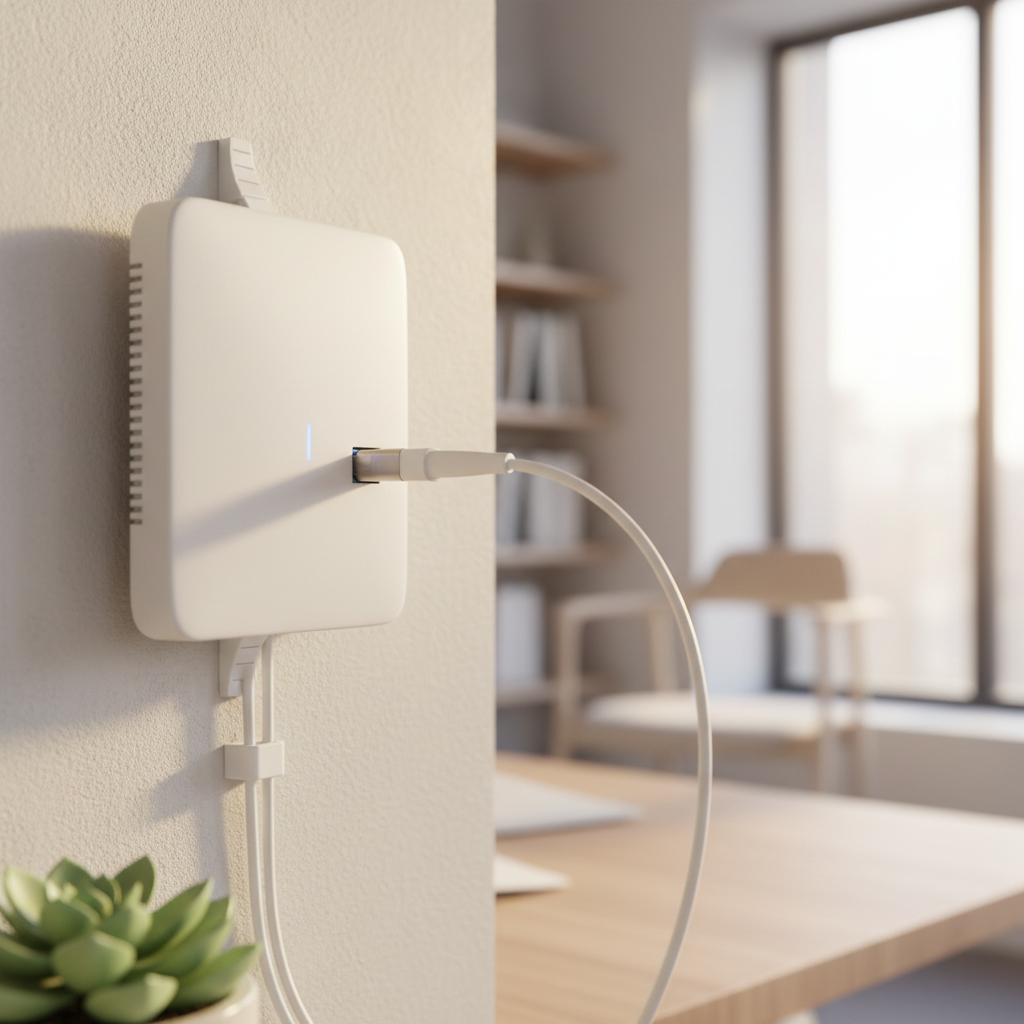
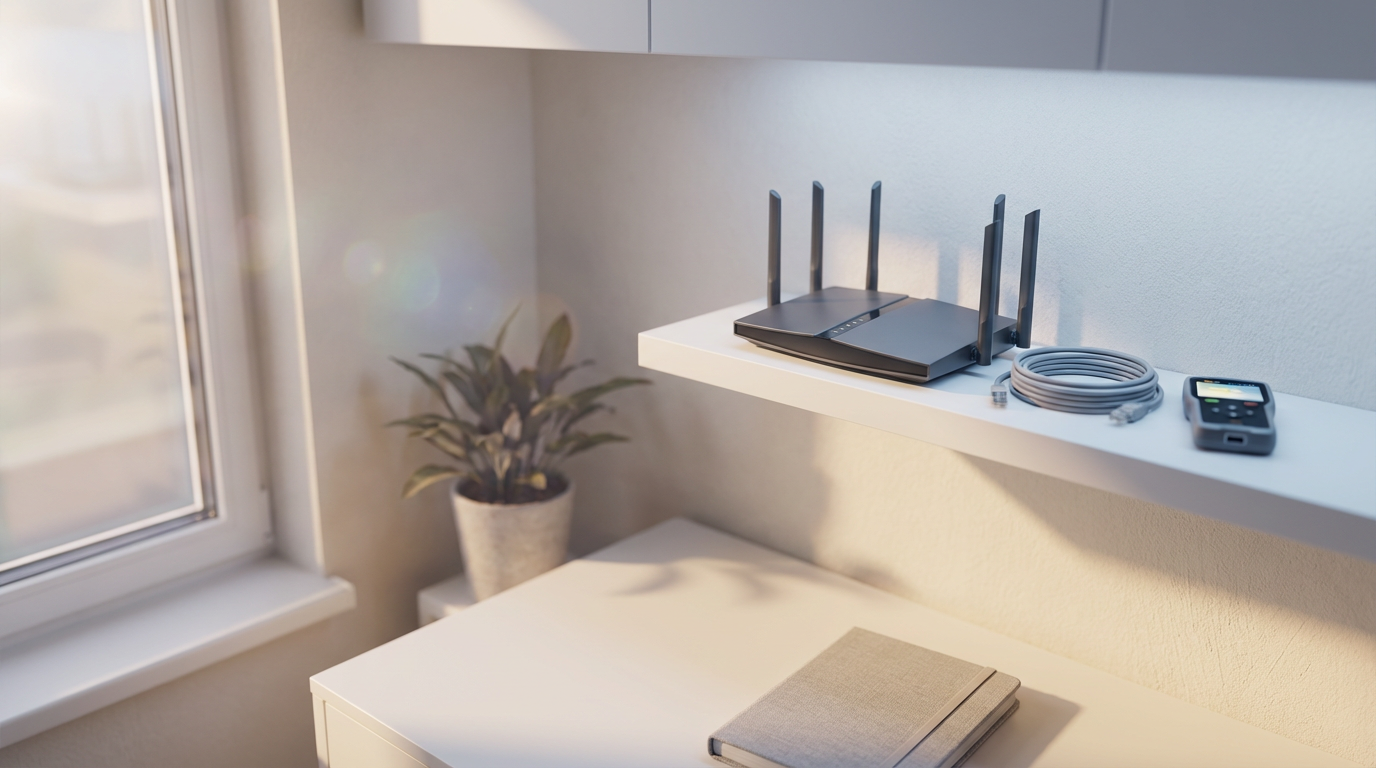
Once you have ruled out interference from appliances, you must address the physical location of the device itself. Most residents hide their routers in a cupboard, under a sideboard, or tucked behind a large 4K television to keep cables out of sight. This is a mistake. Wi-Fi signals travel outward and downward; placing a router on the floor or inside a wooden cabinet significantly muffles the signal before it even leaves the room. For optimal performance, the router should be placed in a central, elevated position, such as on a bookshelf or a hallway table.
In many homes across Mangotsfield or Emersons Green, the primary constraint is the Openreach Master Socket. This entry point is often located in the most inconvenient corner of the front lounge, far from where you actually use your devices. You do not have to leave the router exactly where the socket is installed. By using a longer, high-quality RJ11 cable or a shielded Ethernet lead, you can move the router to a more effective broadcasting position. This simple adjustment is a fundamental part of professional network configurations and often provides a better return on investment than buying new hardware. If you are struggling to find the right balance between aesthetics and performance, equipment troubleshooting in Bristol can help identify the precise location to maximize your signal reach.
Wi-Fi Signal Booster vs Mesh: Which Is Better for a Bristol Home?
If repositioning the router does not solve the dead zones, you likely need additional hardware. A frequent mistake is purchasing a basic plug-in Wi-Fi booster or range extender. These devices work by receiving the signal from your router and rebroadcasting it. Because they usually use the same radio to talk to both your router and your device, they effectively cut your bandwidth in half. You might see full bars on your phone, but the actual throughput is sluggish. This is a common reason why users still ask why is my wifi so slow at home even after buying extra equipment.
Mesh systems, such as Eero or TP-Link Deco, offer a more sophisticated solution. Rather than acting as a simple repeater, Mesh nodes create a unified, intelligent web of coverage throughout the property. They communicate with each other using a dedicated backhaul, which preserves your speed and allows for a seamless transition as you move between rooms without your connection dropping.
Feature | Wi-Fi Booster / Extender | Mesh Wi-Fi System |
|---|---|---|
Performance | Cuts bandwidth by approximately 50% | Maintains high throughput across nodes |
Network Name | Often requires a separate network login | Single, seamless network throughout |
Reliability | Prone to drops when switching zones | Intelligent routing for stable links |
Best For | Small flats with one weak corner | Multi-story homes and larger layouts |
For residents in Staple Hill or Emersons Green living in three-story townhouses, a Mesh setup is the standard for professional network configurations. Placing a node on each floor ensures the signal penetrates vertically through flooring and insulation that a single router cannot reach. If you are unsure which hardware fits your specific floor plan, equipment troubleshooting in Bristol can help map out your home requirements. For a tailored installation that ensures every room has a stable connection, you can get in touch with SWIT to arrange a convenient evening visit.
Simple Steps to Fix Slow Wi-Fi Before Calling for Help

Before scheduling a professional visit, follow this systematic checklist to rule out simple software glitches and hardware hang-ups.
Perform a full power cycle: Turn off your router and any Mesh nodes at the wall. Wait for at least thirty seconds before plugging them back in. This forces the hardware to clear its internal cache and re-establish a clean handshake with the local Bristol exchange.
Update your devices: Check for pending software updates on your laptops, tablets, and smartphones. Outdated wireless drivers or mobile operating systems are frequent culprits for intermittent connection drops.
Conduct a comparative speed test: Run a speed test while standing directly next to the router, then run it again in the room where you usually struggle. If the first result is fast but the second is poor, you have a physical coverage issue that requires equipment troubleshooting in Bristol.
Identify ISP throttling: Monitor your speeds during peak evening hours, typically between 7:00 PM and 10:00 PM. If performance only tanks when the rest of the city is streaming, your provider may be limiting bandwidth due to local network congestion.
If these manual steps do not resolve the mystery of why is my wifi so slow at home, the issue likely stems from more complex professional network configurations. For a diagnostic review tailored to your property's specific layout, you can get in touch with SWIT to book a technical visit at a time that suits your evening schedule.