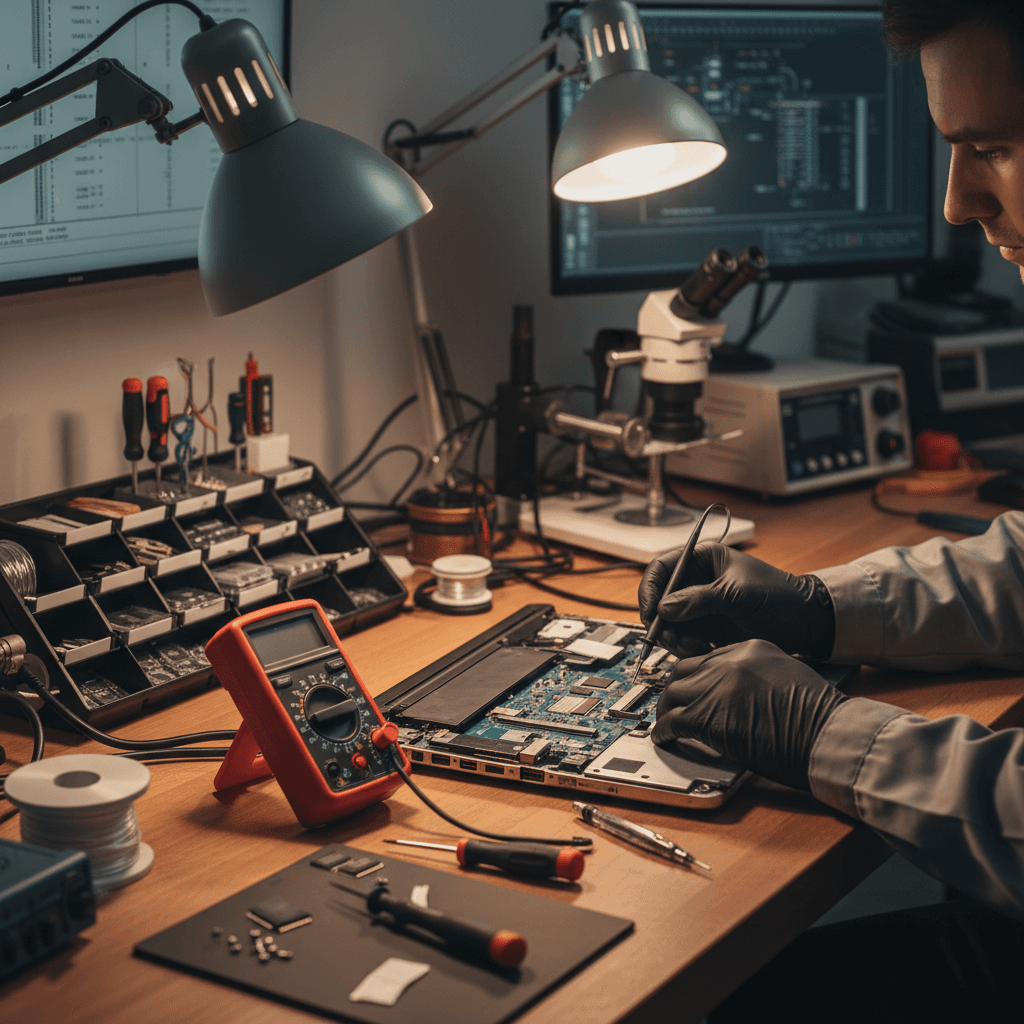
Fix a laptop won't turn on by checking the power supply and performing a hard reset, which involves unplugging the device and holding the power button for thirty seconds. You should also look for status lights or fan noise to see if the device is receiving power; if it is, connect an external monitor to determine if the screen is the problem.
You press the power button on your laptop, but the screen remains stubbornly dark. This sudden failure usually happens at the worst possible moment; it might occur right before a deadline or an important family video call. While it is tempting to assume the hardware is permanently broken, many power issues stem from simple, fixable causes. At SWIT, we understand that a non-responsive machine is more than a minor annoyance; it is a significant disruption to your digital life. This guide provides a clear, step-by-step approach to troubleshooting your laptop right from your home in Bristol. We will explore basic power checks, the process of performing a hard reset, and how to tell if a recent Windows update caused the crash. By the end, you will know exactly how to diagnose the issue or when it is time to seek professional support.
The moment of panic: what to do when your laptop stays dark
Few things are as frustrating as sitting down at the end of a long day in Southville or Bedminster, pressing the power button, and seeing absolutely nothing happen. When you rely on your laptop for evening admin, booking a holiday, or catching up with family, a dark screen feels like an immediate crisis. It is easy to assume the worst; however, "laptop won't turn on" can actually describe several different states.
Sometimes the machine is truly lifeless with no lights or sounds. Other times, the screen stays black while you hear the faint whir of internal fans, or perhaps the device gets stuck on a spinning loading logo and never reaches your desktop. Each of these scenarios points to a different root cause.
This guide is designed to help you navigate these moments without the confusing jargon found in manufacturer manuals. We will focus on safe, practical steps you can take at home to identify the issue. Most power problems are simpler than they first appear. If these initial checks do not resolve the issue, you can always access professional technical support to get things running again without the stress.
Checking the basics: is the power actually reaching your laptop?

Before assuming your hardware has failed, you must verify that electricity is actually reaching the machine. A common reason a laptop won't turn on even when plugged in is a failure in the power delivery chain rather than the laptop itself. Start with the wall socket. In older Bristol homes, sockets can occasionally become loose or fuses can trip without being obvious. Plug a lamp or phone charger into the same socket to confirm it is live, or move your laptop to a completely different room to test a different circuit.
Next, inspect the power adapter, which is the black brick in the middle of your cable. After being plugged in for fifteen minutes, it should feel slightly warm to the touch. If it remains stone cold, it is likely not drawing power from the wall. Conversely, if it feels uncomfortably hot, it may have an internal fault. Examine the length of the cable for any fraying or sharp kinks. Pets or heavy furniture moving over cables are frequent culprits for hidden wire damage that stops a device from charging.
Look closely at the charging port on the side of your laptop. If the pins inside look bent or if the connector feels wobbly when inserted, the connection may be broken. Pay attention to the small LED indicator light near the port: - No light: Usually indicates no power is reaching the motherboard. - Orange or Amber: Typically means the battery is successfully charging but is currently low. - White or Green: Indicates the battery is fully charged.
If the light remains off despite trying a different socket, you may need professional technical support to diagnose a faulty DC jack or a failed power brick.
The magic fix: how to perform a hard reset to drain residual power
If your external power checks failed to yield a result, the issue might be a simple case of residual power trapped within the laptop circuits. This occurs when a small amount of electricity remains in the internal capacitors; it effectively keeps the motherboard logic stuck in a frozen state. To the user, it looks like a dead machine, but the internal hardware is simply waiting for a reset that never comes. Performing a hard reset is often the most effective way to resolve this without needing tools. The goal is to drain every last drop of electricity so the laptop can start fresh.
For laptops with a removable battery, follow these steps: - Unplug the power adapter and remove any connected accessories like USB mice or printers. - Turn the laptop over and slide the release latches to remove the battery. - Press and hold the power button for a full 60 seconds. It is vital not to cut this short; the duration ensures all stored energy is fully discharged. - Reinsert the battery and reconnect the power lead. - Attempt to turn the laptop on as normal.
Many modern laptops found in homes across Emersons Green or Staple Hill feature sealed units where the battery is not accessible. In these cases, you cannot remove the power source manually. Instead, unplug the charging cable and hold the power button down for at least 60 seconds. This long press signals the internal controller to force a hardware reset despite the battery still being physically connected.
This process clears the internal brain of the machine and forces it to re-evaluate its power state. If your device remains lifeless after a full 60 second hold, the problem may lie deeper within the internal hardware. At this stage, seeking professional technical support is the safest next step to avoid accidentally damaging delicate internal components while trying to force a start.
Is it really off? Identifying the black screen vs no power

If the hard reset yielded no results, the next step is to determine if the machine is truly lifeless or if it is running while failing to display an image. This is a common point of confusion when a laptop won't turn on but you can still hear the faint hum of internal fans or see a power light glowing on the side of the chassis. In these cases, the computer is technically awake, but the communication to the display has been severed.
You can perform a simple torch test to see if the screen's backlight has failed. Take a bright torch or use the light on your smartphone and shine it at a sharp angle against the dark glass. If you can see a very faint outline of your desktop wallpaper or a mouse cursor, the internal components are working, but the lights that make the image visible have died. This indicates a specific hardware fault with the display panel rather than a total system failure.
For residents in the City Centre or Totterdown who may have a spare computer monitor or a modern TV, the external monitor test is an excellent diagnostic tool. Connect your laptop to the television using an HDMI cable. If the Windows desktop appears on the TV, you have confirmed the motherboard and processor are healthy; the fault lies specifically with the laptop's built-in display. This distinction is vital, as a screen replacement is often a far more cost-effective fix than replacing a motherboard. If you cannot get an image on any screen despite the fans spinning, you may need professional technical support to investigate the graphics chip or internal memory modules.
What to do if your laptop won't turn on after a Windows update
Windows updates are a common trigger for a laptop that appears to be broken. If your laptop won't turn on after update cycles, it may simply be struggling to finish a complex background installation. During major feature updates, your screen might stay black or show a static logo for an extended period while the system reconfigures internal files. It is easy to assume the machine has crashed; however, interrupting this process by forcing a shutdown can lead to actual software corruption.
The best approach is patience. Allow the laptop at least two hours to finish its tasks. If you see a blue screen labeled Automatic Repair while sitting down for your evening admin in Mangotsfield or the City Centre, do not panic. This is your laptop recognizing that the previous startup was unsuccessful and attempting to fix itself. It is a built-in safety mechanism, not a sign of total hardware failure. If the repair cycle completes, your machine should eventually boot to the login screen. However, if the screen remains black for hours or gets stuck in a loop of restarting and repairing, the update may have failed. In these instances, you can seek professional technical support to manually roll back the update and restore your files without risking further damage to your operating system.
Signs of a bigger problem: when the DIY troubleshooting ends
If your laptop won't turn on after exhausting the basic power checks and reset procedures, you may be facing a hardware failure that requires a more clinical approach. Certain physical symptoms serve as clear indicators that the problem lies deep within the circuitry. If you notice a faint acrid smell of burning plastic or hear an audible pop when you press the power button, stop immediately and disconnect the charger. These are definitive signs of a short circuit or a blown capacitor on the motherboard.
Similarly, if the chassis becomes excessively hot to the touch before the machine abruptly cuts out, the internal cooling system or a voltage regulator has likely failed. You should also pay close attention to diagnostic signals. Many modern laptops use the Caps Lock light or battery LED to communicate internal errors. A specific sequence of rhythmic flashes often indicates that the system has failed its Power-On Self-Test (POST). This usually points to a fault with the RAM modules or the motherboard itself.
Attempting to open the casing without specialized anti-static equipment can cause further damage to delicate internal components. For home users in areas like Staple Hill or Mangotsfield, safety is the priority. If these red flags appear, it is time to seek professional technical support to diagnose the specific component failure using professional diagnostic tools.
Professional laptop support in Bristol with flexible evening hours

When DIY steps reach their limit, professional intervention becomes necessary to prevent further damage. SWIT provides dedicated technical assistance to home users across Bristol, including Mangotsfield, Staple Hill, and Emersons Green. Finding time for repairs during standard business hours is often difficult for those with daytime work commitments. To address this, SWIT offers flexible evening appointments, ensuring you can access expert support at a time that actually fits your schedule.
A technician uses specialized diagnostic equipment to test individual internal components, such as the power rails or memory modules, which cannot be checked with software alone. If your device is truly lifeless, the priority shifts to data recovery to retrieve important photos and documents from the internal storage. You will receive a clear assessment of the fault alongside advice on whether a repair is cost-effective compared to buying a new machine. If your laptop won't turn on despite your best efforts, contact SWIT for evening support to arrange a professional home visit.