The primary methods for how to transfer files to a new computer include using cloud storage services like OneDrive, external hardware such as USB drives, or direct network transfers. These options provide secure ways to migrate important documents and settings; while specialized transfer cables offer a direct link between the two systems for faster data migration.
Unboxing a new computer should be a moment of excitement, yet for many Bristol residents, it is overshadowed by the technical anxiety of data migration. Leaving behind a sluggish machine is a relief, but the prospect of losing cherished family photos, critical financial documents, or complex Outlook archives can make the transition feel like a digital minefield. Ensuring a complete transfer is essential for maintaining your productivity and preserving your digital legacy. This guide provides a practical, expert roadmap to help you navigate the process with confidence. We will explore the efficiency of cloud storage, the reliability of external hardware, and the specific steps required to move browser bookmarks and email data. From managing the shift to Windows 11 to finding local Bristol solutions for secure device disposal, you will learn everything needed for a seamless setup.
The First Thing to Do When You Get a New PC

Unboxing a new PC is an exciting moment, yet it often comes with a side of setup anxiety. You want your new machine to feel like home immediately, but before you dive into how to transfer files to a new computer, you must lay the groundwork. The first thing to do when you get a new PC is to ensure the Windows 11 environment is fully updated and secure.
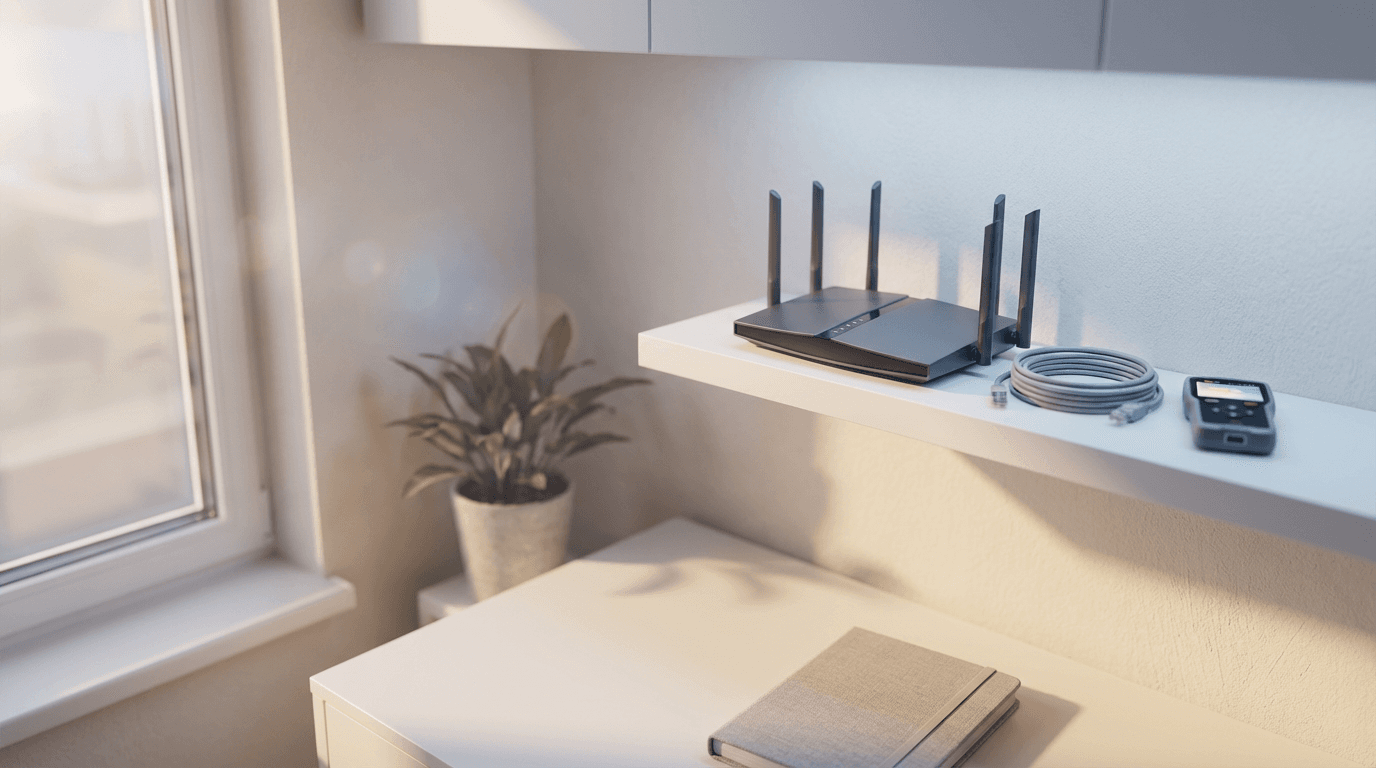
Manufacturers often ship devices that have sat in boxes for months. Before moving any data, run Windows Update until no more patches remain. This process requires a rock-solid internet connection. In many Bristol homes, especially older Victorian builds with thick stone walls, Wi-Fi signals can be notoriously patchy. If your signal drops frequently, consider moving the PC closer to the router or using an Ethernet cable for this initial phase to avoid corrupted installations.
It is also vital to distinguish between files and programs. You can easily move your photos, Word documents, and PDFs. However, software like Microsoft Office, specialized accounting tools, or Adobe Photoshop cannot simply be copied; these require a fresh installation on the new hardware. If you find this initial configuration daunting, booking a professional computer setup ensures your system is optimized from day one. Taking these steps now prevents technical headaches later. For personalized help, feel free to contact SWIT in Bristol to arrange a convenient evening visit.
Can You Transfer Everything from an Old Computer to a New Computer?
Many users assume they can simply clone their entire hard drive or copy and paste the C: drive to a new machine to get back to work instantly. In reality, a carbon copy transfer is rarely feasible or advisable when moving to a modern Windows 11 system. While the process of how to transfer files to a new computer is straightforward for your personal data, your installed programs operate differently.
Software like Microsoft Office, Sage accounting tools, or the Adobe Creative Suite integrates deeply into the Windows Registry and specific system folders during the initial installation. Copying the program folder from one PC to another will almost always result in errors because those vital background links are missing. You should prepare to gather your license keys and login credentials, as these applications require a fresh installation to function correctly on new hardware.
The good news is that your personal data is much more portable. You can freely move the contents of your primary user folders:
Documents (letters, spreadsheets, and PDFs)
Desktop (files and shortcuts kept on your main screen)
Pictures (family photos and saved images)
Downloads (recent installers or saved attachments)
Music and Videos
It is also worth noting that Windows Easy Transfer, a popular tool in the Windows 7 era, has been discontinued and is not available for Windows 10 or 11. Modern setups rely on more efficient methods, such as cloud synchronization or manual backups. If the thought of identifying what stays and what goes feels overwhelming, a professional computer setup can help you sort the essentials from the clutter before you begin the move.
Method 1: Using Cloud Storage for a Seamless Transition
Cloud storage offers a hands-off approach to how to transfer files to a new computer. While services like Google Drive and Dropbox are popular, OneDrive is the most seamless option for Bristol residents because it is integrated directly into Windows 11. The core advantage of this method is synchronization. Syncing creates a digital mirror of your folders in the cloud. Once the upload finishes on your old device, your new PC simply looks at that mirror and downloads a copy automatically.
To use OneDrive for your move: 1. On your old PC, sign in to your Microsoft account via the OneDrive app. 2. Right-click the blue cloud icon in the taskbar, select "Settings," and then "Manage Backup." 3. Ensure your Documents, Pictures, and Desktop folders are toggled on and click "Start backup." 4. Wait for the status icon to show a green checkmark, indicating the upload is complete. 5. Log in with the same Microsoft account on your new PC, and your files will begin to appear in their respective folders.
Before starting, check your storage limits. Many free accounts provide only 5GB of space. This is rarely enough for a lifetime of high-resolution Bristol family photos or large video collections. If your data exceeds this limit, you may need to pay for a temporary storage upgrade. If you find sync errors or "storage full" messages frustrating, a professional computer setup can help you navigate these hurdles. For hands-on assistance, you can always contact SWIT in Bristol to arrange a troubleshooting visit at a time that suits you.
Method 2: The Reliable External Hard Drive or USB Stick Approach

If your internet connection is sluggish or you have hundreds of gigabytes of data, physical media is usually the most efficient way to handle the task. Using an external hard drive or a high capacity USB 3.0 stick provides a direct, high speed link between your devices without worrying about bandwidth limits or subscription costs. This remains a preferred method for many households in Bristol where large video libraries or high resolution photo archives would take days to sync over a standard home Wi-Fi connection.
When learning how to transfer files to a new computer using usb, it is vital to follow a "Copy, then Verify" rule. Never use the "Move" command or "Cut and Paste" during this process. If the transfer fails midway due to a power cut or a loose cable, a "Move" command might leave your files partially deleted from the original source or stuck in a corrupted state. Always "Copy" the data first; this ensures you have a complete backup on the old machine until you are certain the transfer to the new PC is successful.
To find your data on the old machine, open File Explorer and navigate to This PC > Local Disk (C:) > Users. Open the folder named after your account. This is the primary directory for your personal data, containing the specific folders you need: Documents, Pictures, Desktop, and Videos.
Plug your USB drive into the old computer.
Select your user folders, right click, and choose Copy.
Open the USB drive window, right click an empty space, and select Paste.
Once the progress bar finishes, safely eject the drive and plug it into the new Windows 11 PC.
Copy the folders from the USB drive and paste them into the corresponding locations within your new Windows 11 User folder.
If you find the manual folder structure confusing, or if your drive is not being recognized by the new system, a professional computer setup can resolve these hardware conflicts quickly. You can also contact SWIT in Bristol for a home visit to ensure your data is migrated safely and organized correctly from the start.
How to Transfer Outlook Files and Browser Bookmarks
Successfully knowing how to transfer files to a new computer involves more than just dragging and dropping folders; it requires capturing the "hidden" data stored within specific applications. If you use Microsoft Outlook, your email history might not move automatically. This is particularly crucial for many Bristol residents using legacy ISP addresses, such as those ending in @btinternet.com or @virginmedia.com. These accounts often rely on local storage, meaning your older emails exist only on your old hard drive rather than on a remote server.
To successfully manage how to transfer outlook files to a new computer, you must export a .pst file. In Outlook, navigate to File > Open & Export > Import/Export. Select Export to a file, then Outlook Data File (.pst). Save this file to your external drive to be imported on the new machine later.
Browser data is another overlooked essential. Instead of manual exports, the most efficient way to move your bookmarks and saved passwords is through account synchronization. Sign into Google Chrome or Microsoft Edge with your personal account on the old PC to sync your data to the cloud; once you sign into the same account on your new Windows 11 machine, your digital workspace will reappear instantly. If navigating these settings feels precarious, a professional computer setup ensures no data is left behind. You can contact SWIT in Bristol to arrange a secure migration of your accounts and archives at a time that fits your schedule.
Moving from Windows 10 to Windows 11: What to Expect
Once your email and bookmarks are synchronized, the broader shift from Windows 10 to Windows 11 often becomes the primary focus. This transition can feel like moving into a new house where the light switches are in unexpected places. While the visual interface has changed, featuring a centered taskbar and simplified menus, your underlying data remains fully compatible. When you learn how to transfer files to a new computer, you can be confident that your existing Word documents, JPEGs, and spreadsheets will function exactly as they did before. The core file structure remains the same, meaning your folders will still be organized just the way you like them.
The main challenge usually lies with hardware rather than files. Many Bristol home offices use reliable printers or scanners that have served them for years. Windows 11 requires modern drivers, and occasionally, older peripherals might struggle to communicate with the new operating system without manual configuration. If your devices are not responding after the move, a professional computer setup can resolve these compatibility issues. You can also contact SWIT in Bristol to book an evening appointment and ensure your new hardware and legacy peripherals work together perfectly.
Safe Disposal: What to Do with Your Old Computer in Bristol
After you have successfully navigated how to transfer files to a new computer and verified that every document is present, your attention must turn to the old machine. Leaving personal data on a discarded device is a significant security risk. Simply dragging files to the Recycle Bin does not permanently erase them; they can often be recovered with basic software. You should perform a factory reset by navigating to Settings > System > Recovery > Reset this PC. Choose the option to "Remove everything" and select the "Data erasure" toggle to overwrite the drive, making your information unrecoverable for identity thieves.
Once wiped, Bristol residents have several responsible disposal options. Byteback is an excellent local initiative that refurbishes tech for community use, reducing electronic waste while helping others in the city. Alternatively, the Bristol City Council recycling centres at St Philips or Hartcliffe Way accept small electrical items. Never leave a PC on the pavement for scrap without a professional wipe. If you are unsure if your data is truly gone, a professional computer setup often includes a final security check of your old hardware. You can also contact SWIT in Bristol to ensure your privacy is protected before the machine leaves your home.
Why a Local Bristol IT Technician Makes the Process Stress Free
Even with a clear guide, managing how to transfer files to a new computer can feel like a high stakes gamble. The primary fear for most home users is that something irreplaceable, like a specific subfolder of tax returns or a forgotten browser password, might be left behind during the move. By booking a professional computer setup, you gain the peace of mind that comes with a methodical, expert verification process where every byte is accounted for before the old machine is wiped.
SWIT recognizes that many residents working in the city centre or North Bristol cannot easily take time off for a daytime tech visit. My flexible evening availability ensures you receive professional support at a time that fits your life. If you want to ensure your transition is seamless and secure, you can contact SWIT in Bristol to handle the entire migration for you.