
Laptop overheating occurs when demanding tasks or dust buildup restrict airflow and trap heat inside the machine. To fix this issue, you should clean the vents regularly, elevate the device on a hard surface to improve ventilation, and consider using a cooling pad to maintain stable temperatures.
You are sitting at your desk in Bristol, trying to finish a report, but your laptop sounds like a jet engine taking off. The keyboard feels hot to the touch, and your applications start to crawl. This heat is more than a minor annoyance; it is a direct threat to your device's lifespan. Persistent overheating causes internal components to degrade prematurely, often leading to sudden hardware failure. This guide explains the common causes behind high temperatures, from household dust and poor airflow to software demands that push your processor too far. You will learn practical steps to cool your machine, including how to handle heat during a local summer heatwave and when to seek professional help for internal cleaning. Understanding these triggers ensures your computer remains a reliable tool rather than a liability.
Recognising the Warning Signs: Is Your Laptop Overheating?
You might first notice your laptop is struggling when the fans begin to roar like a jet engine, even during basic tasks like browsing the web or checking emails. This audible strain is a clear indicator that the internal cooling system is working overtime to dissipate heat. If you touch the chassis, particularly the underside or the area just above the keyboard, it may feel uncomfortably hot to the touch. This physical heat often coincides with a frustrating drop in performance known as thermal throttling.
Thermal throttling occurs when your processor intentionally slows itself down to generate less heat. If your cursor starts to lag or your applications freeze, your computer is likely trying to prevent its delicate internal components from reaching a breaking point. While it is normal for a device to feel warm during intensive tasks like video editing, a laptop overheating to the point of a sudden shutdown or a crash has entered the danger zone. These events are protective measures designed to stop permanent hardware damage; however, they indicate that the machine can no longer effectively regulate its own temperature. Recognizing these early sensory signals allows you to seek professional technical support before a minor annoyance becomes a costly hardware failure.
The Most Common Culprit: Dust and Airflow in the Home
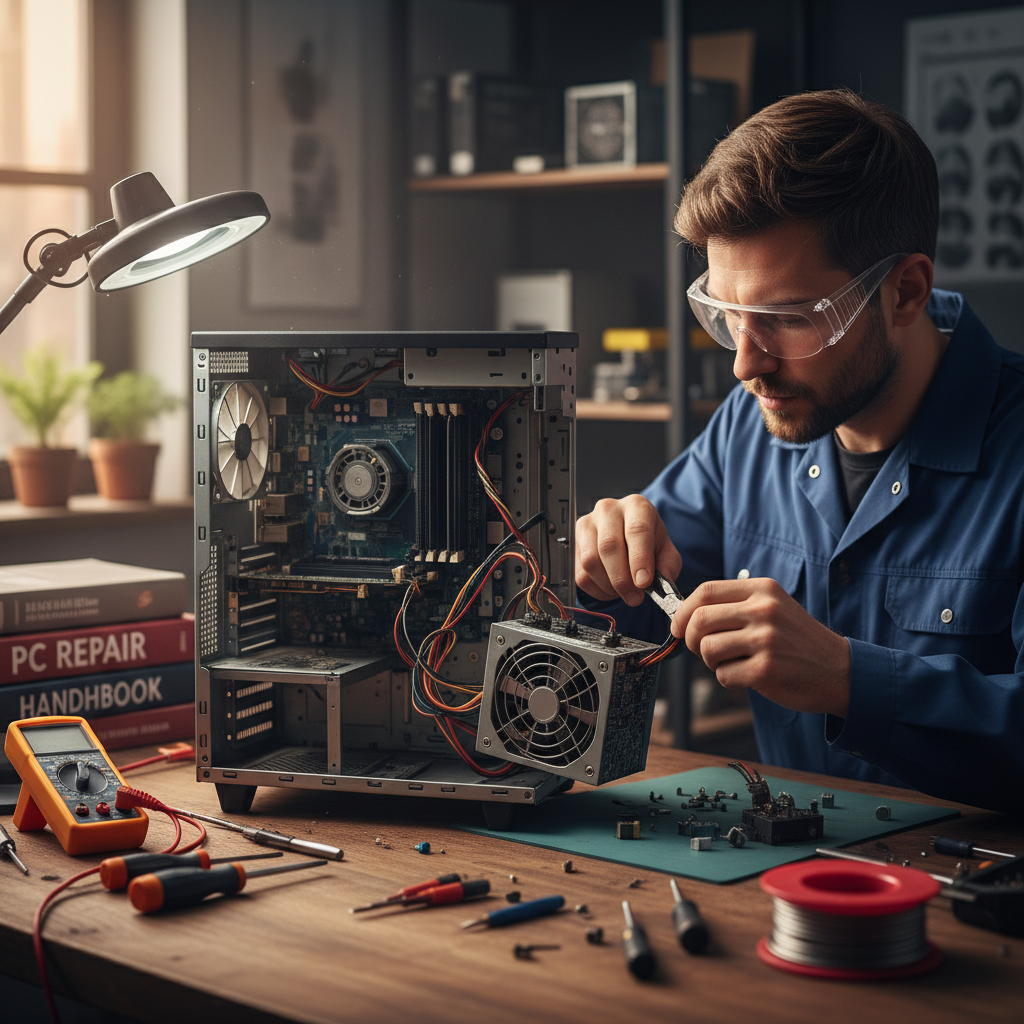
While software plays a role, the physical environment of a typical home is often the root cause of laptop overheating. Your device relies on a constant stream of cool air to manage its internal temperature. The cooling fans draw air through narrow intake vents, passing it over a copper heatsink designed to pull heat away from the processor.
In a standard household, these fans act like miniature vacuum cleaners. They do not just pull in air; they also ingest pet hair, carpet fibres, and fine dust particles. Over time, these materials weave together to form a felt-like barrier across the cooling fins of the heatsink. Once this obstruction forms, air cannot circulate effectively, and the heat stays trapped inside the chassis.
You can often diagnose this yourself with a simple visual check. Power down the device and shine a bright torch into the intake and exhaust vents, which are usually located on the bottom or the rear edge of the machine. If you see visible grey fluff or a carpet-like layer of debris, the airflow is significantly compromised.
Many users make the mistake of using a high-powered household vacuum cleaner to suck the debris out through the vents. This is a risky tactic; the rapid airflow creates static electricity that can discharge and fry sensitive motherboard components. Furthermore, the intense suction can force the small internal fans to spin at speeds far beyond their design specifications, potentially damaging the bearings. If a visual inspection reveals a major blockage, it is often safer to seek professional technical support to clear the internals properly rather than risking a static-related failure.
Surface Matters: Why Your Bed or Sofa is Killing Your Computer
Most modern laptops are designed with intake vents located on the underside of the chassis. These vents are small, often featuring narrow plastic grilles that require a clear path to draw in the air needed for the internal cooling cycle. Placing your device on a soft surface such as a duvet, a plush sofa cushion, or even a thick pile carpet in a Southville living room creates an immediate hardware bottleneck. The fabric conforms to the shape of the laptop, effectively sealing off these intakes and suffocating the fans.
When air cannot enter the chassis, the heat generated by the internal components has nowhere to go. This quickly results in laptop overheating, forcing the processor to throttle its speed. To avoid this, always operate your machine on a flat, hard surface that allows for proper clearance. A dedicated laptop stand is a worthwhile investment, as it elevates the machine and maximizes circulation. If you are working away from a desk, even a large hardback book can serve as a temporary, emergency platform to restore airflow. Maintaining this physical gap is a simple but vital step before you consider more complex professional technical support options.
Software Stress: Why Your Processor is Working Too Hard
Heat is fundamentally a byproduct of electrical resistance. When your laptop’s Central Processing Unit (CPU) performs calculations, it draws power; the more complex the task, the more electricity flows, and the more heat is generated. If your processor is pinned at high capacity for an extended period, it will inevitably get hot regardless of how clear your vents are.
You can identify which applications are causing this internal strain by using built-in diagnostic tools. Windows users should press Ctrl + Shift + Esc to open the Task Manager, while Mac users can use Spotlight (Cmd + Space) to search for Activity Monitor. Once open, look specifically at the CPU column, which ranks processes by the percentage of the processor's power they are currently consuming.
Several common software scenarios contribute to laptop overheating: - Browser Overload: Keeping dozens of active tabs open, especially those running complex scripts or auto-playing video advertisements. - High-Definition Video Calls: Sustained use of platforms like Zoom or Microsoft Teams requires significant real-time processing for video encoding. - Background Tasks: Hidden system updates or file indexing can trigger high temperatures without a visible window being open. - Malfunctioning Software: Occasionally, an app may hang in a loop, consuming resources even after you think you have closed it.
Identifying these rogue apps is a key part of maintaining healthy computer setups and software installations. If you notice a specific process consistently hovering at high percentages while you aren't actively using it, closing that task can provide immediate relief to your hardware. If software adjustments do not resolve the temperature spikes, it may be time to seek professional technical support to investigate deeper system conflicts.
Laptop Overheating When Charging: What You Need to Know
Software load is not the only internal factor; the physical process of replenishing your battery also contributes significantly to the thermal profile. Charging is fundamentally an exothermic process. Converting AC power from a Bristol wall outlet into stored chemical energy within your battery cells naturally generates heat as a byproduct. When a device is already struggling with restricted airflow or high CPU usage, this additional thermal energy often serves as the tipping point, pushing the machine into a state of laptop overheating.
To mitigate this, review your system's power management settings. Many modern devices feature fast-charging modes that prioritise speed by forcing a high current into the battery, which rapidly increases internal temperatures. Switching to a standard or quiet charging profile during intensive work sessions can provide immediate relief. Crucially, ensure you are using an official manufacturer power adapter or a certified, high-quality replacement. Inexpensive, unbranded chargers often lack sophisticated voltage regulation; this inefficiency results in poor power delivery and excessive heat. If your laptop only reaches high temperatures while plugged in, seeking professional technical support is advisable to rule out battery degradation or charging circuit faults.
Coping with the Bristol Summer: Laptop Care During a Heatwave
In Bristol, summer heatwaves pose a unique challenge because most residential properties lack air conditioning. A Victorian terrace in Bedminster or a modern apartment in the City Centre can quickly become a heat trap. When the ambient temperature, which is the temperature of the air surrounding your device, rises, the cooling system's efficiency drops. If the air being drawn into the vents is already 30 degrees Celsius, it cannot effectively absorb heat from the internal components, making laptop overheating almost inevitable during intensive tasks.
To mitigate this, move your workspace to the coolest part of the house, typically a ground floor room. Keep curtains or blinds closed to block direct sunlight, as the greenhouse effect through a window can rapidly bake a dark laptop chassis. If you must work during the peak afternoon heat, an active cooling pad with built-in fans can provide the extra airflow required to keep temperatures stable. If environmental changes do not help, seek professional technical support to ensure your internal thermal management is functioning correctly.
When Simple Fixes Fail: Internal Cleaning and Thermal Paste
If you have moved to a hard desk and checked your external vents for dust, yet the laptop overheating persists, the problem likely lies deep within the hardware. Over a typical lifespan of three to five years, the thermal paste inside your machine undergoes a significant chemical change. This viscous compound sits between the processor and the copper heatsink, acting as the primary bridge for heat transfer. When it dries out and becomes brittle, it loses its ability to conduct heat effectively, leaving the CPU trapped in its own thermal energy regardless of how fast the fans spin.
Addressing this issue requires a full internal strip-down. In modern, ultra-thin laptops, components are tightly packed and secured with fragile ribbon cables, hidden plastic clips, and proprietary screws. Attempting a DIY repair without the correct pry tools or anti-static equipment often leads to cracked casings or permanent motherboard damage. A professional deep clean involves more than just a blast of compressed air; it includes carefully removing the thermal cooling assembly, cleaning the old compound with high-purity isopropyl alcohol, and applying a fresh, high-performance layer of paste. If your device has reached this stage, seeking professional technical support is the safest way to restore factory-level cooling without risking the integrity of your hardware.
Evening Support for Busy Bristol Professionals
Most people do not notice their laptop overheating during a quick morning email check. The fans usually begin to scream and the chassis starts to throttle when you finally sit down after hours; perhaps while streaming a 4K movie in Totterdown or finishing a late presentation in Emersons Green. Traditional repair shops operate on a nine to five schedule, forcing you to take time out of a busy workday just to drop off equipment at a physical storefront.
SWIT is designed specifically to solve this logistical bottleneck by providing professional technical support at your doorstep during the evening. I provide coverage across the city, from the residential streets of Mangotsfield and Staple Hill to the terrace homes in Bedminster and Southville. You do not need to struggle with city centre traffic or hunt for parking; I come to you when you are actually at home. This flexible approach ensures your computer setups and software installations are handled efficiently without disrupting your professional commitments. If your machine is running too hot to handle, contact SWIT today to schedule a convenient home visit and restore your laptop to peak performance.