Immediately power off your device and disconnect all power sources if you have spilled water on laptop. You should then flip the laptop into an upside-down tent position to drain liquid and prevent internal corrosion; seek professional repair services before attempting to turn the device back on.
The sound of a glass tipping over onto a laptop keyboard is a heart-stopping moment for any Bristol professional or home user. In an instant, your critical documents and expensive hardware are at risk of permanent failure. While your first instinct might involve frantic wiping or searching for a bag of rice, the actions you take in the next few minutes will determine if your device survives or becomes a costly paperweight. This guide provides a definitive emergency protocol to mitigate liquid damage effectively. You will learn the essential first 30 seconds of triage, the correct way to drain your machine, and why common DIY myths can actually accelerate internal corrosion. We also address the specific challenges of sticky spills and explain when it is time to stop the home repairs and contact a local specialist for a professional hardware assessment.
The First 30 Seconds: Immediate Steps to Save Your Computer
The moment you have spilled water on laptop, the next 30 seconds dictate whether your device survives or becomes an expensive paperweight. As an IT technician in Bristol, I often see hardware that could have been saved if the owner had acted with immediate urgency rather than attempting to wipe the keyboard first. The primary threat is not the moisture itself, but the electricity flowing through it. Water acts as a conductor, creating bridges between circuits that should never touch; this causes a short circuit that can fry the motherboard in seconds.
Prioritize cutting all power sources immediately. Do not worry about the puddle on your desk or saving your open documents. Follow these steps in this exact order:
Force a hard shutdown by holding the power button down until the screen goes completely black. Do not use the Windows Start menu or the macOS shutdown sequence. Those processes take far too long while liquid is actively migrating toward sensitive components.
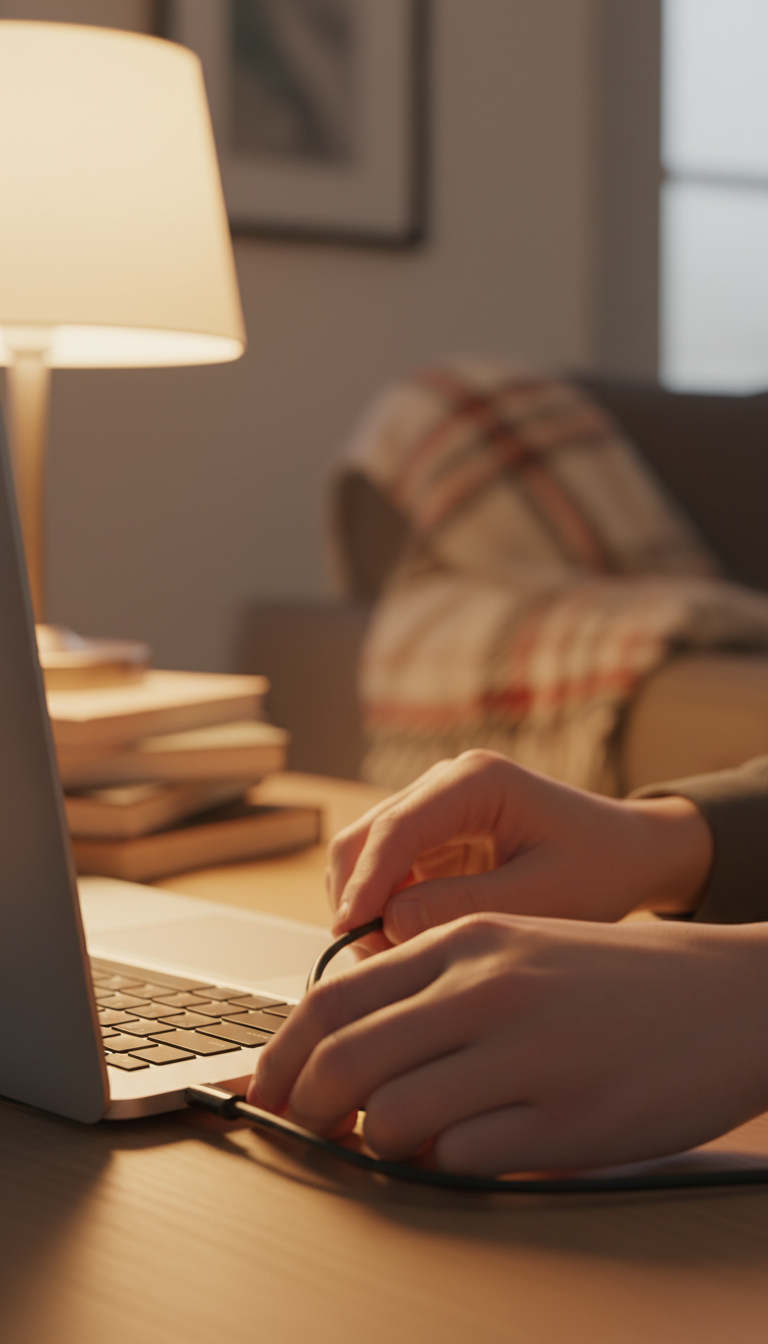
Unplug the charging cable from the laptop body immediately.
Remove all peripherals, including USB drives, wireless mouse dongles, and external hard drives. These devices can draw power or hold a residual charge, contributing to the risk of a short.
Removing the power source is significantly more important than cleaning the mess initially. Many users feel a false sense of security if the screen remains on after a spill, but internal damage is often silent. Even if the device stays powered, liquid is likely seeping into the keyboard membrane or onto the motherboard. Taking these emergency steps provides the best chance for professional technical support to successfully clean the machine later. If you are in this situation, you should contact SWIT for an assessment before attempting to power the device back up to check for lingering moisture.
The Drainage Phase: How to Position Your Laptop for Air Drying
Once the device is inert, gravity becomes your primary tool for mitigating damage. You must encourage the liquid to exit the chassis rather than allowing it to pool on the delicate logic board. The most effective technique is the tent method. Open your laptop as wide as the hinges allow and flip it upside down so it stands in an inverted V shape. This orientation helps prevent moisture from migrating deeper into the internal circuitry after you have spilled water on laptop.
Place a lint free cloth or several layers of paper towel underneath the device to absorb any dripping liquid. When dealing with the surface of the keyboard or chassis, avoid the instinct to wipe or rub the area. Friction can force moisture further into the keyboard membrane or through the gaps around the trackpad. Instead, use a gentle blotting motion to lift standing liquid from the surface. This technique captures moisture without pushing it into the sensitive layers beneath the keys.
Position the laptop in a dry, well ventilated area of your home. Residents in Bedminster or Southville terrace houses should ensure the device is kept away from direct heat sources like active radiators or fireplaces. While warmth aids evaporation, excessive heat can warp plastic components or accelerate the oxidation process. Finding a stable, airy spot allows for safe evaporation while you wait for professional technical support.
Why You Should Never Use Rice or a Hairdryer
Searching for solutions after you have spilled water on laptop often leads to two pervasive myths: the rice bag and the hairdryer. While these suggestions appear frequently in online forums, they are ineffective at best and destructive at worst. As an IT technician in Bristol, I frequently see devices where these methods have complicated an otherwise straightforward repair.
Rice is a passive desiccant that lacks the structural ability to pull moisture out of the tightly packed, sealed components of a modern laptop. It only absorbs what it touches directly. More importantly, rice introduces fine particles of starch and dust into your charging ports, cooling vents, and keyboard assembly. When this dust meets the spilled liquid, it forms a sticky, conductive paste that is far harder to clean than the original spill and can jam internal fans or corrode delicate connectors.
Hairdryers present a different set of risks. Even on a cool setting, the concentrated blast of air can push liquid droplets deeper into the chassis, moving them from the keyboard membrane onto the sensitive motherboard. If you use any heat, you risk melting the thin plastic membranes or warping the delicate hinges under your keys. True recovery relies solely on patience and natural airflow. If you are concerned about internal moisture, it is safer to seek professional technical support for a proper manual cleaning rather than risking these counterproductive home remedies.
Water vs Coffee vs Sugary Drinks: Does the Liquid Type Matter?
The chemistry of the liquid involved determines the long term survival rate of your hardware. While a spilled water on laptop situation is serious, pure water is generally the least destructive because it lacks the syrupy additives found in other beverages. Tap water does contain minerals that can lead to oxidation, but it typically evaporates without leaving behind a thick, conductive residue that permanently bridges circuits.
In my experience as an IT technician in Bristol, tea and coffee are the most frequent culprits for home users. If you drink yours black and unsweetened, the primary risk is acidity and moisture. However, adding milk or sugar drastically changes the outcome. Sugar is hygroscopic, meaning it attracts moisture from the air even after the initial spill seems dry. This creates a permanent, sticky film on the motherboard that leads to rapid corrosion and localized electrical shorts.
Liquid Type | Corrosion Risk | Residual Impact |
|---|---|---|
Plain Water | Moderate | Low (Mineral deposits) |
Black Coffee/Tea | High | Moderate (Acidity) |
Soda / Fruit Juice | Extreme | High (Sugar and Acid) |
Coffee with Sugar | Extreme | High (Sticky residue) |
Sugary drinks and sodas are particularly aggressive because they often contain phosphoric or citric acids that eat through the delicate copper traces on a circuit board. Even if the laptop eventually powers back on, you may face physical hardware failure like sticky or unresponsive keys. If your keys become difficult to press, do not attempt to pry them off yourself. Modern laptop hinges, particularly the scissor mechanisms used in most portables, are incredibly fragile and easily snapped. For these complex cleaning tasks, it is safer to seek professional technical support to ensure the chassis is properly decontaminated. If you are dealing with a sugary spill, you should contact SWIT for an assessment before the residue hardens and causes permanent board failure.
Spilled Drink on a Company Laptop: A Brief Guide for Remote Workers
Navigating a spilled drink on company laptop adds a layer of professional anxiety to an already stressful technical emergency. For employees working remotely, the immediate priority remains the same: execute the emergency shutdown and power disconnection steps detailed earlier. Once the hardware is safe, your next action must be to notify your manager or IT department. Attempting to hide a spill is a common mistake that leads to catastrophic results; liquid damage is progressive, and the cost of repair skyrockets once corrosion sets in over the following days.
For Bristol residents working for companies headquartered elsewhere in the UK, logistics pose a significant challenge. Shipping a laptop that has recently sustained liquid damage is risky; residual moisture can move during transit, potentially shorting components that were initially dry. Before booking a courier to send the device back to the office, it is wise to contact SWIT for an assessment. A local IT technician in Bristol can provide a rapid diagnostic to determine if the device is safe to travel or if data recovery is required immediately. Getting professional technical support locally ensures you have a clear, expert report to provide your employer, often facilitating a faster replacement or repair process.
The 48 Hour Rule and When to Seek Professional Support
Patience is the most difficult part of the recovery process. You must wait a minimum of 48 hours before attempting to power the device back on after you have spilled water on laptop. A common mistake is testing the hardware after only a few hours; even if the screen lights up, moisture often remains trapped beneath integrated circuits or inside the multi layered motherboard. As this liquid evaporates, it leaves behind mineral deposits that initiate creeping corrosion. This silent chemical reaction can take days to bridge electrical traces, meaning a device that appears functional today could suffer a catastrophic short circuit next week.
Seeking professional technical support during this window is the most effective way to minimize the long term laptop water damage repair cost uk. An experienced technician can safely disassemble the chassis to perform board level cleaning using 99% isopropyl alcohol. This specialized solvent displaces hidden moisture and neutralizes corrosive residues before they can permanently etch the copper circuitry. A professional internal decontamination is significantly more cost effective than a full motherboard replacement, which can easily exceed the value of the laptop itself.
Local Bristol Tech Support: Professional Liquid Damage Assessments

Navigating the aftermath of when you have spilled water on laptop is significantly easier with local assistance. Residents in Totterdown, Mangotsfield, or Emersons Green often face these emergencies outside of standard business hours; this is particularly true when a spill occurs during a busy evening or after children have been using the device during the day. As an IT technician in Bristol, I provide flexible evening availability to ensure you do not have to wait until the next morning to begin the mitigation process. This immediate local access is vital for preventing the long term corrosion discussed earlier.
If your device fails to power on after the drying period, the focus shifts to protecting your files. I offer specialized data recovery services to retrieve photos, documents, and personal data from damaged drives. Choosing professional technical support nearby eliminates the risks associated with posting a damaged machine across the country. By opting for a local assessment, you get a clear breakdown of the damage and a strategy for recovery. If you are currently facing a hardware emergency, you can contact SWIT for an assessment to determine the best path forward for your specific computer setup.