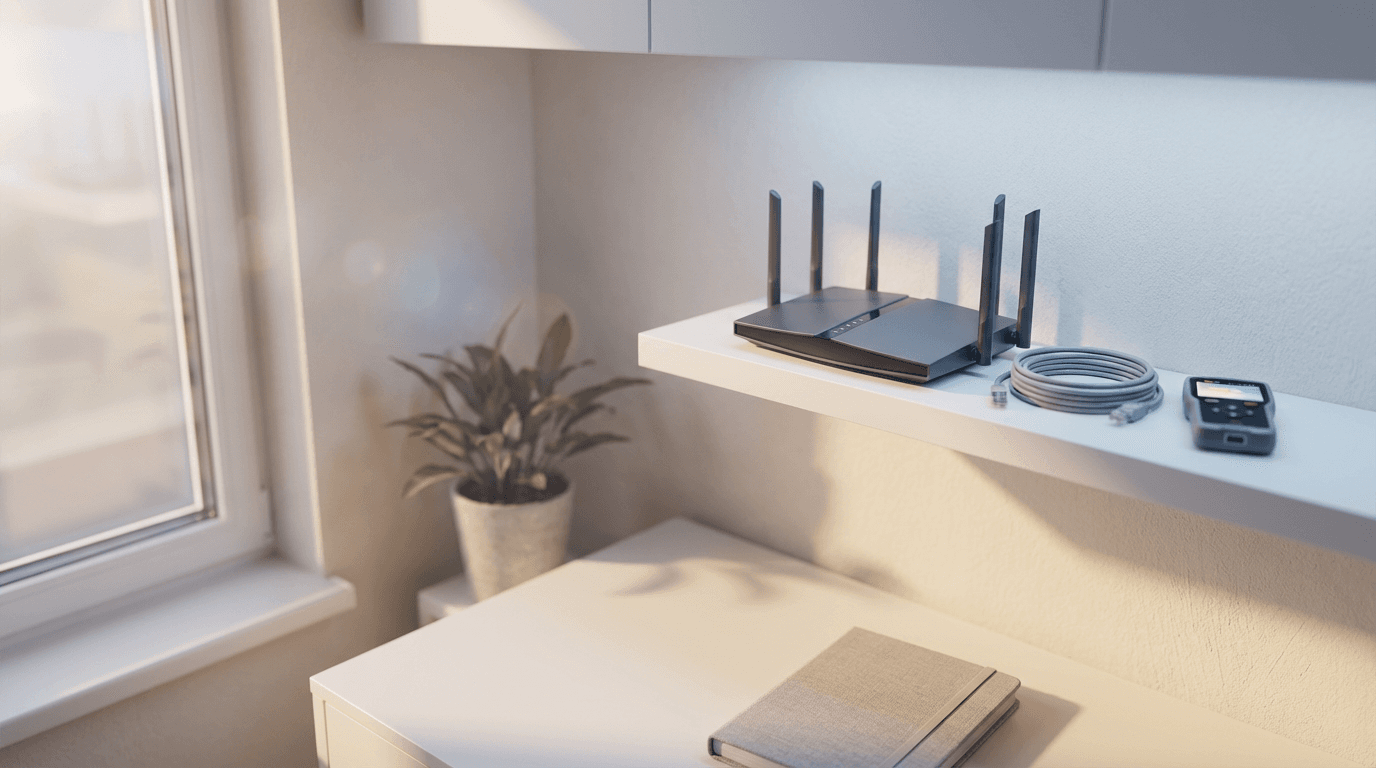
You can secure home wifi network by changing default router credentials and regularly updating firmware to protect against security vulnerabilities. Bristol residents should also use strong WPA3 encryption, choose a unique SSID name, and disable remote management features to block unauthorized access.
Most Bristol residents treat their home Wi-Fi as a set-and-forget utility, but a standard router configuration is often an open door for local cyber threats. If your connection feels sluggish or you notice unfamiliar devices on your network list, your digital privacy is already at risk. As home offices and smart appliances become more integrated in 2026, a breach in your living room can quickly compromise your professional data and personal identity. This guide provides a clear, expert roadmap to fortify your network perimeter. You will learn how to lock down your admin portal, implement robust encryption, and use guest networks to isolate vulnerable smart devices. We also cover essential maintenance tasks like firmware updates and the warning signs of a compromised system. By following these practical steps, you can ensure your Bristol home connection remains private, fast, and secure.
Why Your Home Wi-Fi Security Matters More in 2026
Your home network functions as the digital front door to your personal and professional life. In 2026, this connection is more than just a tool for browsing the web; it is the essential foundation for remote working, online banking, and keeping in touch with family. Across Bristol, from the terrace houses of Bishopston to the garden flats in Clifton, more residents are now handling sensitive employment documents and private financial data directly from their living rooms.
Maintaining a secure home wifi network is vital because a single vulnerability in an outdated router or a weak password can act as an open invitation for identity theft. When your connection is unsecured, you risk exposing your banking credentials or confidential work files to malicious actors. This does not mean you need to live in fear, but it does mean that basic precautions are no longer optional to protect your digital identity.
The goal is to move from a place of technical uncertainty to total peace of mind. Many people find the jargon surrounding routers and encryption overwhelming, which is why local support exists to simplify the process. If you are starting fresh or moving house, getting a professional computer setup in Bristol can ensure your security is handled correctly from day one. SWIT acts as your local helper, ensuring your digital doorstep is as locked and secure as your physical one.
The First Step: Lock Your Router Admin Portal
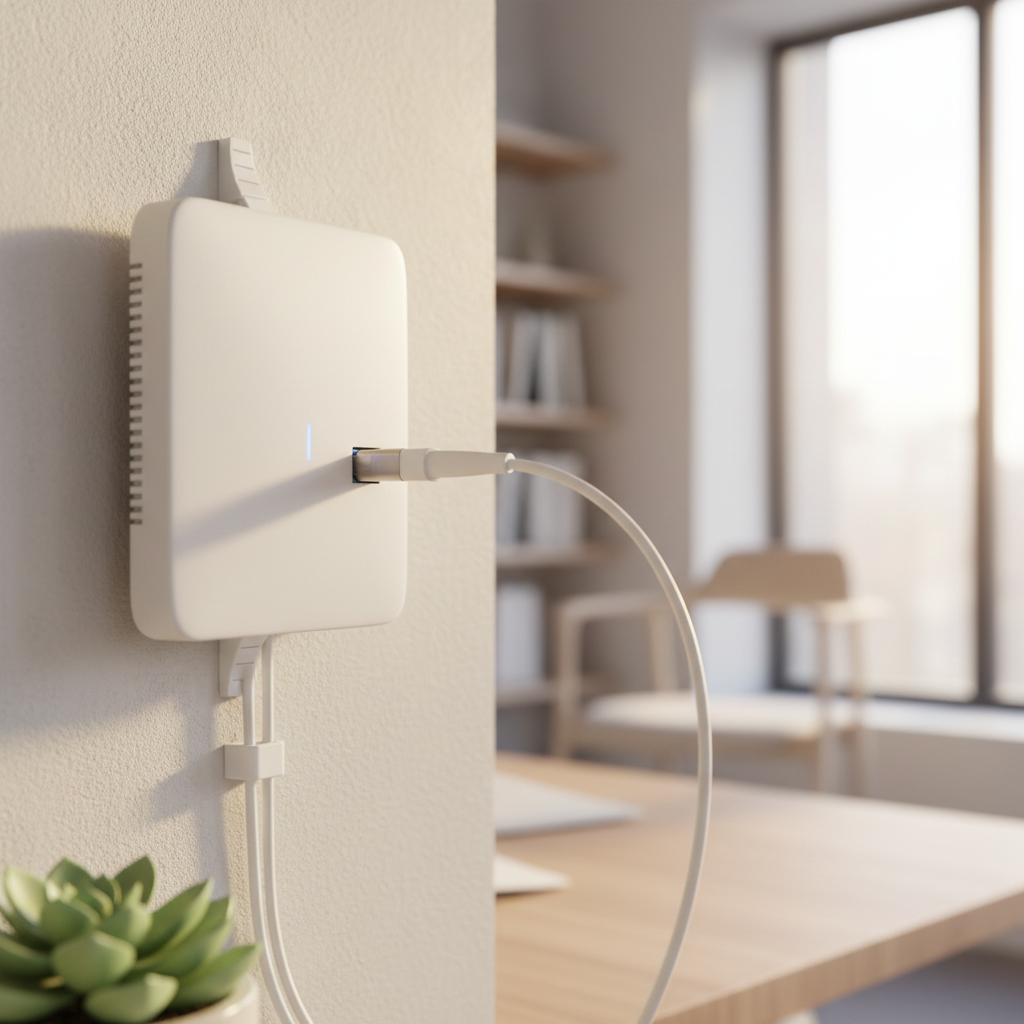
To create a truly secure home wifi network, you must begin at the source: the router admin portal. This is the command center where all your network rules are set. Most routers supplied by major UK providers arrive with a default username like "admin" and a generic password like "password" or "admin". These credentials are often printed on a sticker on the back of the device, but they are also documented in public databases online. If a malicious actor gains access to this portal, they can redirect your traffic, view connected devices, or even disable your security features entirely.
Accessing these settings is straightforward. You will need to type your router’s IP address into a web browser on a device already connected to the network. If you are unsure of the address, you can usually find it by checking the sticker on the router or looking at the gateway details in your device's network settings.
Common Router Types | Typical IP Addresses |
|---|---|
Standard/Generic Routers | 192.168.1.1 |
Common ISP Hubs | 192.168.0.1 |
Specialist/TP-Link | 192.168.1.254 |
It is important to distinguish between your Wi-Fi password and your Admin password. The Wi-Fi password is what you give to guests or type into your phone to get online. The Admin password is the master key for the hardware itself. Changing the Admin password should be your first priority. If the process feels daunting, you can contact SWIT for a security audit to ensure every door to your network is properly bolted. Once you are logged in, navigate to the "Security" or "System Tools" tab to update these credentials. This simple change effectively locks the control panel against anyone who isn't physically in your home.
Choose a Strong Network Name and Encryption Type
Once you have secured your admin portal, the next step is to configure how your network identifies itself and how it protects the data travelling through the air. Your network name, technically known as an SSID (Service Set Identifier), is the public label people see when they search for available Wi-Fi on their devices.
It is best to choose a name that is anonymous. Avoid using your family name, house number, or the default name provided by your internet service provider. Names like "Sky-9A2B" or "BT-Hub-123" tell a potential intruder exactly what brand of hardware you are using; this makes it easier for them to look up specific vulnerabilities for that model. A neutral name like "BristolBlueCloud" or "RainyDayNet" provides no clues about who you are or what equipment you have installed.
Encryption is the most critical layer of defense for a secure home wifi network. Think of encryption as a secret code used by two people to talk in a crowded room. Even if everyone else can hear the sound of the voices, they cannot understand the conversation because they do not have the key to the code.
Encryption Type | Status in 2026 | Recommendation |
|---|---|---|
WPA3 | Current Gold Standard | Use if your devices support it |
WPA2 (AES) | Minimum Acceptable | Secure enough for most home use |
WEP or WPA | Obsolete | Extremely vulnerable; update immediately |
In 2026, WPA3 is the gold standard for security, offering much better protection against modern password-cracking attempts. To check your current security type, open the Wi-Fi settings on your smartphone or laptop, select your network, and look for a section labelled "Security" or "Security Type" in the connection details. If you see WEP or WPA, your data is at risk and your settings require an immediate update to ensure your information remains private.
Why You Should Set Up a Guest Network for Smart Devices
Modern households in 2026 are filled with smart gadgets, ranging from video doorbells and smart bulbs to connected appliances like fridges or thermostats. These are collectively known as the Internet of Things (IoT). While these devices add convenience, they often lack the robust security found in your smartphone or laptop. Many manufacturers release these products with minimal protection, making them the most vulnerable entry points for hackers.
To bridge this security gap, you should utilize the Guest Network feature on your router. A Guest Network is a separate broadcast signal that allows devices to access the internet without being able to see or interact with other equipment on your primary network. By placing your smart bulbs and cameras on this isolated island, you create a digital firewall. If a vulnerability in a cheap smart plug is exploited, the intruder remains trapped on the Guest Network, unable to reach the laptop you use for work or the tablet where you access your bank accounts.
Device Type | Recommended Network | Reason |
|---|---|---|
Laptops & Phones | Main Network | Access to personal files and printers |
Smart Bulbs & Plugs | Guest Network | Low security; no need to see other devices |
Security Cameras | Guest Network | High risk if breached; isolate from data |
Work PCs | Main Network | Requires highest encryption (WPA3) |
Setting this up ensures that a breach of a minor gadget does not lead to a total compromise of your personal data. If your router settings look like a maze, you can contact SWIT for a security audit to help configure these layers of isolation for you. This simple organizational change is one of the most effective ways to maintain a secure home wifi network in an increasingly connected world.
Firmware Updates: The Invisible Security Guard
Firmware serves as the internal brain of your router, controlling how the hardware interacts with the internet and your devices. Manufacturers frequently release updates to this software to patch newly discovered security holes and fix performance bugs. Neglecting these updates leaves your hardware vulnerable to exploits that have already been identified and fixed by the manufacturer, giving hackers an easy way into your home.
Modern routers in 2026 are significantly more automated than older models; many now feature maintenance settings designed to work in the background. To ensure your protection is current, log into your admin portal and navigate to the "Advanced" or "System" menu. Look for an option to enable "Auto-Update." This setting allows the router to download and install patches during the night, ensuring you are always running the latest version without any manual effort. Keeping this software current is a vital step toward a secure home wifi network. If your router settings appear confusing, or if you are using older equipment that may no longer receive updates, you can contact SWIT for a security audit to ensure your hardware is still fit for purpose.
Five Signs Your Wi-Fi Network Might Be Hacked

While staying current with firmware makes your hardware resilient, software alone cannot stop every sophisticated intrusion. Remaining vigilant for specific red flags is the best way to maintain a secure home wifi network and protect your personal files. If you suspect something is wrong, look for these five indicators that your connection may have been compromised:
Unexpected Performance Drops: If your streaming services are buffering or websites load slowly during off-peak hours in Bristol, such as late on a Tuesday evening when local network congestion is low, someone else may be using your bandwidth for heavy downloads.
Browser Redirects: You might find that your web browser frequently takes you to suspicious websites or shows strange search results instead of the pages you intended to visit. This often happens because a hacker has changed your DNS settings.
Mystery Devices: Checking your router’s 'Connected Devices' list might reveal hardware names you do not recognize, such as unfamiliar laptop brands or mobile devices that do not belong to your household.
Admin Portal Lockout: If the admin password you set previously no longer works, an intruder may have changed it to prevent you from regaining control of the hardware and kicking them off.
Frequent Security Warnings: Seeing alerts about expired certificates or blocked sites on multiple devices at once often indicates the router itself has been tampered with to show malicious content.
If you notice these symptoms, the safest immediate action is to pull the power plug on your router to cut the connection entirely. Since a hacked router requires a careful factory reset and technical reconfiguration to be safe again, you can contact SWIT for a security audit to ensure the intruder is fully evicted and your settings are restored correctly.
Advanced Steps for Better Protection
Once you have mastered the basics, turning off unnecessary features significantly reduces your attack surface. Two specific settings to look for are WPS (Wi-Fi Protected Setup) and Remote Management. These are often enabled by default but provide little benefit to the average user while creating notable security gaps.
WPS is designed for convenience, allowing you to connect devices by pushing a physical button or entering a short PIN. However, this PIN is notoriously easy for hackers to crack using automated tools. Remote Management is another feature that should be disabled; it allows the router settings to be accessed over the internet from anywhere in the world. While useful for IT departments in large offices, it is an unnecessary risk for a secure home wifi network.
Feature | Purpose | Security Risk | Recommendation |
|---|---|---|---|
WPS | Quick device pairing | Vulnerable to PIN brute-forcing | Disable |
Remote Management | Access settings via internet | Allows global login attempts | Disable |
The guiding principle for advanced security is simple: if you do not use it, turn it off. Disabling these entry points ensures that only people physically inside your Bristol home can attempt to interact with your hardware. If navigating these deeper menus feels risky, you can contact SWIT for a security audit to have a professional handle the configuration for you.
How SWIT Can Secure Your Bristol Home Network in the Evening
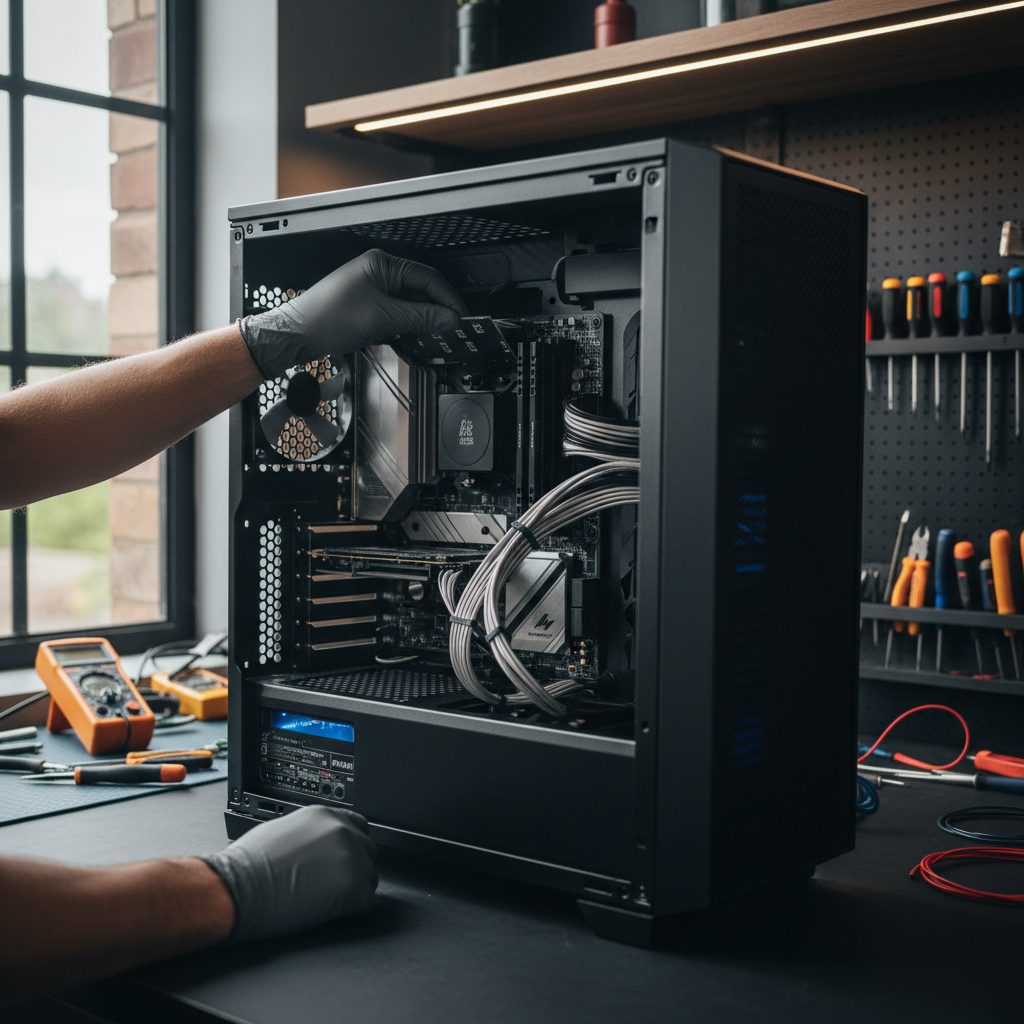
Navigating deep into router menus can feel like walking a tightrope; one accidental click can take the entire household offline. If you find the technical jargon of SSIDs and encryption types intimidating, you do not have to manage these risks alone. SWIT provides a dedicated service for Bristol residents who need a secure home wifi network but prefer the reassurance of an expert hand.
Because many households are busy during the working day, I offer flexible evening appointments throughout Bristol. During a visit, I can conduct a thorough security audit of your hardware and implement the layered defenses discussed in this guide. This includes:
Service Component | Practical Benefit |
|---|---|
Portal Lockdown | Changes default passwords to block unauthorized access |
Guest Network Setup | Isolates vulnerable smart bulbs and cameras |
Device Verification | Ensures laptops and phones use WPA3 encryption |
Firmware Check | Confirms your router software is fully up to date |
By choosing a professional computer setup in Bristol, you eliminate the stress of trial and error. You can contact SWIT for a security audit to book a time that suits your schedule, ensuring your digital life is protected while you focus on your work and family.
Protecting your home network is a vital step toward safeguarding your personal information and ensuring your family stays connected safely. By following these simple tips, you can significantly reduce your risk of cyber threats. If you find the technical aspects of network security a bit overwhelming or if you simply want expert help to ensure your setup is bulletproof, we are here to assist. You can learn more about our team and services to see how we can help you achieve total peace of mind.