You can learn how to protect your computer from viruses and scams by keeping your operating system updated, installing reputable antivirus software, and using strong passwords paired with two-factor authentication. It is also essential to avoid clicking suspicious links in phishing emails and to recognize common warning signs like fake pop-up alerts or unexpected browser toolbars.
The moment your computer screen freezes with a blaring warning or an unfamiliar login request, the immediate sense of panic is universal. For residents and business owners in Bristol, the reality of digital security has changed dramatically in 2026, as scammers now use sophisticated psychological tactics alongside malicious code to compromise your sensitive data. Relying on basic, set and forget software is no longer a viable defense against these evolving threats. This guide provides a direct, expert approach to safeguarding your devices and your peace of mind. You will discover five practical strategies to block modern viruses, learn how to distinguish legitimate alerts from predatory tech support scams, and identify the red flags that indicate your system is already compromised. We also provide actionable advice on protecting vulnerable seniors from fraud and the exact steps to take if you believe you have been hacked.
Why Home Computer Security Has Changed in 2026
The classic virus that purely exists to delete your files or break your hardware is largely a thing of the past. In 2026, the digital landscape has shifted toward social engineering. Instead of a faceless piece of code breaking into your machine, modern threats usually involve a scammer trying to trick you into handing over the keys yourself. These scams are designed to steal sensitive data or drain bank accounts through psychological pressure rather than technical wizardry.
Many Bristol residents tell me they feel overwhelmed by the constant stream of technical jargon and fear based marketing from big security firms. The reality is that keeping your device safe does not require a master’s degree in computer science or an expensive annual subscription to bloated antivirus software.
Modern security has improved significantly. Microsoft Defender, which is built into your system, is now a powerful tool that often outperforms paid alternatives. Protection today is less about buying the most expensive software and more about developing smart digital habits. As a local, straight-talking alternative to corporate tech support, I focus on helping you understand these shifts. During a professional computer setup, my goal is to simplify the complex world of how to protect your computer from viruses and scams without the corporate fluff.
5 Practical Ways to Protect Your Computer from Viruses Today
Understanding how to protect your computer from viruses and scams boils down to five fundamental steps. These actions are more effective than any expensive subscription because they address the root ways that modern threats operate. By following these practical habits, you can significantly reduce your risk without spending a fortune.
Keep Windows and software updated. Think of updates as essential digital repairs. Software developers regularly find "holes" or vulnerabilities that hackers could use to sneak into your system. By clicking "Install Now" on Windows Update or your web browser notifications, you are patching those holes before anyone can crawl through them. This is particularly vital for those still using older versions of Windows that no longer receive security support.
Trust Microsoft Defender. If you use Windows 10 or 11, you already have a high quality antivirus installed. Microsoft Defender is specifically designed for your operating system. Unlike some paid security suites, it does not slow down your machine with bloated features you do not need, and it avoids the constant sales pop-ups common in commercial software. For most Bristol home users, it provides robust, reliable protection.
Enable Multi-Factor Authentication (MFA). This is perhaps the most effective way to stop an intruder. MFA requires a second form of verification, such as a code sent to your phone, when you log in to important accounts like your email or online banking. It adds a second lock to your digital door that a scammer cannot easily pick, even if they manage to guess your password.
Use a password manager. Reusing the same password for every website is a major risk. If one site suffers a data breach, all your other accounts become vulnerable. A password manager creates and stores unique, complex passwords for every service you use. You only need to remember one master password, while the software handles the rest securely.
Maintain a physical or cloud backup. Security is never 100 percent guaranteed, so having a safety net is crucial. Regularly save your photos and documents to an external hard drive or a cloud service like OneDrive. If your system is ever compromised, a backup ensures your memories and files are safe. If you find the setup process confusing, you can contact SWIT for evening support to establish a reliable backup routine that runs automatically.
Spotting the Warning Signs: How to Tell if Your Computer Has a Virus
Recognising a breach early can be the difference between a quick fix and a total loss of data. While modern threats are often subtle, they usually leave a trail of breadcrumbs. One of the most obvious signs is a sudden change in how your web browser behaves. If you open Chrome or Edge and find your homepage has changed to a website you do not recognise, or if new toolbars have appeared at the top of the screen that you did not install, your browser has likely been hijacked.
You should also watch for the computer acting on its own. This might include programmes opening automatically or your mouse cursor moving without your input. However, it is important to differentiate between a generally slow computer and a compromised one. An older PC might be sluggish because of a failing hard drive or too many junk files clogging up the system. A compromised computer usually experiences a sudden, drastic drop in performance. This is often accompanied by unusual network activity or your cooling fan spinning loudly even when you are not using any intensive software.
The most serious red flag is when your security software, such as Microsoft Defender, is suddenly disabled and will not turn back on. Malware often tries to kill the antivirus first to prevent being quarantined. If you notice these symptoms, it is vital to act quickly. You can always contact SWIT for evening support if your machine begins behaving strangely; an expert eye can quickly distinguish between a hardware fault and a genuine security breach. Learning these signs is a core part of knowing how to protect your computer from viruses and scams effectively.
The Tech Support Pop-Up: What to Do When Your Screen Freezes with a Warning

The most heart-stopping moment for many Bristol computer users is the sudden appearance of a full-screen, bright red or blue warning accompanied by a loud siren or a robotic voice. These alerts often claim that your system is compromised and demand that you call Microsoft Support immediately at a provided phone number to avoid data loss. This is a 100 percent guaranteed scam. It is a psychological trick designed to create a sense of urgency, making you act before you think.
The most important rule in learning how to protect your computer from viruses and scams is simple: legitimate technology companies will never contact you via a browser pop-up. Microsoft does not monitor your computer in real time to provide phone-based technical support; they will never freeze your screen to demand a phone call. If you see this, your computer hasn't necessarily been breached in a way that requires a full rebuild. You have simply landed on a malicious website designed to look like a system error.
If your screen freezes and you cannot click away, follow this Emergency Exit guide:
Do not call the number. Calling gives the scammer the chance to use social engineering to gain remote access to your machine.
Avoid clicking anywhere on the pop-up. Even clicking the X or Cancel button can sometimes trigger a malicious file download.
Press Ctrl + Alt + Delete. This keyboard shortcut is your master override.
Select Task Manager. In the list of active programmes, find your web browser, such as Microsoft Edge, Google Chrome, or Firefox.
Right-click the browser and select End Task. This kills the browser process and the fake warning along with it.
Restart your computer. This clears out any lingering temporary files from the session.
When you reopen your browser, it may ask if you want to restore pages. Always click No or Start Fresh to avoid reloading the scam site. If these pop-ups persist, it often indicates that a junk programme or a rogue browser extension has been installed. I often resolve these issues during a professional computer setup to ensure your browser is clean and secure. If a warning has left you feeling uneasy, you can contact SWIT for evening support to run a deep scan and confirm your data remains private.
Protecting Vulnerable Family Members and Seniors from Scams
Helping a less tech-savvy relative navigate modern threats requires a proactive setup rather than just reactive advice. One of the most effective ways to protect seniors from computer scams is to change their Windows account type. Most PCs are configured with an 'Administrator' account by default, which grants permission to install any software or change deep system settings. By switching a family member to a 'Standard' user account, Windows will prompt for a password before any new programme can be installed. This small hurdle often prevents accidental malware downloads and gives them a moment to pause before a mistake is made.
Scammers frequently exploit tools like AnyDesk or TeamViewer to take remote control of a victim's machine. They usually claim to be from a trusted organisation like a bank, a utility provider, or even the police. It is vital to teach vulnerable family members a simple rule: never allow a stranger to access your computer remotely, regardless of how convincing they sound. Legitimate organisations will never cold-call you and ask to take control of your screen to fix a problem or process a refund. If a relative mentions they were asked to download a specific tool to help with a security check, it is a definitive sign of a scam.
Education is the most powerful tool in learning how to protect your computer from viruses and scams. I often recommend the Stop! Think Fraud website as a clear, UK-based resource for staying updated on current tactics. If you are setting up a device for an older relative, a professional computer setup can include configuring these security layers and providing a jargon-free explanation of what to watch out for. If you are worried about a family member's device, you can contact SWIT for evening support to ensure their system is locked down and secure.
What to Do if You Think You Have Been Hacked
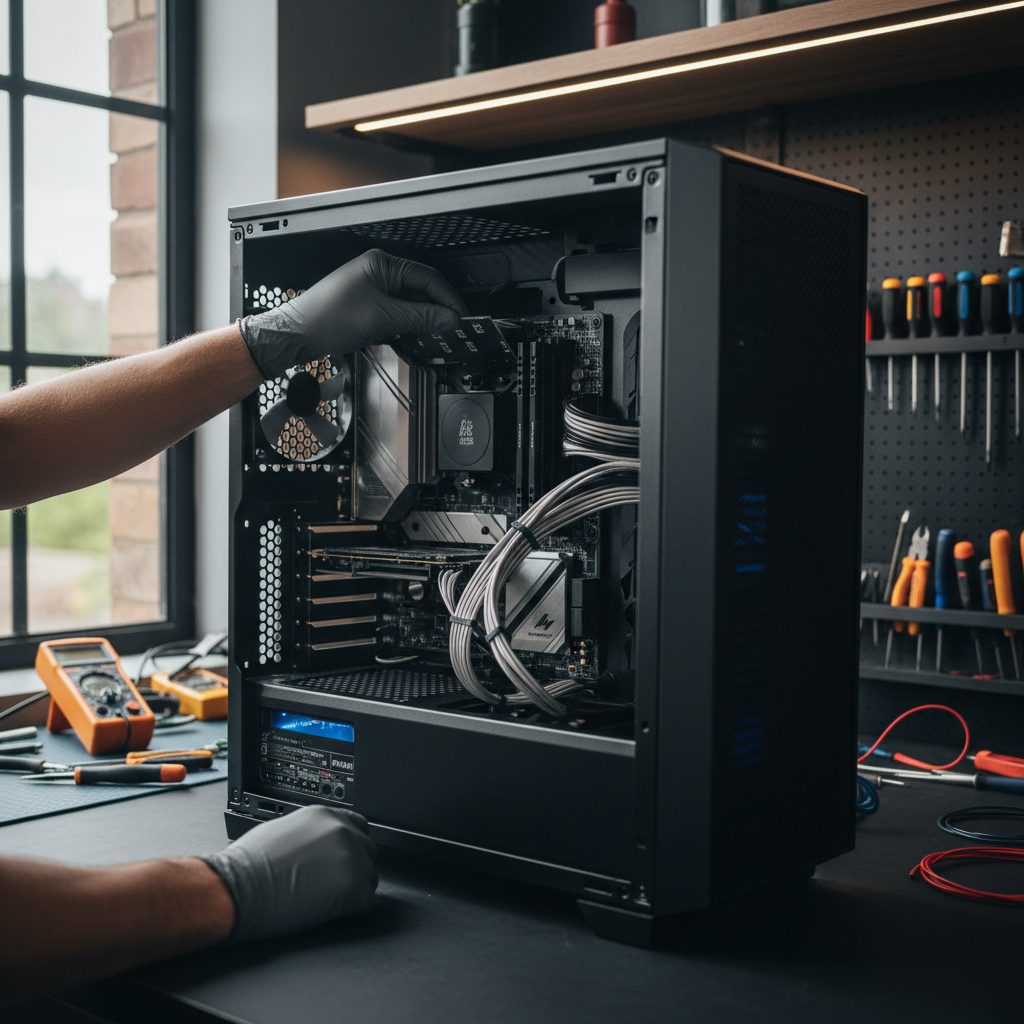
If you suspect your security has been breached, take immediate action to limit the damage. The first step is to isolate the machine by disconnecting it from the internet. Turn off the Wi-Fi or physically unplug the network cable. This prevents a remote attacker from continuing their session and stops malware from sending your private data to an external server.
Once isolated, follow this recovery checklist: 1. Run a full system scan. Open Microsoft Defender and select a 'Full Scan' rather than a 'Quick Scan' to ensure every file is checked for malicious code. 2. Change your passwords using a different device. Use your smartphone or a tablet to update passwords for your email, bank, and primary accounts. Using the compromised computer to change passwords could allow a hidden 'keylogger' to record your new credentials. 3. Audit your financial accounts. Log in to your banking apps to check for unauthorised transactions or unusual direct debits, even small amounts. 4. Check your 'Sent' folder. Look for emails you did not write, which suggests your account is being used to spread spam.
If the system remains unstable or security software keeps failing, a factory reset is the most effective last resort. It wipes the entire drive and reinstalls Windows, providing a clean start. Understanding how to protect your computer from viruses and scams includes knowing when to call for help. If you are unsure how to safely wipe your machine or need a professional computer setup to secure your data after a breach, you can contact SWIT for evening support. I provide home visits across Bristol to handle the technical recovery process at a time that suits your schedule.
Staying safe online requires a combination of smart habits, updated software, and constant vigilance. While these steps significantly reduce your risk, technology can still feel overwhelming at times. If you would prefer to have a professional handle your security setup, we are here to support you. You can learn more about our approach to digital safety and how we help people across Bristol stay protected. Our team makes sure your devices remain secure so you can browse with confidence.